
PC Fixes
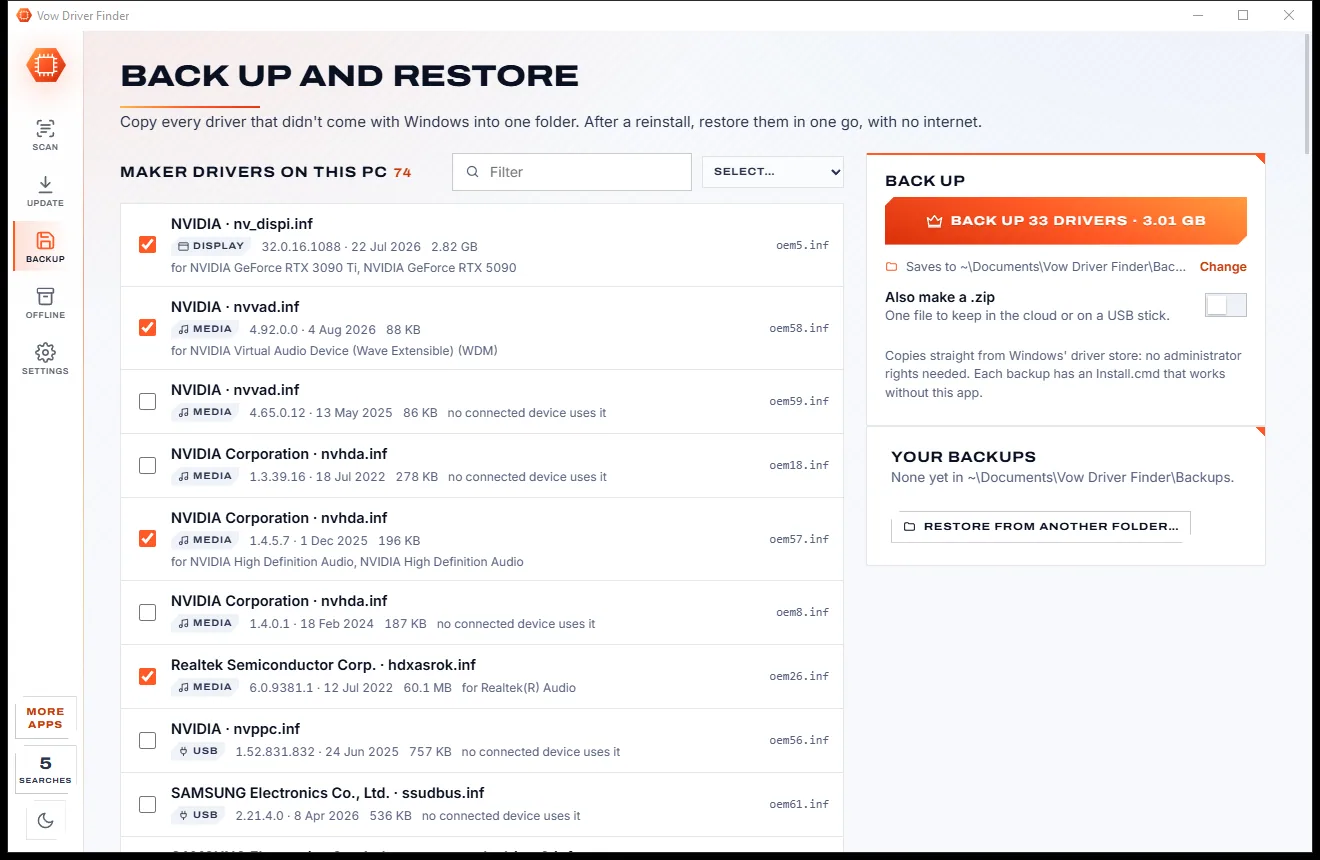
Vow Driver Finder
Find the drivers your PC is really missing, from official sources only
- Free: Unlimited scans, official links, 5 in-app searches a day
- $4.95 once: One-click install, backup and restore, offline driver packs

Classic menu & taskbar tweaks for Windows 11
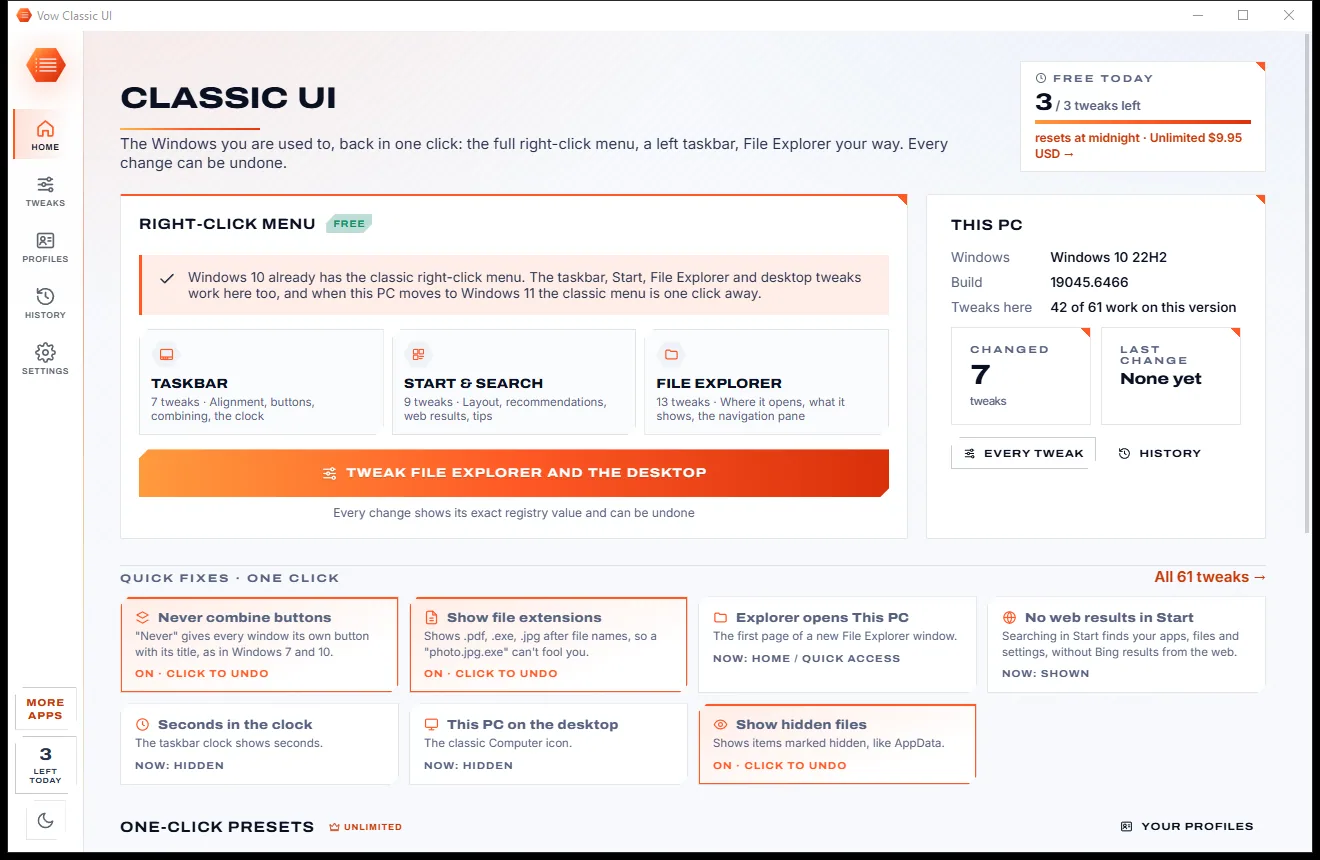
Vow Classic UI restores the full right-click menu in one click, free, and brings back the taskbar, Start and File Explorer the way power users like them. It only changes documented Windows settings, so updates can't break it, and every change can be undone.
The problem
Half the right-click menu behind an extra click, taskbar buttons merged into icons, web results in Start. And the usual fixes either patch Windows or come from a forum post.
7-Zip, Notepad++ and your other tools hide behind an extra click in Windows 11's short right-click menu.
Windows of the same app collapse into one icon with no titles, so finding the right document takes extra clicks.
Search for a file and get web results, recommendations and "finish setting up" nags instead.
Tools that hook into Explorer itself can stop working the day a Windows update lands, until their developer catches up.
A .reg file from a forum post changes something, somewhere, and there's no clean way back if it goes wrong.
You finally get Windows the way you like it, and a big update quietly resets half your settings.
Vow Classic UI fixes all of it.
How it works
Every tweak shows what your PC uses now, what will change and the exact registry value behind it.
One click on Home, free any number of times. Explorer restarts for a second and your open folder windows come back.
Taskbar, Start, File Explorer and desktop tweaks, each showing what this PC uses now. Your choices wait as pending changes.
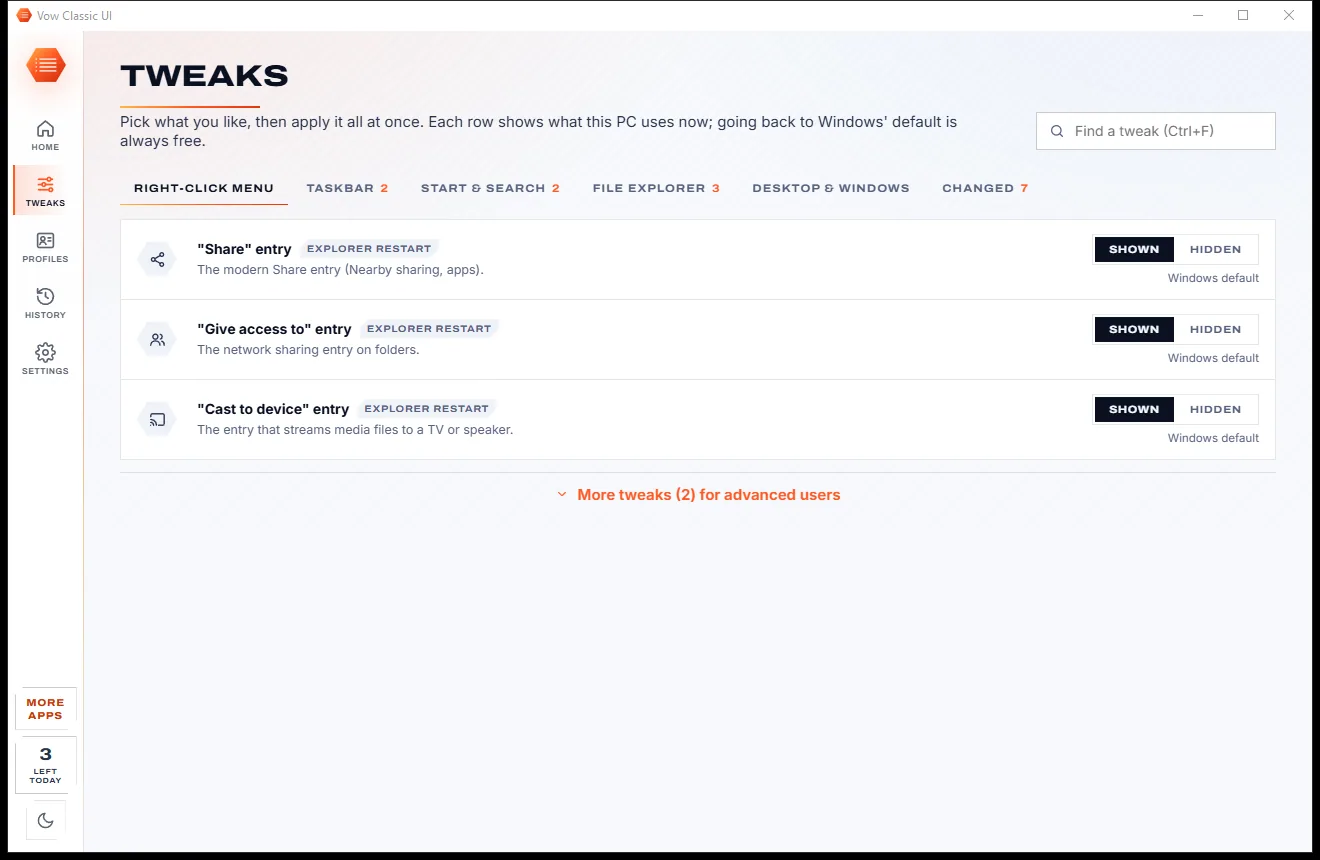
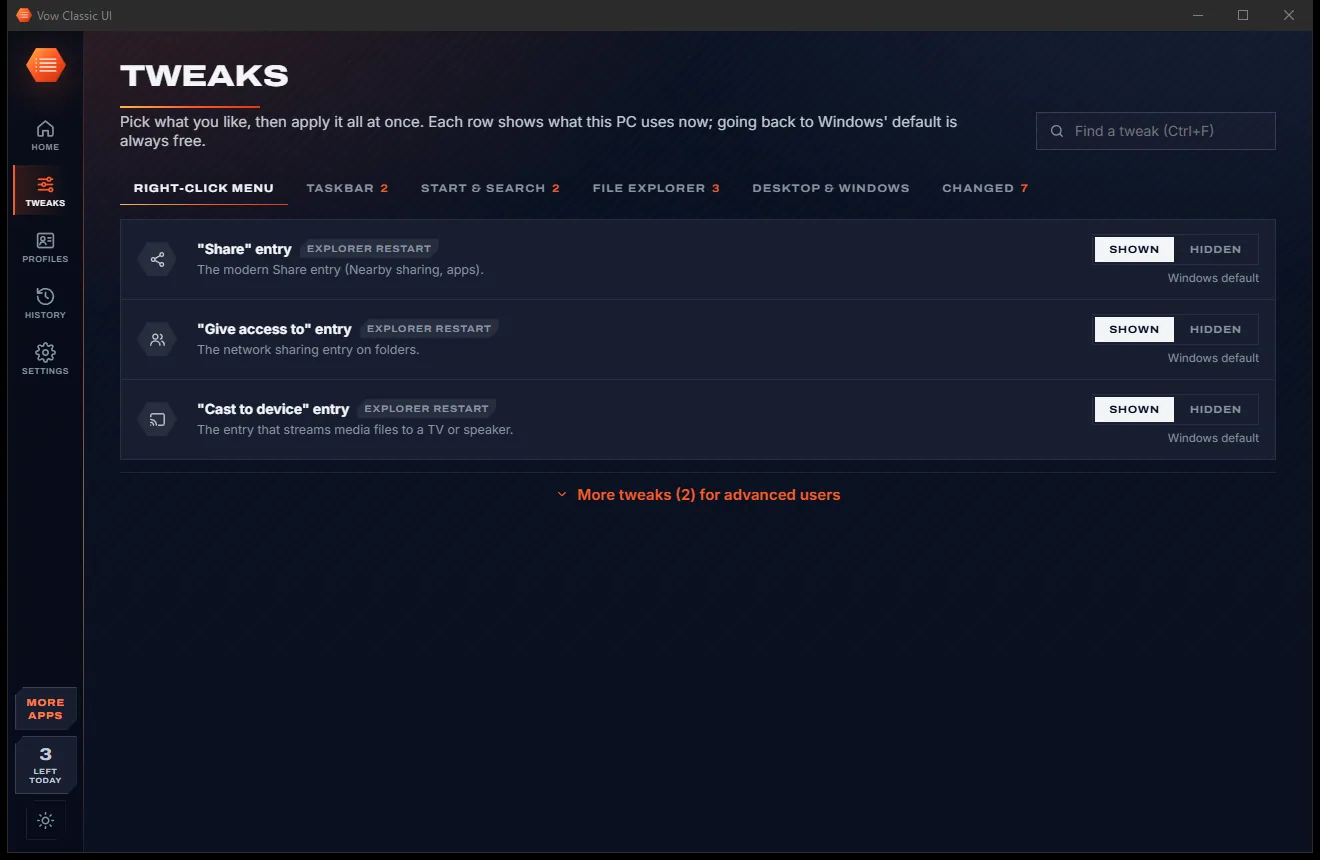
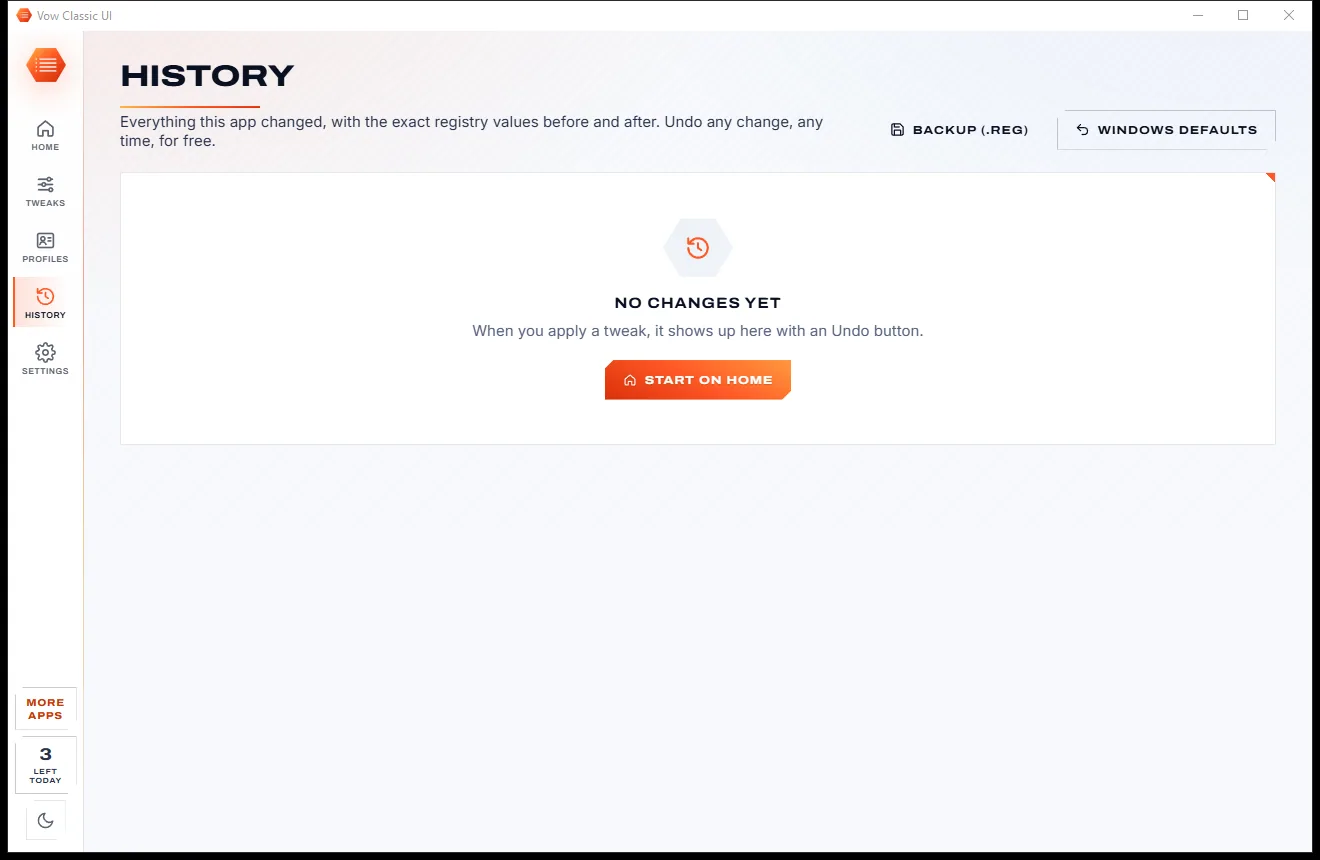
Apply writes them together with at most one Explorer restart. History keeps the exact values from before, with Undo for each change.
Features
For people who know how they like Windows, and want it that way without patching Explorer.
The classic menu with every app's entries, plus options to hide Ask Copilot, Clipchamp, Share, Cast to device and other clutter.
Left alignment, never combine buttons, End task, seconds in the clock, and the search box, Widgets, Chat and Copilot buttons hidden.
No web results, recommendations, account notifications or tips, and a layout with more pins.
Opens to This PC, shows extensions and hidden files, full path in the title, compact view and a classic navigation pane.
This PC, user folder, Network, Control Panel and Recycle Bin icons, classic Alt+Tab and Snap options.
Every value is recorded before it is written. Undo restores it exactly, and a change that fails half way is rolled back.
Show the exact registry value under every tweak, and see a preview of every change before a preset applies.
No code injected into Explorer, no driver and no background service: only documented Windows settings.
Windows 10 feel, Power user and Clean & quiet presets, plus your own setups exported as a file for your next PC.
Spots when an update puts settings back and re-applies yours in one click, or automatically at sign-in with Unlimited.
Light & dark theme
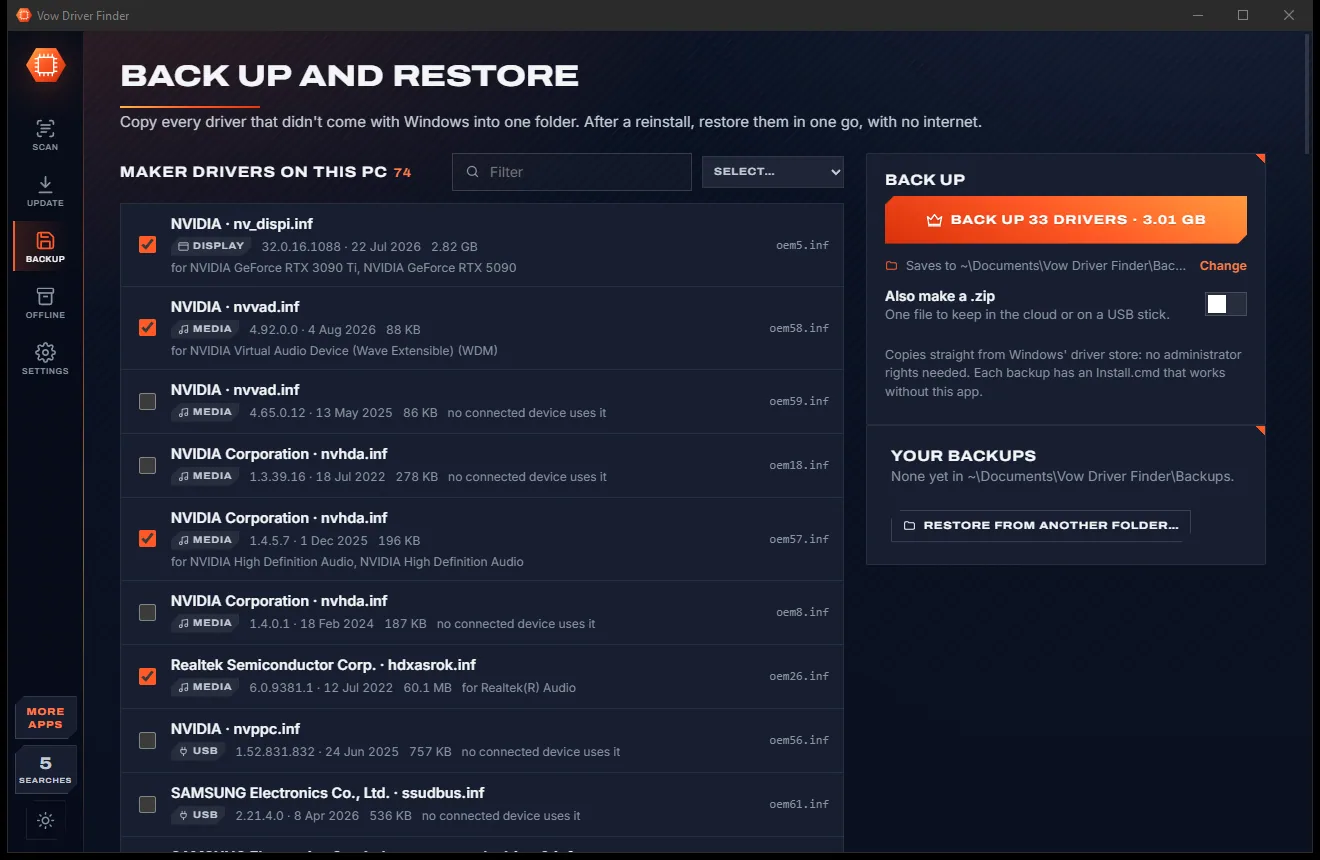
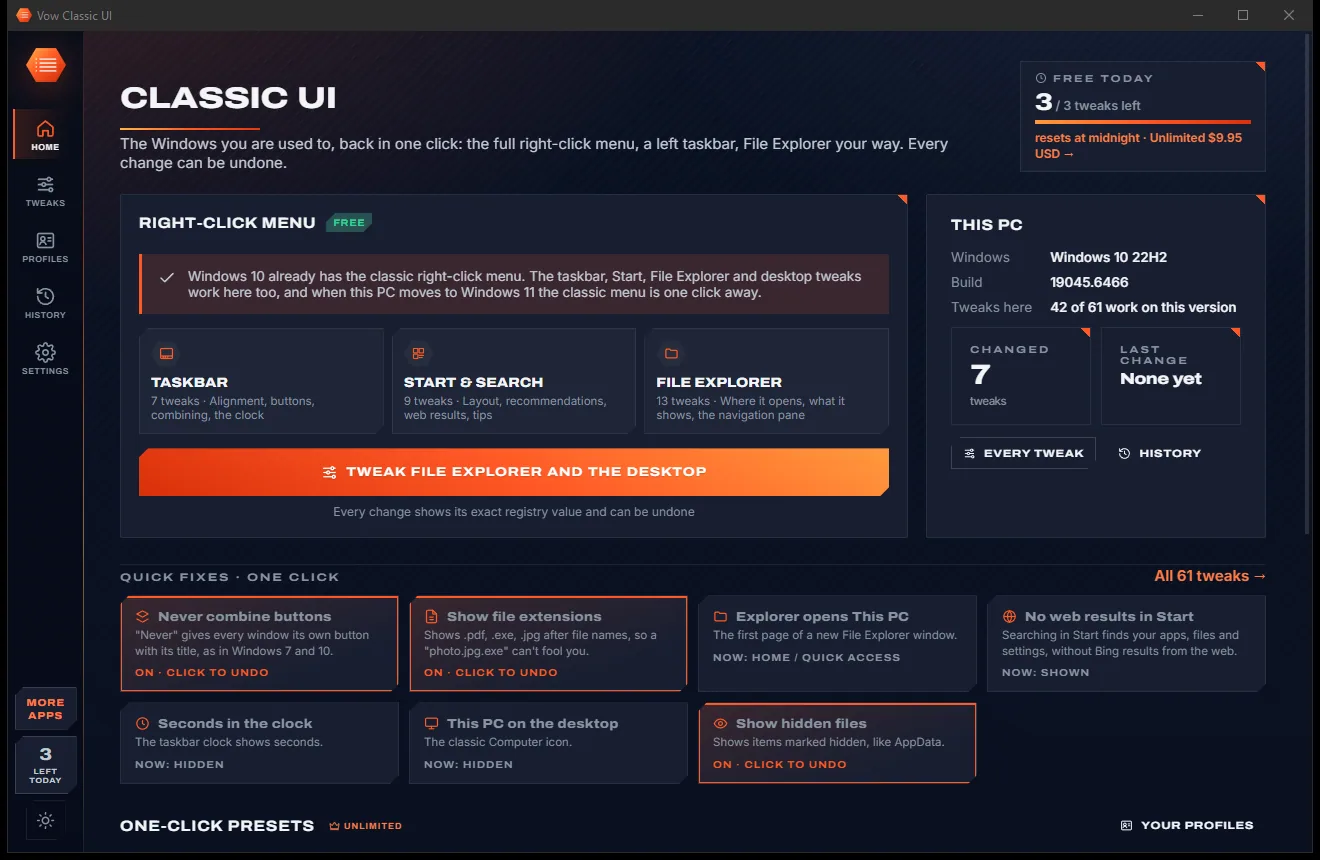
Classic UI comes with a crisp light theme and a calm dark theme. Switch with one click, or let it follow your Windows setting by itself. It remembers your choice.
Screenshots
Real screenshots of the real app, in both of its themes: 8 light, 8 dark. Click any picture to see it full size.
Light theme
Dark theme
Who it's for
Keep the menu, taskbar and Explorer habits of years, instead of relearning them.
File extensions, hidden files, full paths and End task on the taskbar, set up in a minute.
Import your saved profile and the new PC behaves like the old one in one click.
Clean & quiet removes web results, tips, nags, sync banners and Copilot entries in one go.
Set several PCs up the same way, with a .reg backup and Windows defaults one click away.
7-Zip, Notepad++ and antivirus entries back in the first menu, where they belong.
Compare
The same classic Windows, without code injected into Explorer or .reg files you can't undo.
| Feature | Vow Classic UI | Explorer patchers & forum .reg files |
|---|---|---|
| How it changes Windows | Documented registry settings only | Code injected into Explorer, or unknown .reg files |
| Survives Windows updates | Yes, and re-applies if Windows resets | Can break when an update lands |
| Background service or driver | None | Often needed |
| Exact undo for every change | Before values recorded, one click back | Rarely; .reg files have none |
| Shows the registry value | Under every tweak | Hidden |
| Knows your Windows version | Tweaks that don't fit are hidden or explained | Trial and error |
| History and backups | 300 change sets, daily .reg backup | None |
| Price | Classic menu free, $9.95 once for the rest | Free with no undo, or paid licences |
"Typical" describes what we found across the most-downloaded alternatives when we built Classic UI. Your mileage with any one of them may vary; ours won't.
Pricing
That is not a typo. Software this powerful usually means a monthly subscription; Classic UI is $9.95, once, for life: it's almost a giveaway. Use it free for as long as you like, and unlock Unlimited only if you need more.
The classic right-click menu any time, plus 3 other tweaks a day.
Almost a giveaway. Less than a takeaway lunch for software this powerful: no subscription, no renewals, yours for life on 2 PCs.
Every tweak, one-click presets, saved profiles and Keep my tweaks.
Payments by Stripe: we never see or store your card. Questions? Ask a real person.
Clean software
Most "free" Windows downloads pay for themselves with ads, bundled extras or your data. Vow Classic UI doesn't need to: it's paid for honestly, once, by the people who find it useful.
Download Classic UI freeStep-by-step guide
Restore the full menu, then tune the taskbar, Start and File Explorer, with an undo for every step.
Step 1: get it freeDownload it from this page and run the installer. It installs for your user only, with no administrator rights and no account.
On Home, click the orange button. Choose Restart now when asked: Explorer restarts for a second and your open folder windows come back.
Eight one-click tiles cover the favourites: taskbar on the left, never combine, End task, file extensions, This PC and no web results. Click again to undo.
Browse by area or press Ctrl+F. Pick options to build a list of pending changes, then press Apply (Ctrl+Enter) to write them together.
Save your setup as a profile for other PCs. Undo any change in History, or press Windows defaults to put everything back the way Windows ships.
Technical details
FAQ
Yes. The classic right-click menu is free for good, on and off as often as you like, plus 3 other tweaks a day. Undo, history, backups and Windows defaults are always free. Unlimited, a one-time $9.95 USD payment, opens all 61 tweaks without a daily limit, one-click presets, saved profiles and Keep my tweaks.
Open the app and press Restore the classic menu on Home. Explorer restarts for a second and right-clicking shows the full menu with every app's entries straight away. Back to the Windows 11 menu reverses it just as quickly.
Yes. Every value is recorded before it is written, and Undo in History restores it exactly, removing anything the change created. Windows defaults puts every tweak back the way Windows ships, and a .reg backup lets you restore today's values with a double-click.
A big update can put some settings back. The app notices and re-applies your tweaks in one click, free. With Unlimited, Keep my tweaks does it for you at sign-in.
Yes. Windows 10 already has the classic menu, and the 42 tweaks that apply to it work: Explorer, desktop icons, the search box, combine buttons, Alt+Tab and more. Tweaks that don't fit your version are hidden or greyed out with the reason.
No. Everything is a per-user setting. Only two optional all-users policies, for Widgets and Start web results, ask Windows for permission, once per apply.
It only changes documented Windows settings in the registry. It injects nothing into Explorer, installs no driver and runs no background service, so a Windows update can't break it, which is the main complaint about Explorer-patching tools. Every change shows its exact value and can be undone.
Yes. It is made and published by XTO Pty Ltd, an Australian company. There are no ads, no bundled software and no account, it needs no administrator rights, and when you uninstall it offers to put back the Windows settings it changed.
The Vow collection
Same design, same promises, a tiny one-time price. Learn one and you already know them all.
Find the drivers your PC is really missing, from official sources only

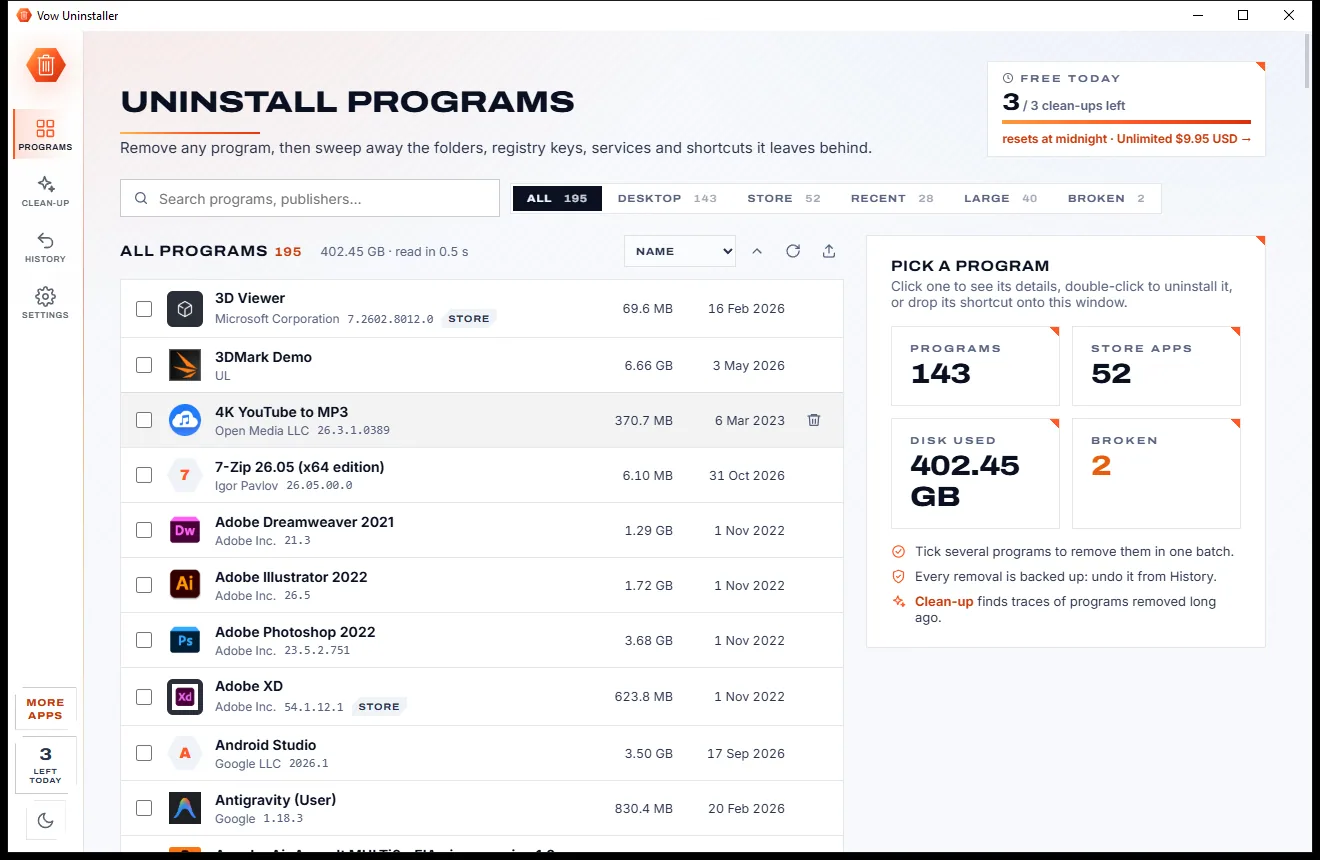
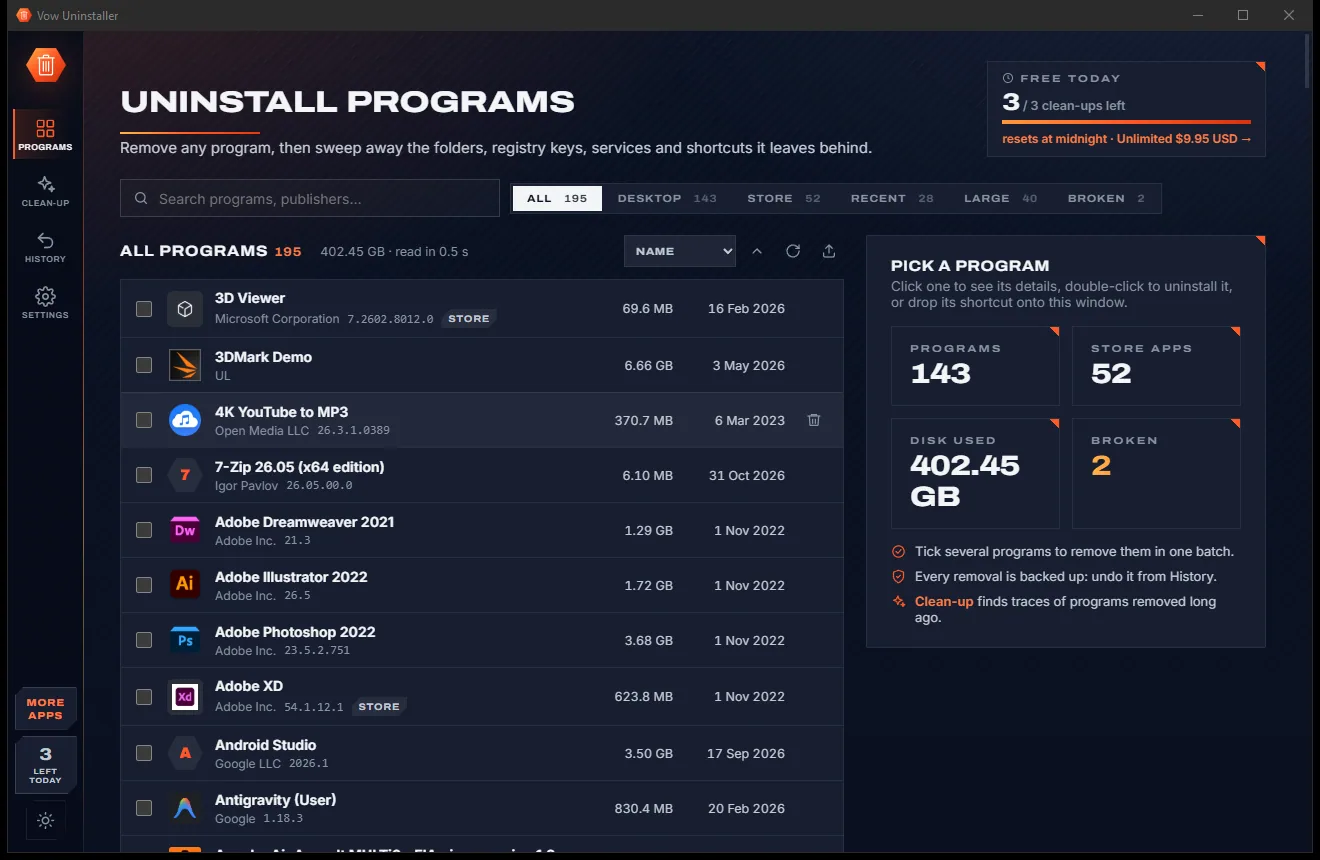
Uninstall programs completely, and undo it if you change your mind

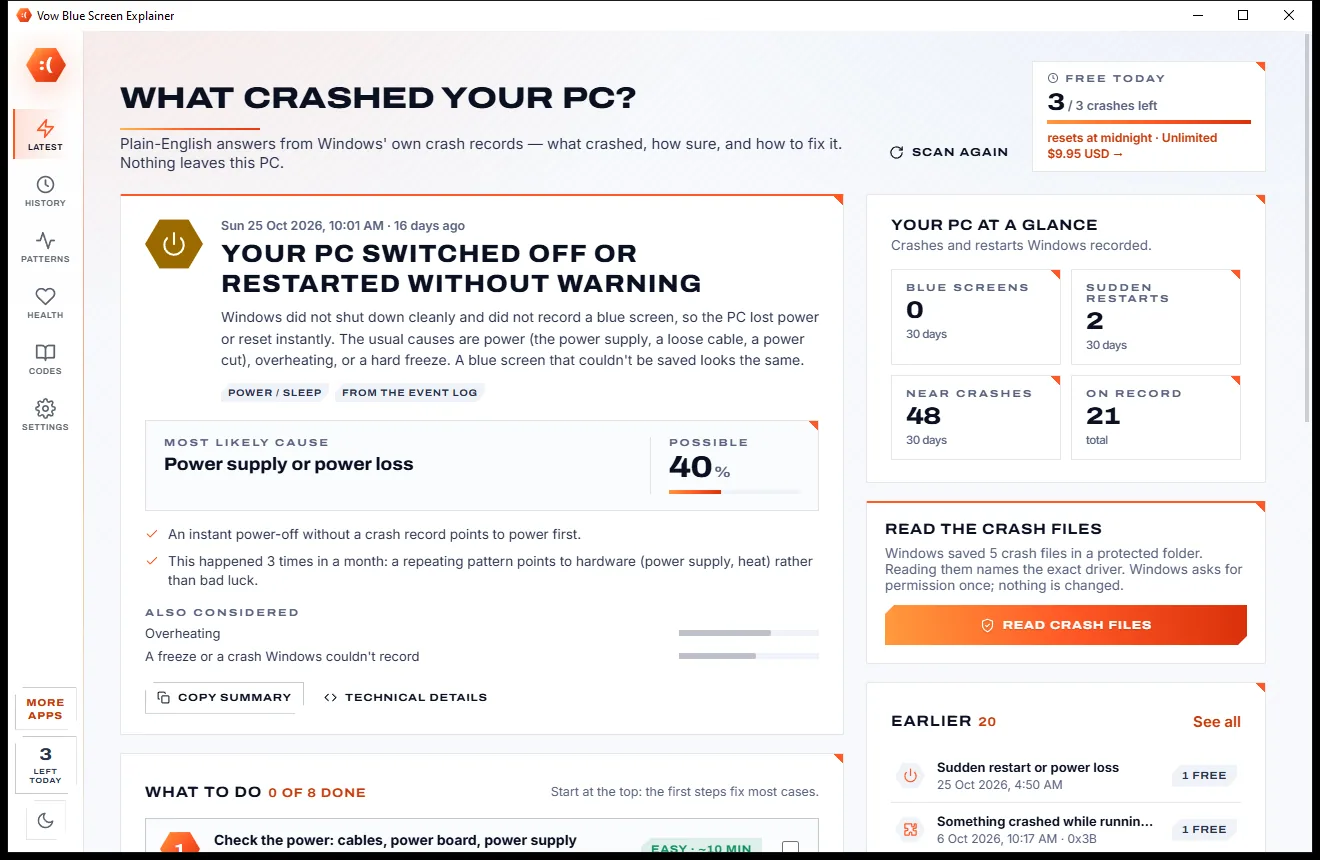
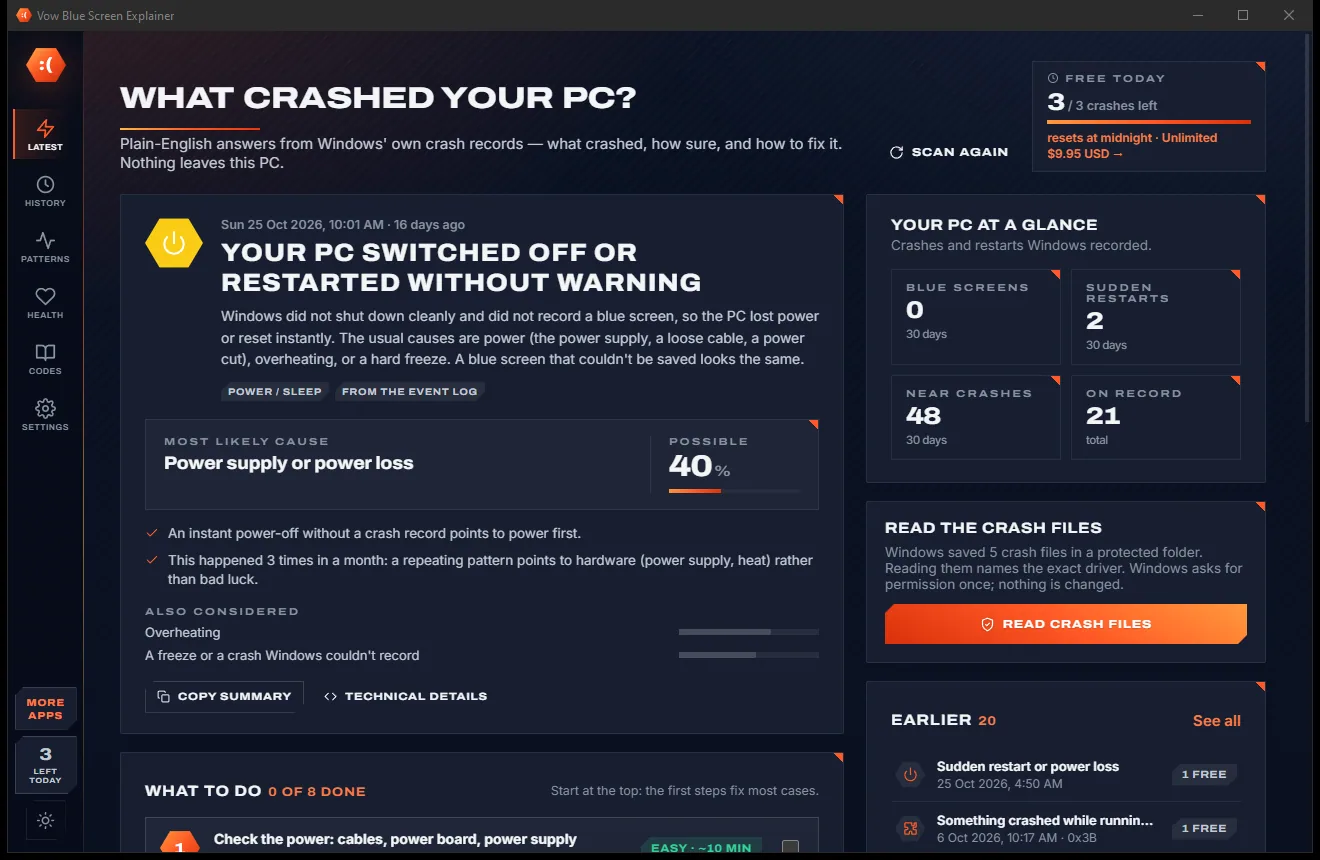
Find out what crashed your PC, in plain English, with the fix
The classic right-click menu and taskbar back on Windows 11, in one click. Free to use every day, $9.95 once if you ever want Unlimited.