
Productivity
Vow Second Screen
Turn a tablet or phone into a second screen for your PC, in its browser
- Free: 3 sessions a day of 30 minutes, HD picture, view only, one device
- $4.95 once: Any length, up to 4K, touch, pen and keyboard, up to 6 devices

Window manager for Windows 10 and 11
Plug in the laptop and everything lands on one screen. Not any more. Vow Window Layouts remembers where every window sits on each monitor setup and puts it back in one click, or by itself. Plus always on top, see-through windows and 12 snap layouts.
The problem
Windows is good at opening windows and poor at remembering where you put them, especially with more than one screen.
Undock the laptop, wake the PC or reconnect a monitor, and every window ends up stacked on the main display.
Every morning, the same five minutes of moving, resizing and lining windows up before you can start.
A window opens on a monitor that is not plugged in any more, and its title bar is nowhere to be grabbed.
The video call, the notes or the chart you need to watch keeps disappearing behind whatever you click next.
One app for snapping, another for always on top, a third for saved positions, each with its own settings.
Powerful window managers often hide saving a layout behind profiles, triggers and script editors.
Vow Window Layouts fixes all of it.
How it works
Set your windows up once. From then on, one click, one hotkey or the monitors themselves put them back.
Click a window, then a zone in any of 12 layouts, or press Ctrl+Alt and an arrow. Pin it on top or make it see-through.
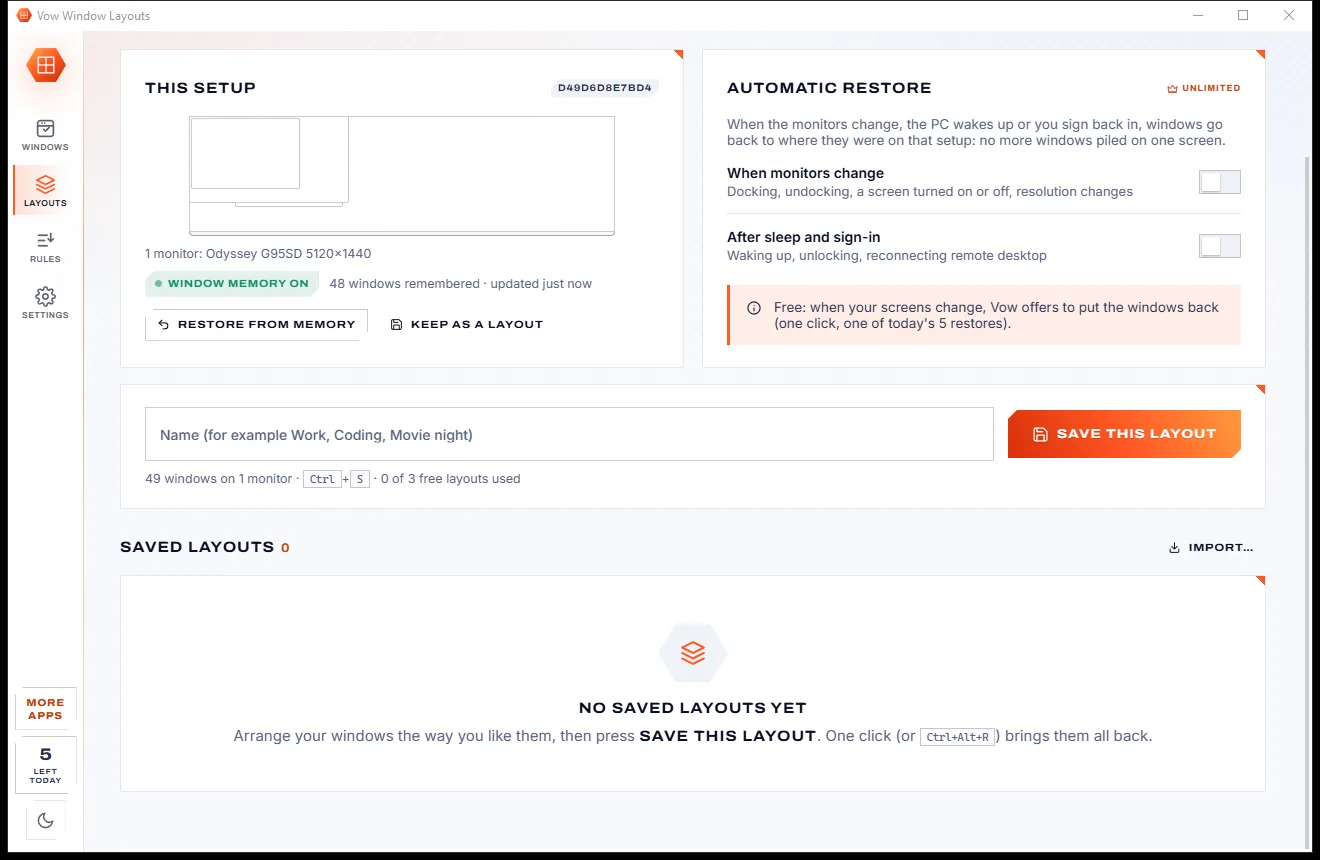
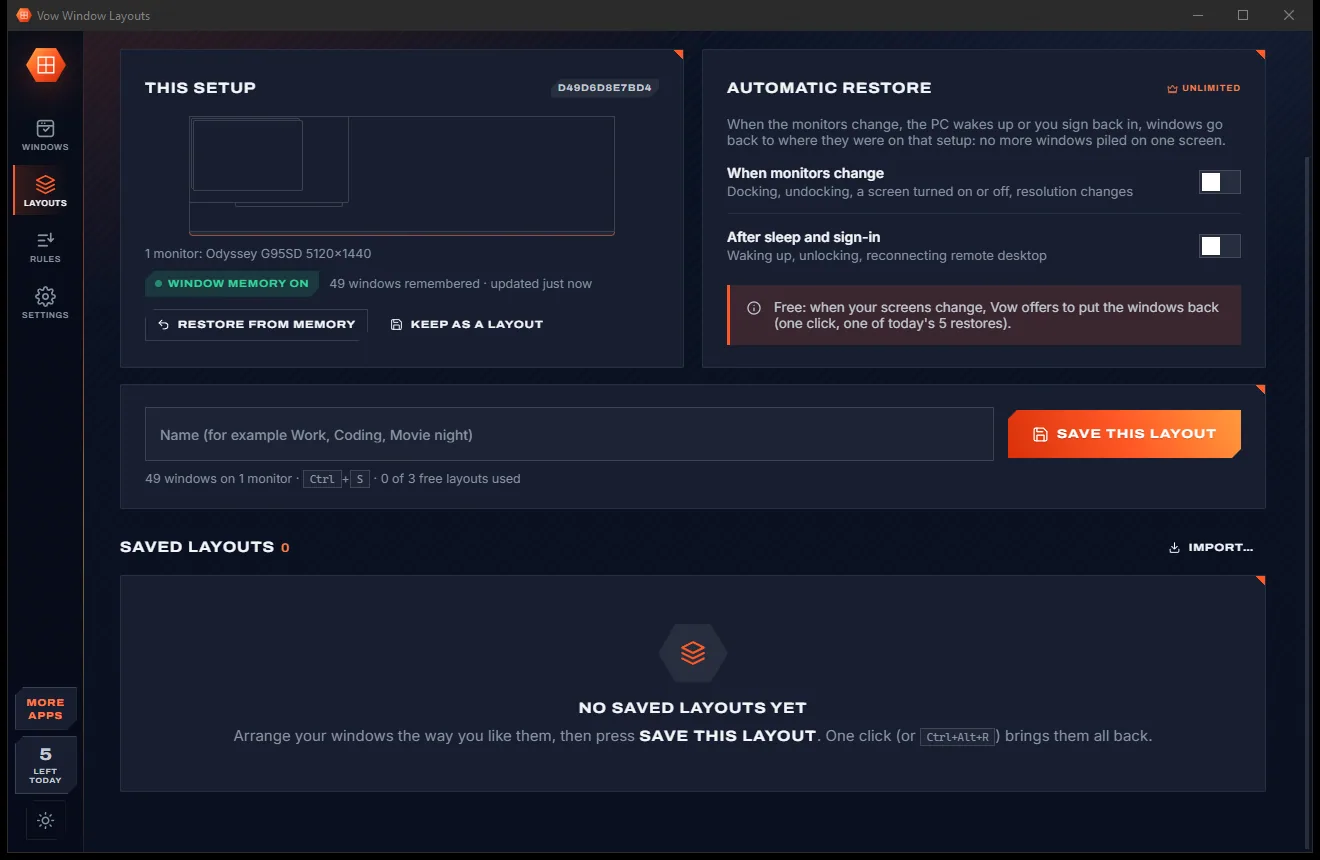
Press Ctrl+Alt+S, or Save this layout. Every window's place, size and state is kept for this monitor setup.
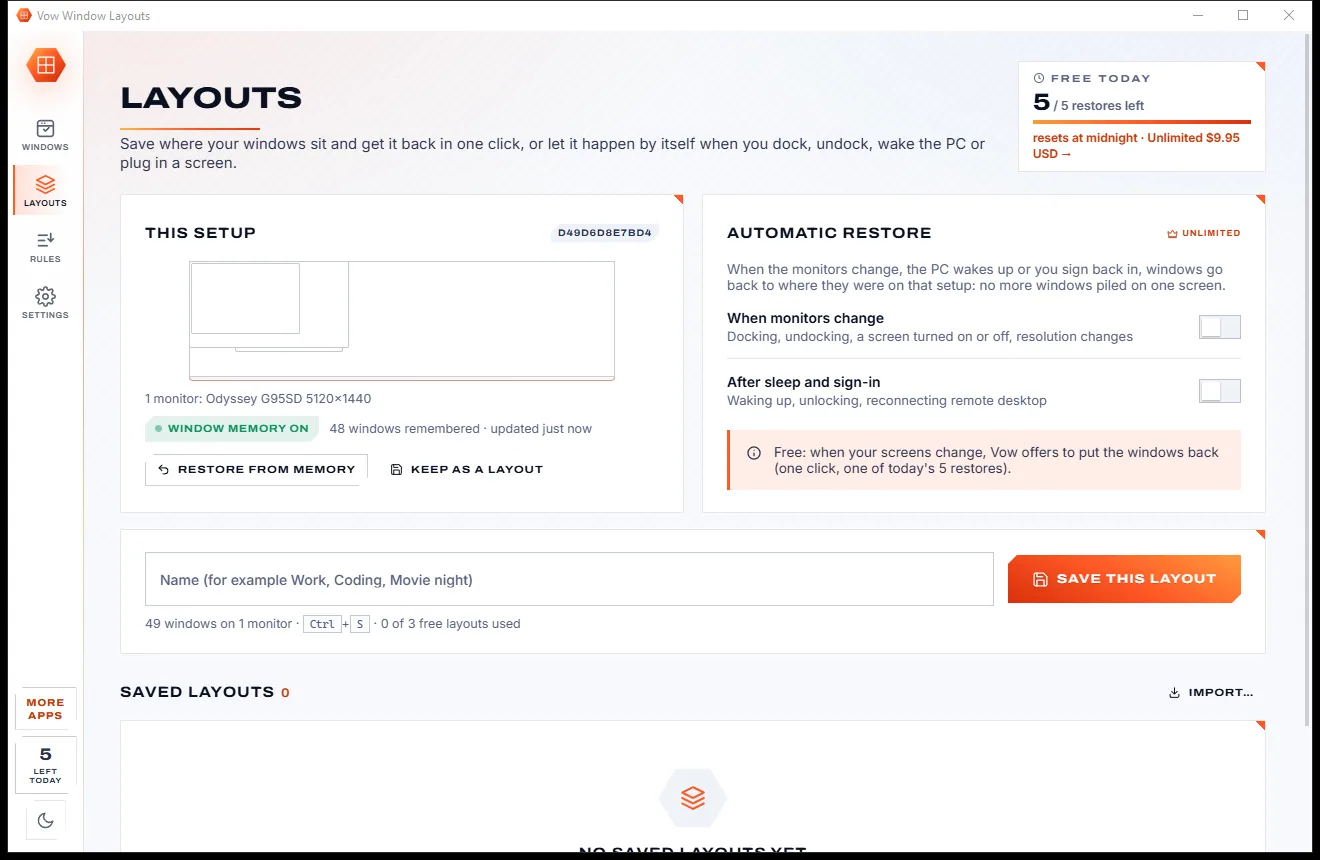
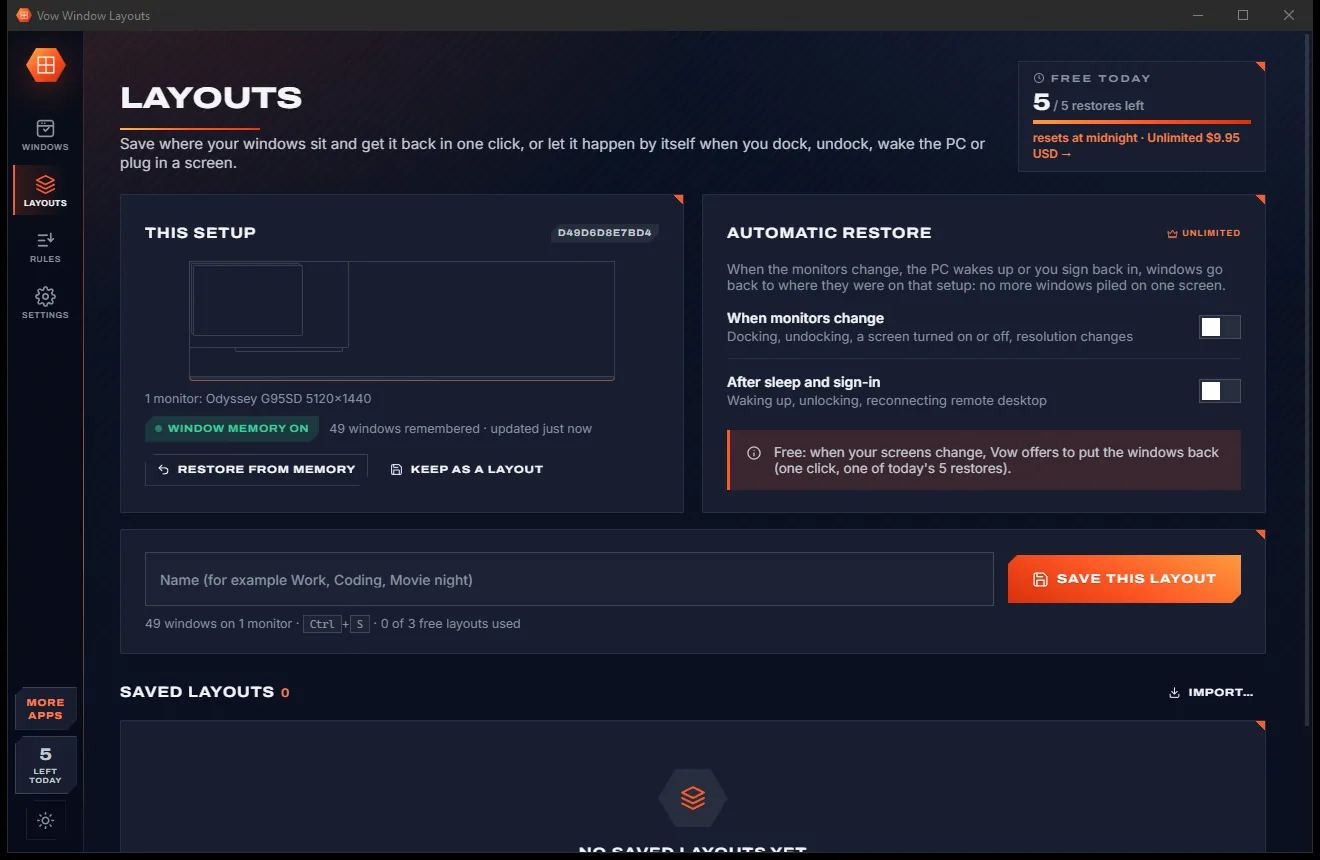
One click or Ctrl+Alt+R restores it. With Unlimited, windows go back by themselves when you dock, undock or wake the PC.
Features
For laptops on docks, multi-monitor desks, traders, developers and anyone tired of dragging windows around.
Where your windows were on each setup is remembered, so a dock, an undock or sleep can't scramble them.
With Unlimited, windows go back on their own after you dock, undock, wake the PC or plug in a screen.
Halves, thirds, quarters, main + side, focus centre, rows, a 3 x 2 grid, 4 columns and more, on any monitor.
Ctrl+Alt+arrows snap and cycle sizes, plus quarters, thirds, next monitor, centre and restores 1 to 9. All changeable.
Pin any window above the rest with Ctrl+Alt+P. A thin orange frame shows which windows are pinned.
Make a window 90, 80, 70 or 50% opaque to see what is behind it, or click straight through it.
One click brings back windows that are off every screen or whose title bar can't be reached.
When an app opens a window, put it in a zone, on a monitor, maximised or on top, filtered by title if you like.
Each screen is identified by its hardware id, resolution and arrangement, so a reboot or another dock port doesn't confuse it.
A restore tells you what it moved, what was already in place and what needs admin rights. Ctrl+Alt+Z undoes it.
Light & dark theme
Window Layouts comes with a crisp light theme and a calm dark theme. Switch with one click, or let it follow your Windows setting by itself. It remembers your choice.
Screenshots
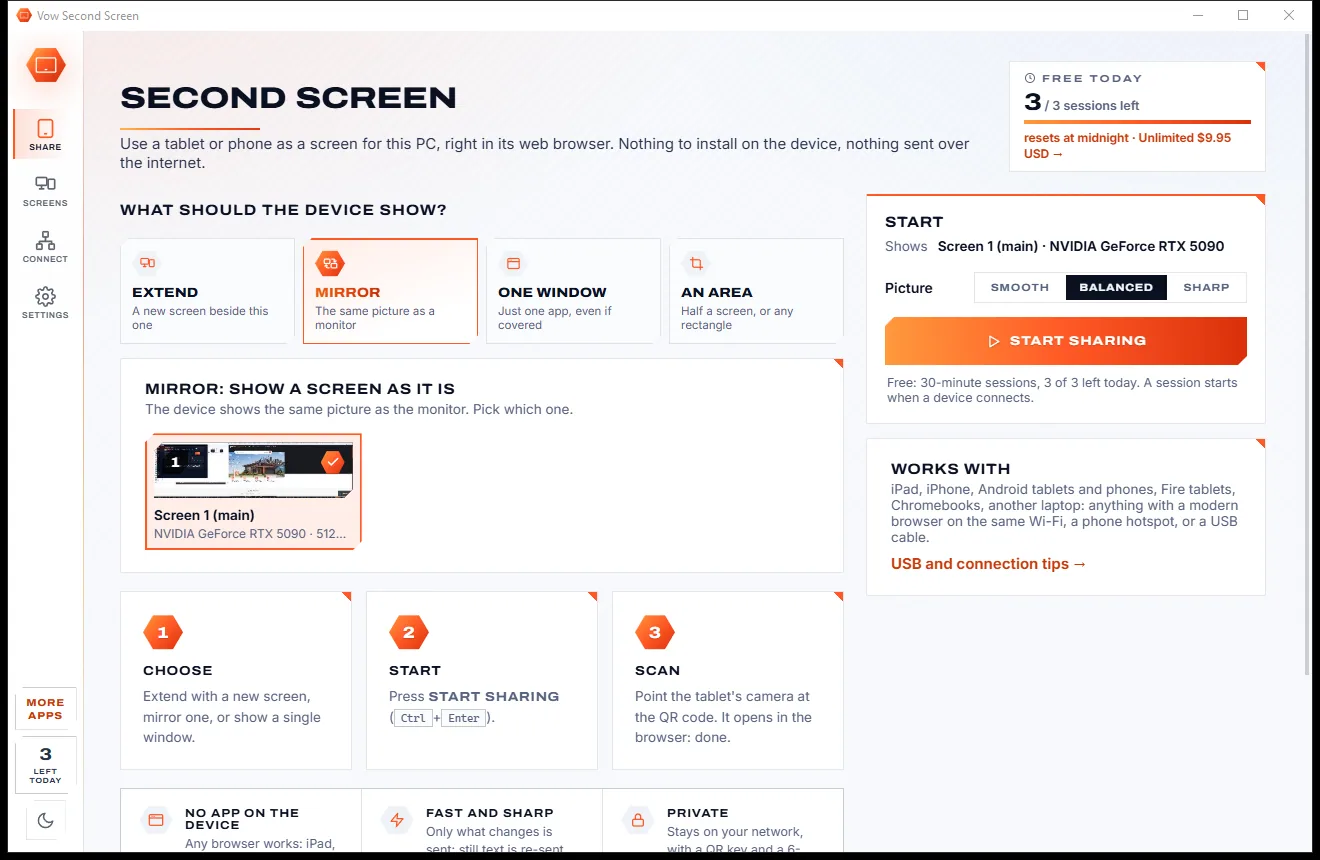
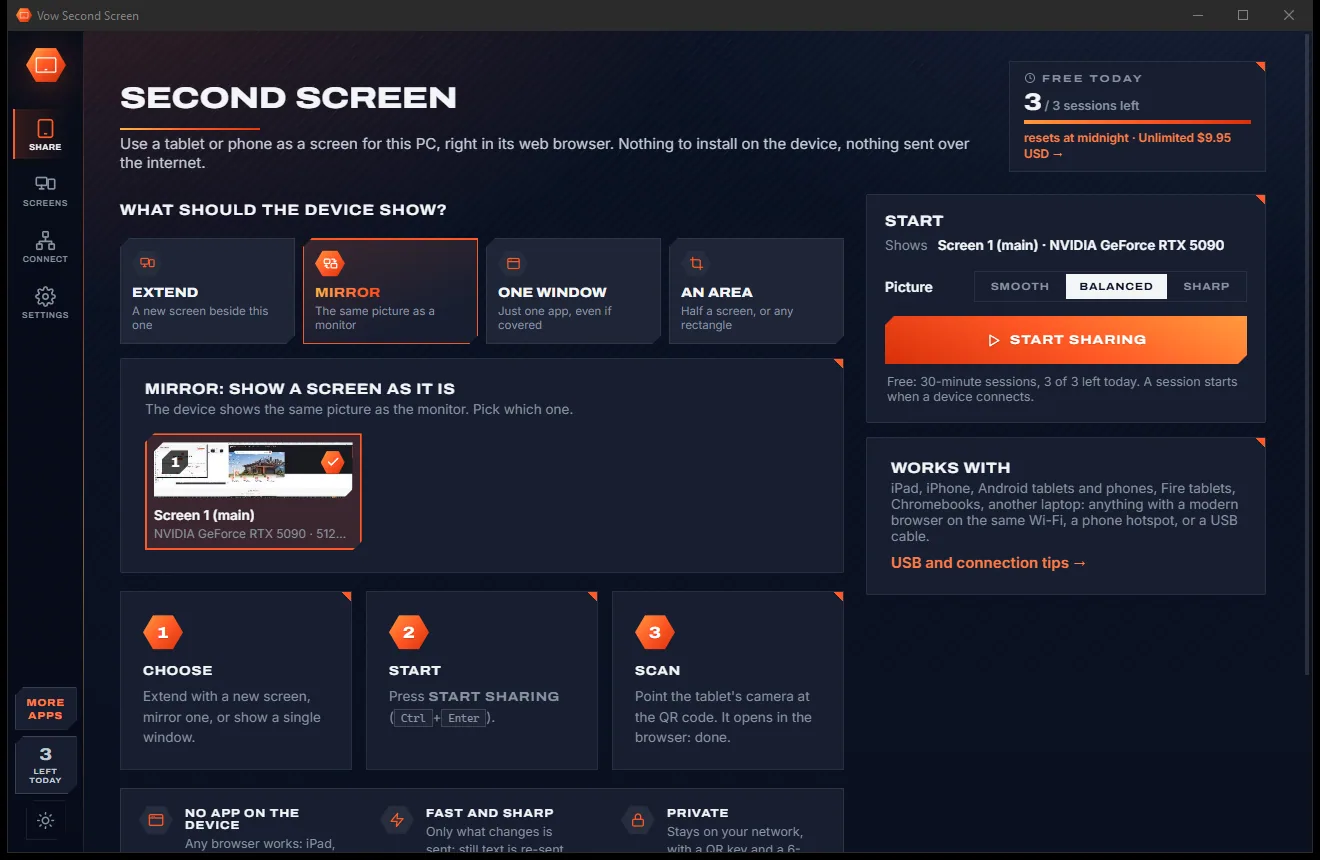
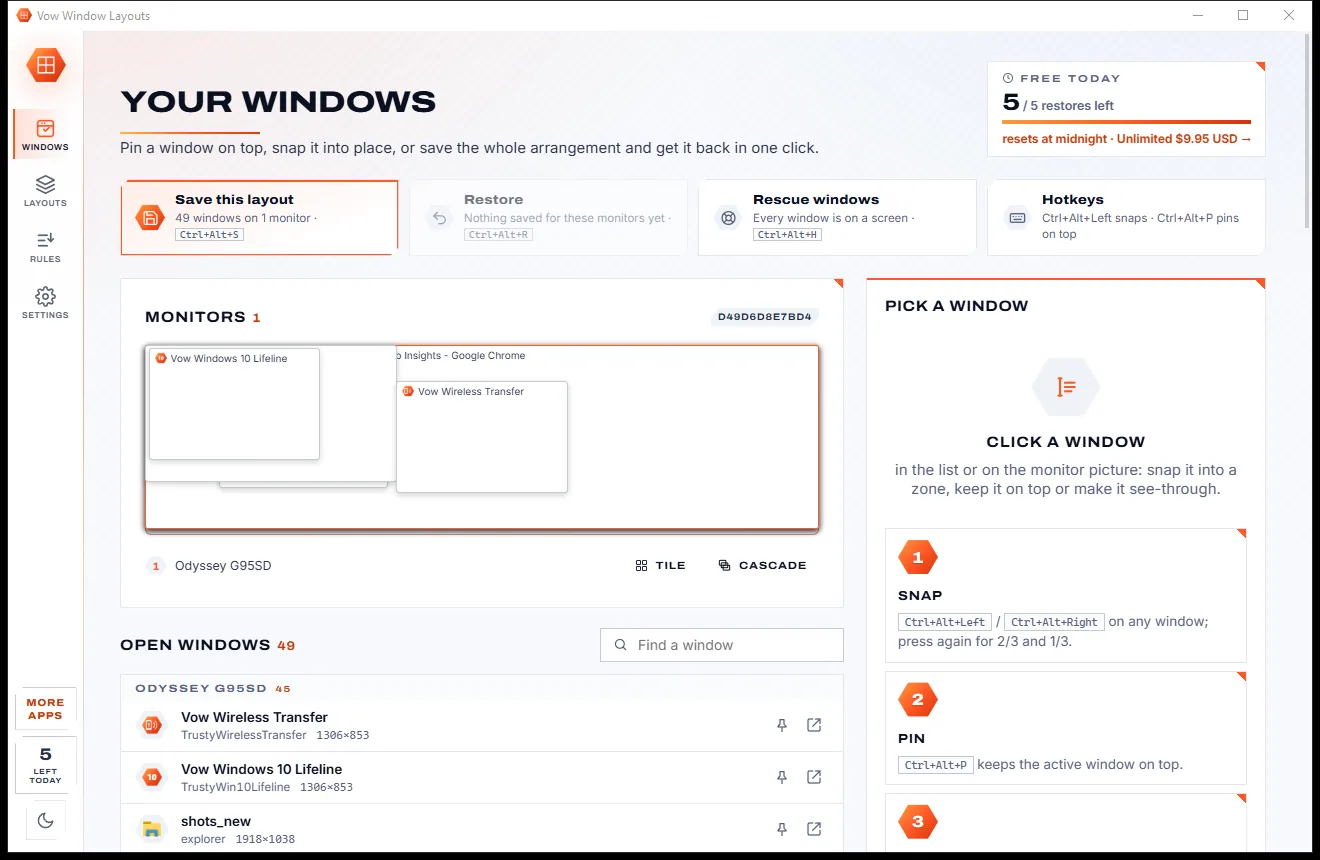
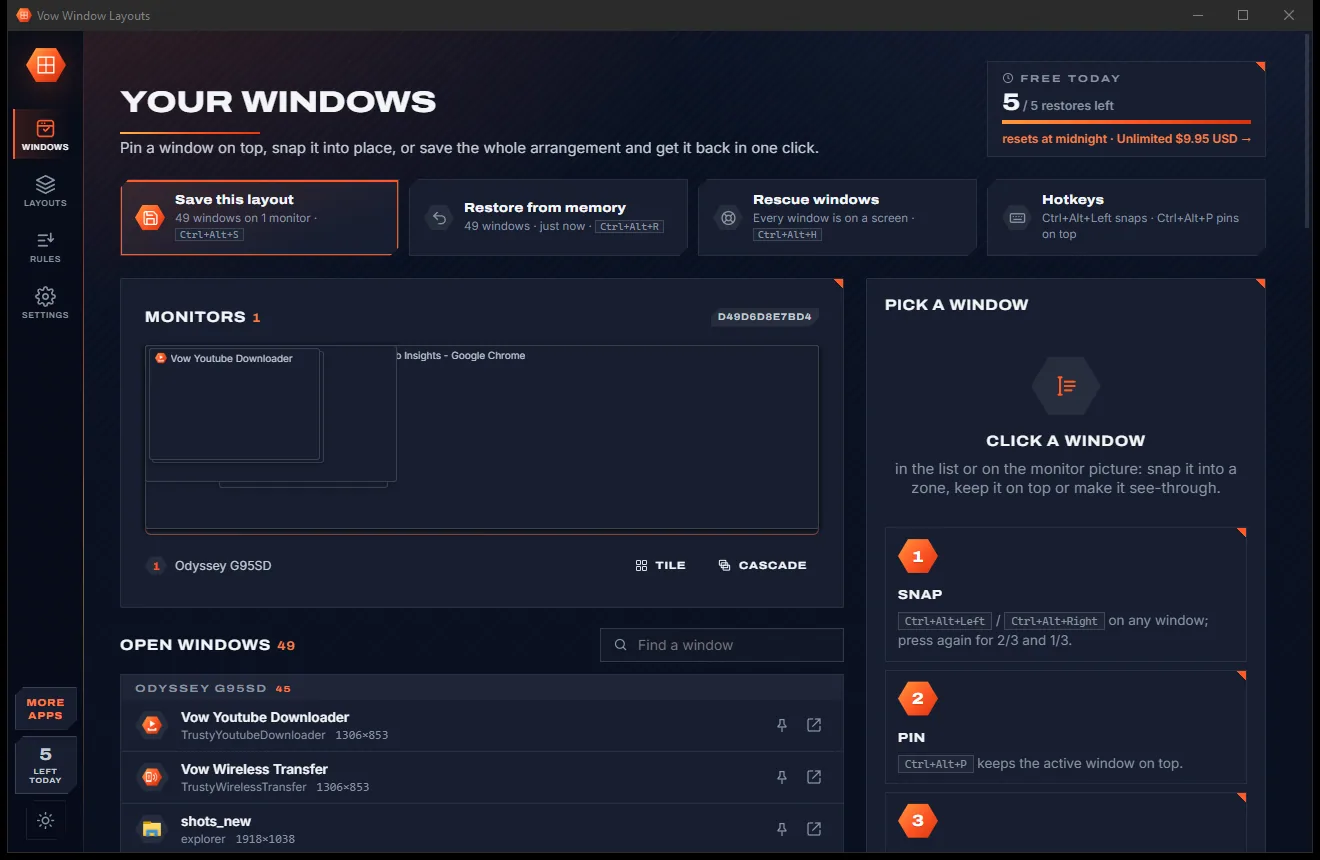
Real screenshots of the real app, in both of its themes: 7 light, 7 dark. Click any picture to see it full size.
Light theme
Dark theme
Who it's for
Undock for a meeting, dock again, and your windows go straight back to the big screens.
One saved layout per setup: home desk, office desk, or the laptop on its own.
Charts, order windows and news pinned, sized and placed the same way every session.
Editor, terminal, browser and docs snapped side by side with a hotkey, and back after every reboot.
Keep the call or your notes on top, or see-through, while you work in the window behind.
The same set of tools in the same places every shift, restored in a second.
Compare
Built-in snapping, separate add-ons and heavyweight suites, side by side.
| Feature | Vow Window Layouts | Built-in snapping & typical tools |
|---|---|---|
| Windows restored after dock, undock or sleep | Yes, per monitor setup | Not built in; varies by tool |
| Saved layouts in one click | Yes, plus Ctrl+Alt+1 to 9 | Often profiles and triggers |
| Always on top and see-through | Yes, with a pin frame | Separate tools |
| Snap layouts | 12, by mouse or keyboard | Yes |
| Rescue off-screen windows | One click or Ctrl+Alt+H | Rarely |
| Shows and undoes what a restore did | Yes | Rarely |
| Price | Free every day, or $4.95 once | Free but limited, or paid licences |
| Account or sign-up | None | Sometimes |
| Ads and bundled extras | None, ever | Common in freeware downloads |
"Typical" describes what we found across the most-downloaded alternatives when we built Window Layouts. Your mileage with any one of them may vary; ours won't.
Pricing
That is not a typo. Software this powerful usually means a monthly subscription; Window Layouts is $4.95, once, for life: it's almost a giveaway. Use it free for as long as you like, and unlock Unlimited only if you need more.
Always on top, see-through, 12 snaps and every hotkey; 5 restores a day.
Almost a giveaway. Less than a coffee for software this powerful: no subscription, no renewals, yours for life on 2 PCs.
Windows go back by themselves, any number of layouts and rules.
Payments by Stripe: we never see or store your card. Questions? Ask a real person.
Clean software
Most "free" Windows downloads pay for themselves with ads, bundled extras or your data. Vow Window Layouts doesn't need to: it's paid for honestly, once, by the people who find it useful.
Download Window Layouts freeStep-by-step guide
Save your favourite arrangement once and get it back in a second, every time.
Step 1: get it freeDownload it from this page and run the installer. It needs no administrator rights and no account, and it keeps running in the notification area.
Open the Windows page, click a window and pick a zone, or use Ctrl+Alt and the arrow keys. Use Tile on a monitor to arrange them all at once.
Press Ctrl+Alt+S, or go to Layouts, give it a name like Work or Coding, and press Save this layout.
Press Restore, Ctrl+Alt+R, or Ctrl+Alt+1 to 9 for a numbered layout. You see what moved, and Ctrl+Alt+Z undoes it.
With Unlimited, switch on automatic restore under Layouts, and your windows go back after every dock, undock, wake-up or new screen.
Technical details
FAQ
Yes. Always on top, see-through windows, all 12 snap layouts, every hotkey and off-screen rescue are free without limits, plus 3 saved layouts and 5 restores a day. There are no ads and no expiring trial. Unlimited, a one-time $4.95 USD payment, restores windows by themselves and removes the limits.
When monitors disconnect, even briefly, Windows moves their windows to the screen that is left. Vow Window Layouts keeps a memory of where every window was on each monitor setup, frozen the moment the screens start changing, and puts them back once the setup has settled.
It puts snapping, always on top, see-through windows and saved layouts per monitor setup in one small app, with no trigger or script editors: one click saves, one click or one hotkey restores, and automatic restore is a single switch. Monitors are recognised by their hardware id, so a reboot or another dock port does not count as a new setup.
Windows are matched by app, window class and the closest title, so documents and browser tabs that change their titles are still found. You can make each window's match exact, contains or any.
Yes, with Unlimited. A layout can start the apps it needs when they are closed, then put their windows in place.
Windows does not let a normal app move them. The restore report names those windows, and Settings offers Restart as administrator when you need it.
No. Everything runs on your PC: there is no account and nothing is uploaded. Your layouts are kept in a file in your user folder.
Yes. It is made and published by XTO Pty Ltd, an Australian company. There are no ads, no bundled software and no account, it needs no administrator rights, and it uninstalls cleanly from Windows Settings.
The Vow collection
Same design, same promises, a tiny one-time price. Learn one and you already know them all.
Turn a tablet or phone into a second screen for your PC, in its browser

Preview, organise and identify every font on your PC, offline

Professional invoices and quotes on Windows, without a subscription
Snap, pin and save your windows, and get them back after every dock. Free to use every day, $4.95 once if you ever want Unlimited.