Vow Rollback icon
Vow Rollback Windows 10 & 11 · v1.0.0 · Free to use

Ransomware rollback for Windows

Encrypted, deleted or overwritten? Roll it back in two clicks.

Vow Rollback snapshots your important folders within about a minute of every change and raises an alarm when files start turning into ransomware gibberish. Your good history is frozen, and the rollback shows exactly what it will put back before anything happens.

  • No ads
  • No malware
  • No account
  • Light & dark theme
  • 1 folder, 3 days of history, the alarm and every rollback
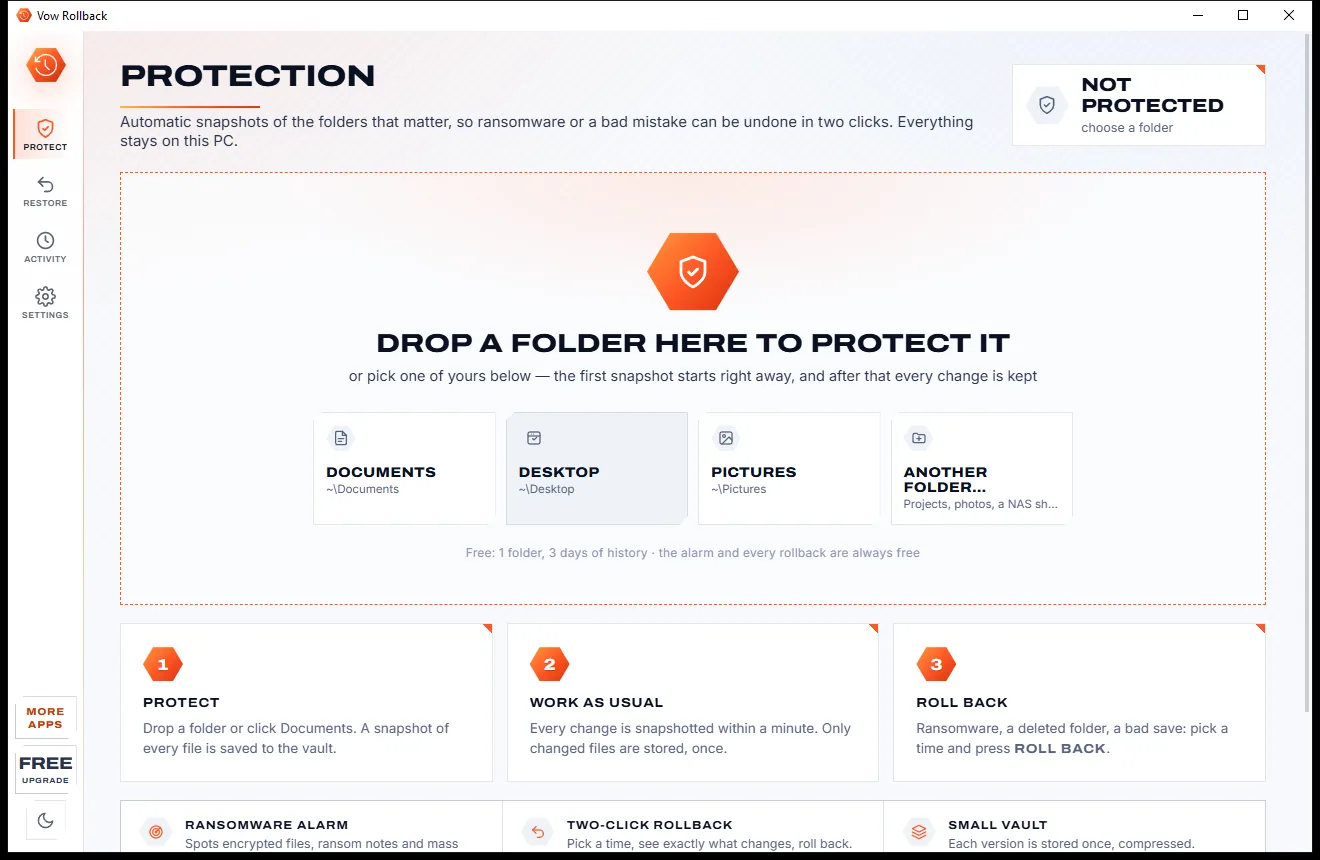
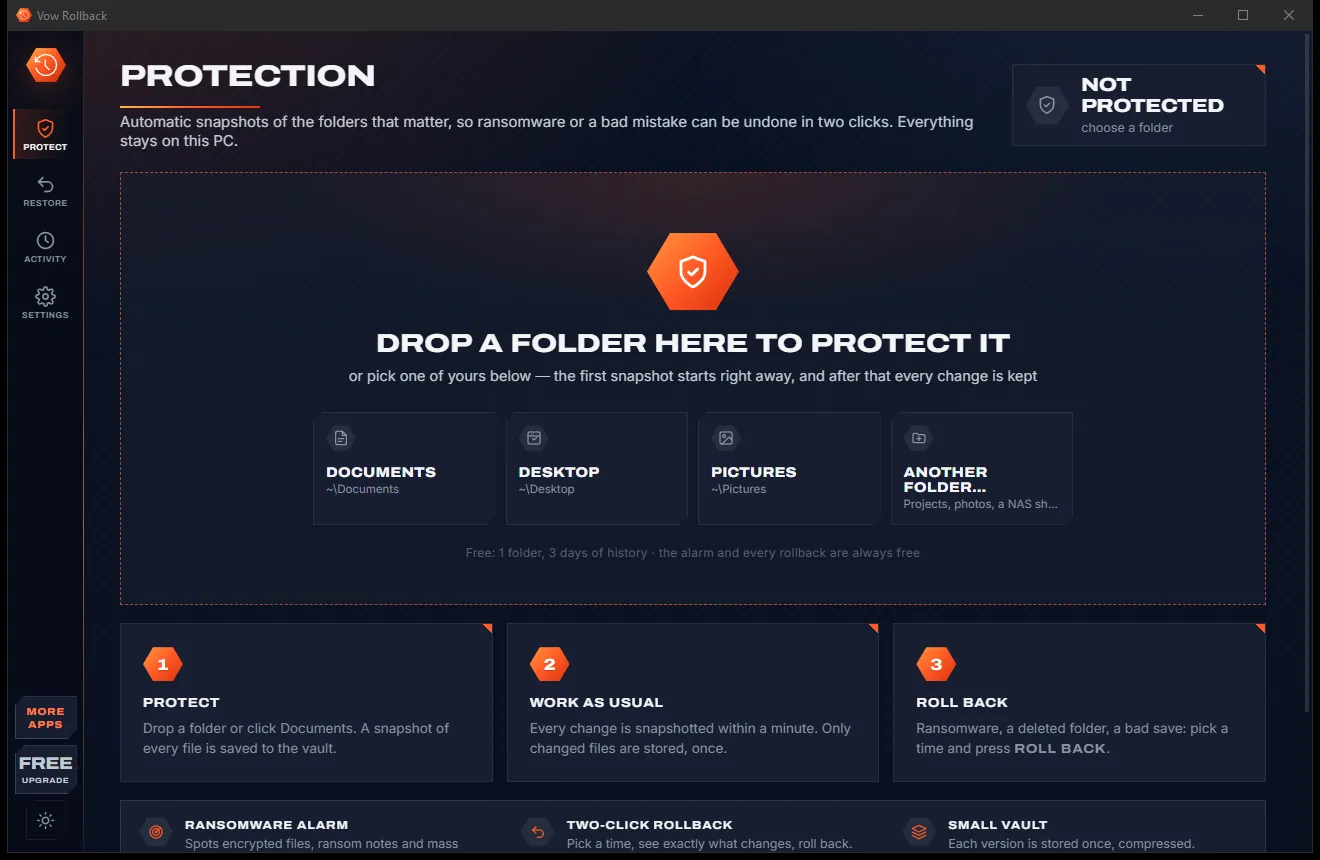
The Protection page with a drop area for a folder, quick buttons for Documents, Desktop, Pictures and another folder, and a three-step guide, light themeThe Protection page with a drop area for a folder, quick buttons for Documents, Desktop, Pictures and another folder, and a three-step guide, dark theme
Light & dark theme Zero ads, zero junk
Drop a folder, or click Documents, Desktop or Pictures
No ads. Ever.No pop-ups, no banners, no "offers".
No malware or bundlewareThe installer installs one thing: this app.
No account, no uploadIt works on your PC, and your files stay there.
Free daily limits, just $9.95 unlimitedNo subscription. No trial that runs out.

The problem

When files go wrong, the last backup is never recent enough

Ransomware, a deleted folder, a sync that went sideways: the damage takes seconds, and last month's copy doesn't bring back this week's work.

Files that won't open

Ransomware scrambles your documents and photos, renames them to strange extensions and leaves a ransom note in the folder.

The backup is weeks old

A backup from last month can't bring back this week's invoices, essays or photos. The gap is where the pain is.

Not just ransomware

A folder deleted by accident, a spreadsheet saved over, a sync tool that wiped the wrong copy. Same problem, same panic.

Allow-lists to babysit

Folder-blocking features ask you to keep a list of every program allowed near your files, and to update it whenever something changes.

Rollback by subscription

Ransomware rollback usually comes inside a security suite with a renewal every year, whether you ever need it or not.

Did it even run?

Backups can stall without a word. You only find out the day you need them, which is the worst day to find out.

Vow Rollback fixes all of it.

How it works

Protect. Work. Roll back.

Choose a folder once. Every change is kept from then on, and undoing damage takes two clicks.

  1. 01

    Protect a folder

    Drop a folder on the window, or click Documents, Desktop or Pictures. The first snapshot starts right away and every change after that is kept.

    The Protection page with a drop area for a folder, quick buttons for Documents, Desktop, Pictures and another folder, and a three-step guide, light themeThe Protection page with a drop area for a folder, quick buttons for Documents, Desktop, Pictures and another folder, and a three-step guide, dark theme
    Drop a folder, or click Documents, Desktop or Pictures
  2. 02

    The alarm goes off

    When files turn into noise, gain ransomware extensions or a ransom note appears, the window comes to the front and your good history is frozen.

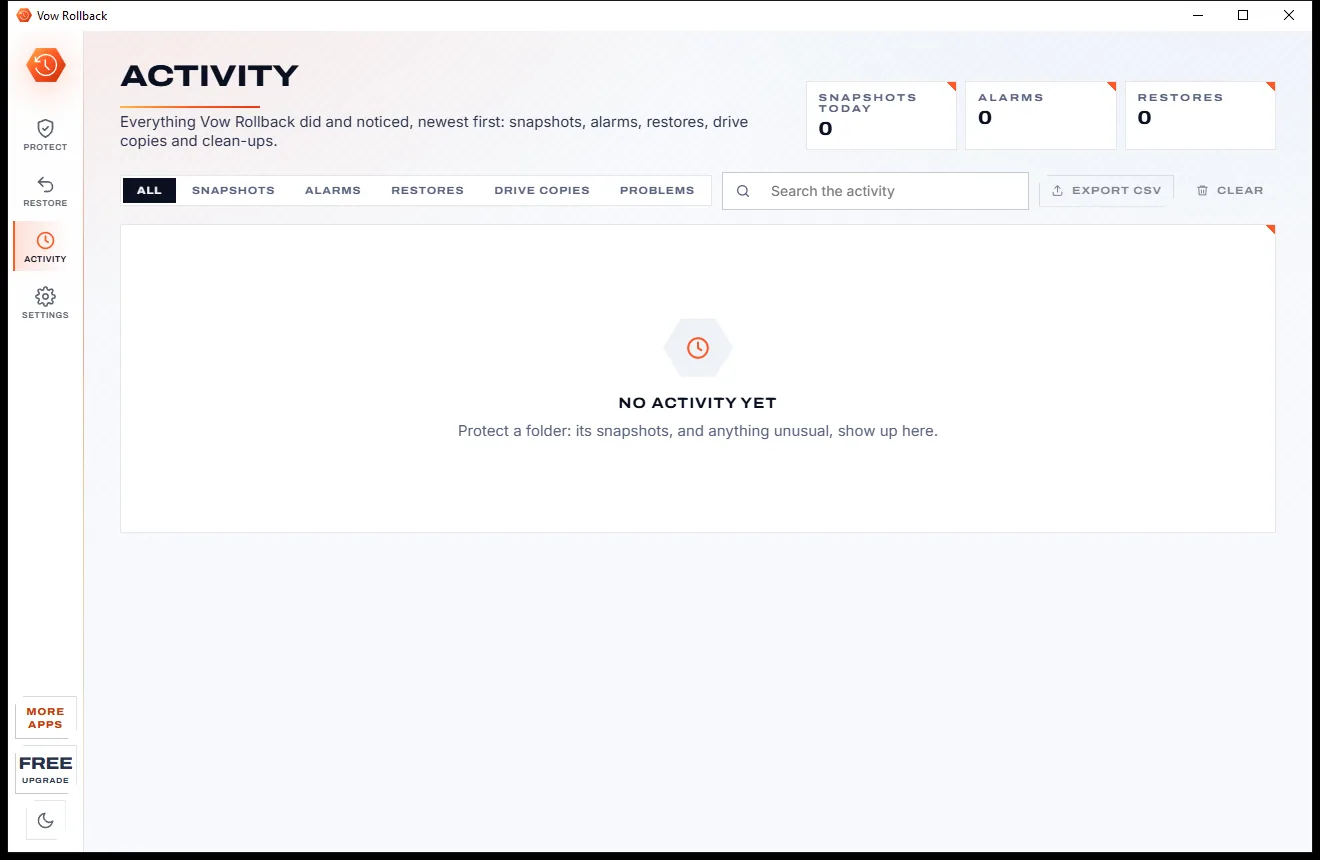
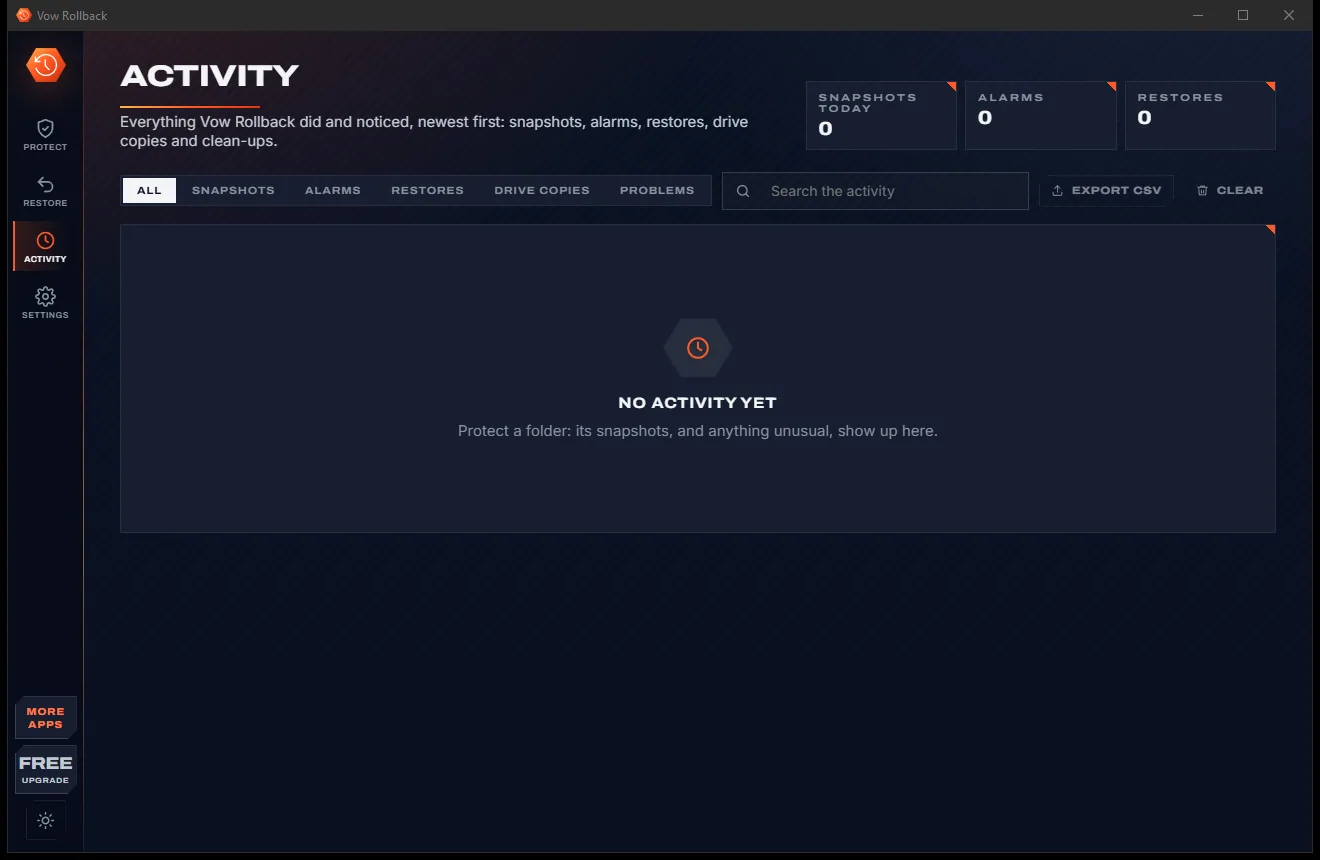
    The Activity page with counters for snapshots, alarms and restores, filter tabs, a search box and an empty list, light themeThe Activity page with counters for snapshots, alarms and restores, filter tabs, a search box and an empty list, dark theme
    Snapshots, alarms and restores listed as they happen
  3. 03

    See it, then roll back

    The last good snapshot is already picked. Check exactly which files are put back, recreated or moved aside, then press Roll back.

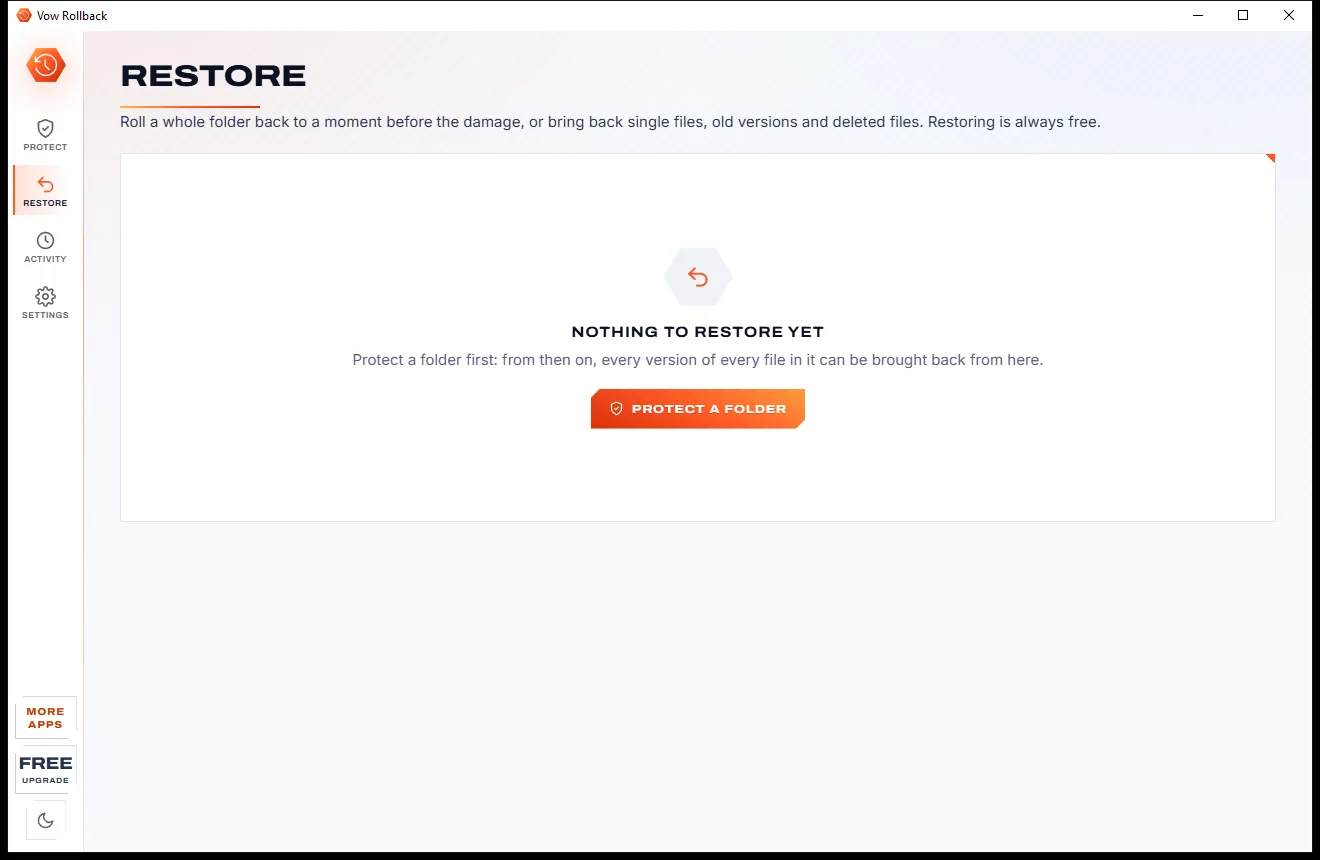
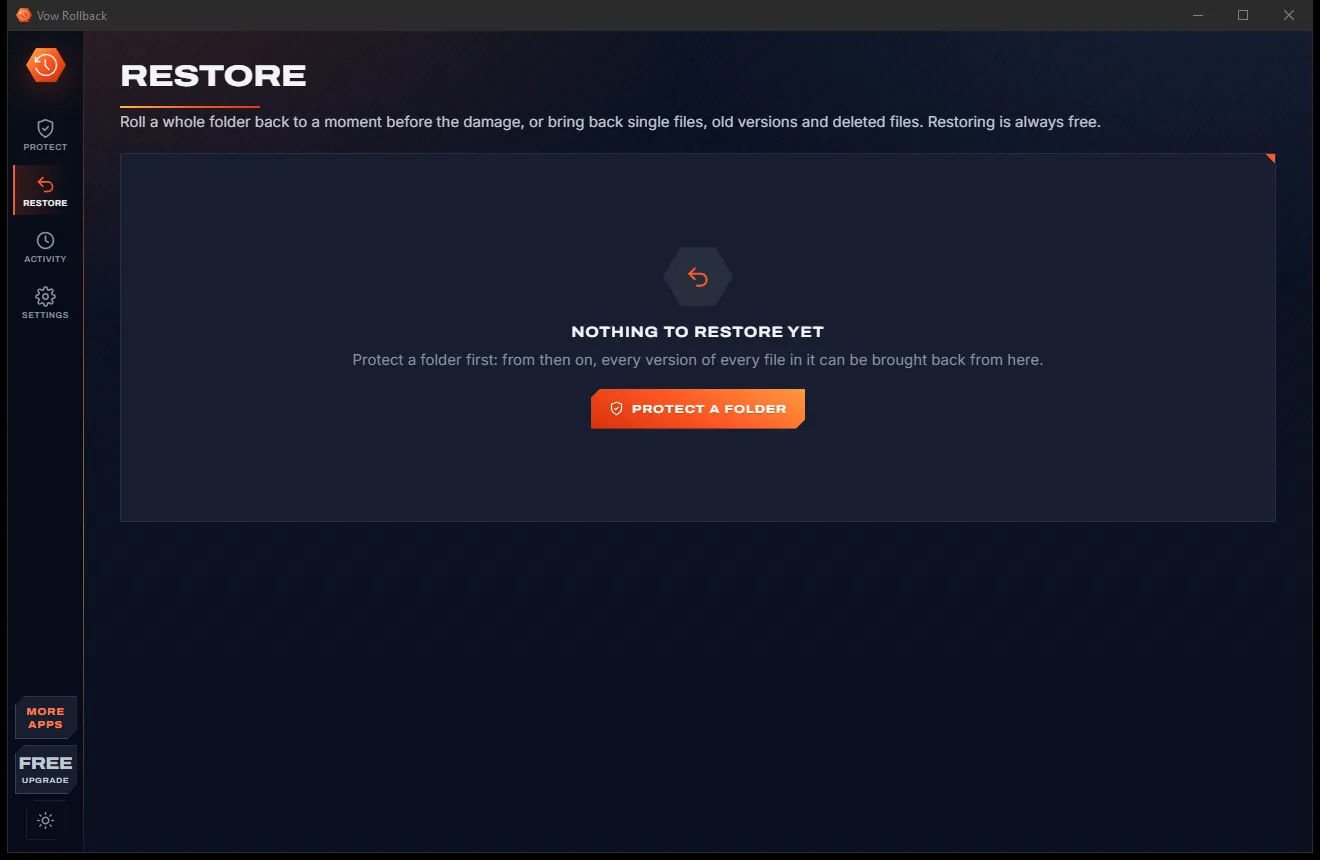
    The Restore page with a Nothing to restore yet message and a Protect a folder button, light themeThe Restore page with a Nothing to restore yet message and a Protect a folder button, dark theme
    Roll a folder back to before the damage, preview included

Features

A safety net that watches, freezes and puts things back

Built for the moment you open a folder and nothing opens, and for every smaller disaster in between.

Automatic snapshots

Every change is snapshotted within about a minute, bursts right away. Only changed files are read, and each version is stored once, compressed.

Layered ransomware alarm

Spots files whose content turned to noise, 200+ known ransomware extensions, ransom-note names, sudden bursts and optional hidden bait files.

History freeze

On alarm, snapshots and clean-ups stop so the good history can't be pushed out, and the last good snapshot is marked for you.

An exact preview

Before any rollback you see every file that will be put back, recreated or treated as newer. No surprises, ever.

Quarantine, not the bin

Files made since the good snapshot (encrypted copies, ransom notes) are moved to a quarantine folder, never deleted.

Undo the rollback too

The folder as it is now is snapshotted first, so even a rollback can be undone. Or restore into another folder instead.

Every version of every file

Search the whole history, see each version's time, size and fingerprint, and restore one, save a copy or open it read-only.

Deleted files tab

Bring back one deleted file, a selection or all of them, straight from the history.

A safe fire drill

24 practice documents are attacked in a temp folder, caught and restored byte for byte. Your own files are never touched.

Drive copy

Unlimited keeps a complete copy of the vault on an external drive or network share, and never deletes to match a vault that looks wiped.

Light & dark theme

Easy on the eyes, day or night.

Rollback comes with a crisp light theme and a calm dark theme. Switch with one click, or let it follow your Windows setting by itself. It remembers your choice.

  • LightClear and bright for daytime and busy offices
  • DarkGentle on tired eyes late at night
  • Follow WindowsChanges by itself when your PC does
The Protection page with a drop area for a folder, quick buttons for Documents, Desktop, Pictures and another folder, and a three-step guide, light theme
Light
The Protection page with a drop area for a folder, quick buttons for Documents, Desktop, Pictures and another folder, and a three-step guide, dark theme
Dark

Screenshots

See Vow Rollback in action

Real screenshots of the real app, in both of its themes: 6 light, 6 dark. Click any picture to see it full size.

Who it's for

Who keeps a rollback ready

Family photos and papers

Keep the Pictures and Documents folders one rollback away from any disaster.

Sole traders and small offices

Invoices, quotes and client folders snapshotted all day, without a server or an IT contract.

Students

A thesis saved over at midnight? Bring back the version from twenty minutes ago.

Writers and developers

Project folders versioned automatically, with exclusions for build output and node_modules.

A layer beside your antivirus

Windows Security tries to stop the attack; Vow Rollback keeps the versions to undo it.

Looking after a parent's PC

Set it up once. The alarm explains what to do, and every restore is free.

Compare

Vow Rollback vs typical backup and rollback tools

Why a simple, previewed rollback beats a kernel driver, an allow-list or a yearly suite.

Feature Vow Rollback Typical backup & rollback tools
Rollback previewed before it runs Exactly, file by file Rarely
Files made since the attack Moved to quarantine, not deleted Varies
Kernel driver required No Often
Allow-lists of apps to maintain None Common with folder blocking
Proves the defence works Built-in fire drill Rarely
Shows when the last snapshot ran Always on screen Not always
Your files are uploaded Never: your PC and your own drive Yes, for online backup services
Price Free every day, or $9.95 once Usually a yearly suite

"Typical" describes what we found across the most-downloaded alternatives when we built Rollback. Your mileage with any one of them may vary; ours won't.

Pricing

Free every day. Just $9.95 once for the lot.

That is not a typo. Software this powerful usually means a monthly subscription; Rollback is $9.95, once, for life: it's almost a giveaway. Use it free for as long as you like, and unlock Unlimited only if you need more.

Free
$0forever

1 folder, 3 days of history, the alarm and every rollback.

  • Protect 1 folder with automatic snapshots
  • 3 days of history, thinned automatically
  • Ransomware alarm with history freeze
  • Every rollback, file restore and undelete
  • Fire drill, activity log and CSV export
  • 5 manual snapshots a day (resets at midnight)
Download free
Best valueUnlimited
$9.95USD, once. Yours for life.

Almost a giveaway. Less than a takeaway lunch for software this powerful: no subscription, no renewals, yours for life on 2 PCs.

Any number of folders, 30 days of history, automatic drive copy.

  • Any number of protected folders
  • Up to 30 days of history
  • Automatic copy to an external drive
  • Unlimited manual snapshots
  • One payment, yours for life on 2 PCs
  • Every future update included
Get it, then unlock in the app

How unlocking works

  1. 1
    Use it free first Install Vow Rollback and use it on your own files. No card, no account, no time limit.
  2. 2
    Click "Unlimited" in the app Pay $9.95 USD once by card, securely through Stripe in your browser.
  3. 3
    It unlocks itself Within seconds, for life, on up to 2 of your PCs. Your license key is emailed to you, and every future update is included.

Payments by Stripe: we never see or store your card. Questions? Ask a real person.

Clean software

Safe to install. Nothing else comes with it.

Most "free" Windows downloads pay for themselves with ads, bundled extras or your data. Vow Rollback doesn't need to: it's paid for honestly, once, by the people who find it useful.

Download Rollback free
  • No ads, toolbars or "offers"The installer installs one thing: Vow Rollback. No pre-ticked boxes to watch out for.
  • No administrator rights neededIt installs just for you, in your own user folder, and leaves the rest of Windows alone.
  • Nothing running in the backgroundNo startup programs, no tray nags, no services. When you close it, it's closed.
  • Everything includedAll it needs is inside the installer, so you never have to fetch a "required component" from somewhere else.
  • Uninstalls cleanlyOne click in Windows Settings > Apps. Your own files are never touched.
  • A real company behind itMade, published and supported by XTO Pty Ltd, an Australian company, with real people answering every message.

Step-by-step guide

How to roll back files after ransomware on Windows

Protect a folder before trouble strikes, then undo encryption, deletions or bad saves, step by step.

Step 1: get it free
  1. Install Vow Rollback free

    Download it from this page and run the installer. It needs no administrator rights and no account, and offers to start protecting your folders when you sign in.

  2. Protect your most important folder

    Drop the folder on the window, or click Documents, Desktop or Pictures. The first snapshot starts at once, and every later change is snapshotted within about a minute.

  3. If the alarm goes off, stop the cause

    Disconnect from the network and run a full scan with Windows Security or your antivirus. Your history is already frozen, so nothing good can be pushed out.

  4. Press Review the rollback

    The Restore page opens with the last good snapshot selected. Check how many files will be put back, recreated and moved to quarantine, in place or into another folder.

  5. Roll back and close the alarm

    Press Roll back and confirm. The folder is snapshotted first so the rollback can be undone, then your files come back. Close the alarm once the cause is gone.

Technical details

Rollback at a glance

Works on
Windows 10 (1809+) and Windows 11, 64-bit
Snapshots
Within about a minute of each change, deduplicated
History
3 days free, up to 30 days with Unlimited
Detection
Content, extensions, ransom notes, bursts, bait files
Restores
Whole folder, single file, deleted files: always free
Storage
On this PC, plus an optional external drive copy
Install
Per-user, no administrator rights, no account
Languages
English
Theme
Light, dark or follow Windows: one click to switch
Version
1.0.0, released 7 November 2026
Publisher
XTO Pty Ltd (Australia)

FAQ

Questions about Rollback

Is Vow Rollback an antivirus?

No. It keeps versions of your files so damage can be undone, and raises an alarm when files look encrypted. It can't name or stop the program doing the damage, so keep Windows Security (or your antivirus) on, and keep a drive copy for disk failures.

Is Vow Rollback free?

Yes. You can protect 1 folder with 3 days of history, and the ransomware alarm, the fire drill and every restore are always free, plus 5 manual snapshots a day. Unlimited, a one-time $9.95 USD payment, adds any number of folders, up to 30 days of history, automatic drive copies and unlimited manual snapshots.

How does it spot ransomware?

It looks for several signs at once: files whose content turned into noise and lost its file type's header, renames to 200+ known ransomware extensions or many files getting the same new extension, ransom-note file names, bursts of changes, and optional hidden bait files. One odd file never raises the alarm; two kinds of sign, or many encrypted files, do.

How much work could I lose?

Only the changes made between the last snapshot and the attack. With snapshots after every change that gap is about a minute, and the screen always shows when the last snapshot ran.

Can ransomware delete the snapshots?

The vault is protected by obscurity and integrity checks, not by Windows permissions, so ransomware running as you could reach it, as it could any per-user backup. That is what the drive copy (unplugged now and then) and the vault integrity check are for, and the history freeze stops new snapshots replacing good ones.

What if it's a false alarm?

Press "It was me, not ransomware" and snapshots carry on as normal. Bulk renames or edits you made yourself can look alarming, so the choice is always yours.

How is it different from Acronis Active Protection or Windows File History?

Vow Rollback needs no kernel driver, no subscription and no allow-list of apps. Protection starts in one click, every rollback is previewed exactly before it runs, newer files are quarantined rather than deleted, and a built-in fire drill shows the defence working.

Is it safe to install?

Yes. It is made and published by XTO Pty Ltd, an Australian company. There are no ads, no bundled software and no account, it needs no administrator rights, and uninstalling asks separately whether to keep your snapshot vault.

The Vow collection

More apps you'll never have to go looking for

Same design, same promises, a tiny one-time price. Learn one and you already know them all.

Your passwords in one encrypted file on your PC: no account, no cloud

  • Free: Up to 25 items, every security feature, 10 breach checks a day
  • $9.95 once: Unlimited items, auto-type, automatic encrypted backups, unlimited breach checks

Find adware, malware and browser hijacks, and remove them free

  • Free: Unlimited quick scans and removals, 2 full scans a day
  • $9.95 once: Real-time hijack protection, scheduled scans, one-click browser reset

Shred files so no recovery tool can bring them back

  • Free: 25 items a day, all 14 erasure methods, read-back check
  • $4.95 once: Wipe free space and whole drives, erasure certificates, no limit

Done searching. Get Rollback.

Roll your folders back to before the ransomware, or the mistake, in two clicks. Free to use every day, $9.95 once if you ever want Unlimited.

  • No ads
  • No malware
  • No account
  • No subscription
RollbackFree · Windows 10 & 11 Download