
Audio
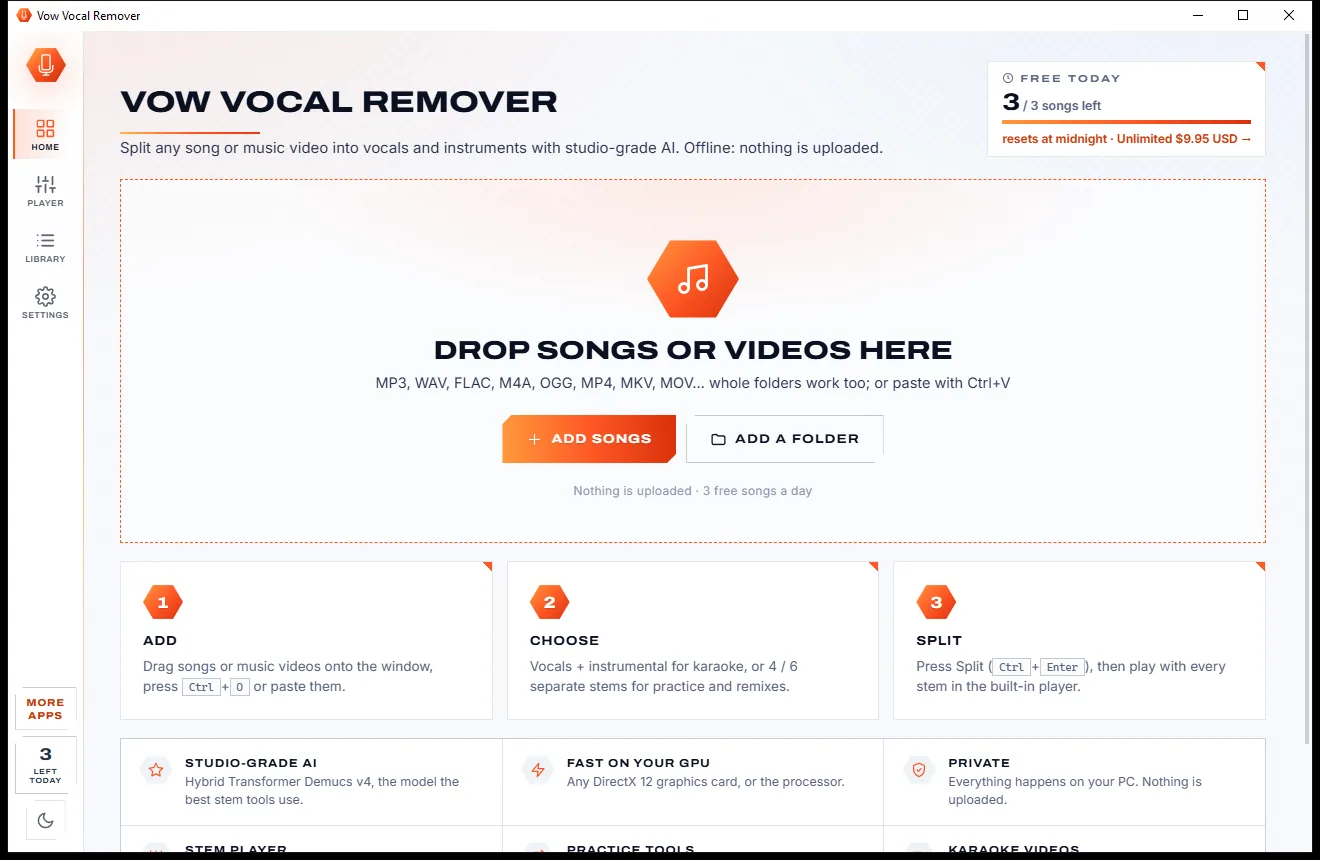
Vow Vocal Remover
Remove vocals from any song, offline, in two clicks
- Free: 3 songs a day, vocals + instrumental, the full stem player
- $9.95 once: Unlimited songs, 4 and 6 stems, lossless WAV and FLAC

Per-app volume mixer for Windows
Vow Volume Mixer puts every app's volume, mute and sound device in one place. Switch between speakers, headphones and microphones from the window, the tray or a hotkey, and save the whole setup as a profile that switches by itself.
The problem
Changing where one app plays, or swapping from speakers to a headset, means digging through Settings pages that forget your choices.
Per-app devices sit in a Settings page most people never find, and switching outputs takes several clicks every time.
You send an app to your headset, then a restart or an update quietly puts it back on the speakers.
Video-call apps "auto-adjust" your microphone level, so you sound too quiet or too loud in the next call.
Headset for the call, speakers for music, the TV for a film: each change means opening sound settings again.
Some routing tools install virtual audio drivers or hook into streams, adding complexity and trouble with games.
When a device gets a new ID after a driver update, the shortcuts and setups that pointed at it often break.
Vow Volume Mixer fixes all of it.
How it works
Every device and every app that makes a sound, in one window that lives in your tray.
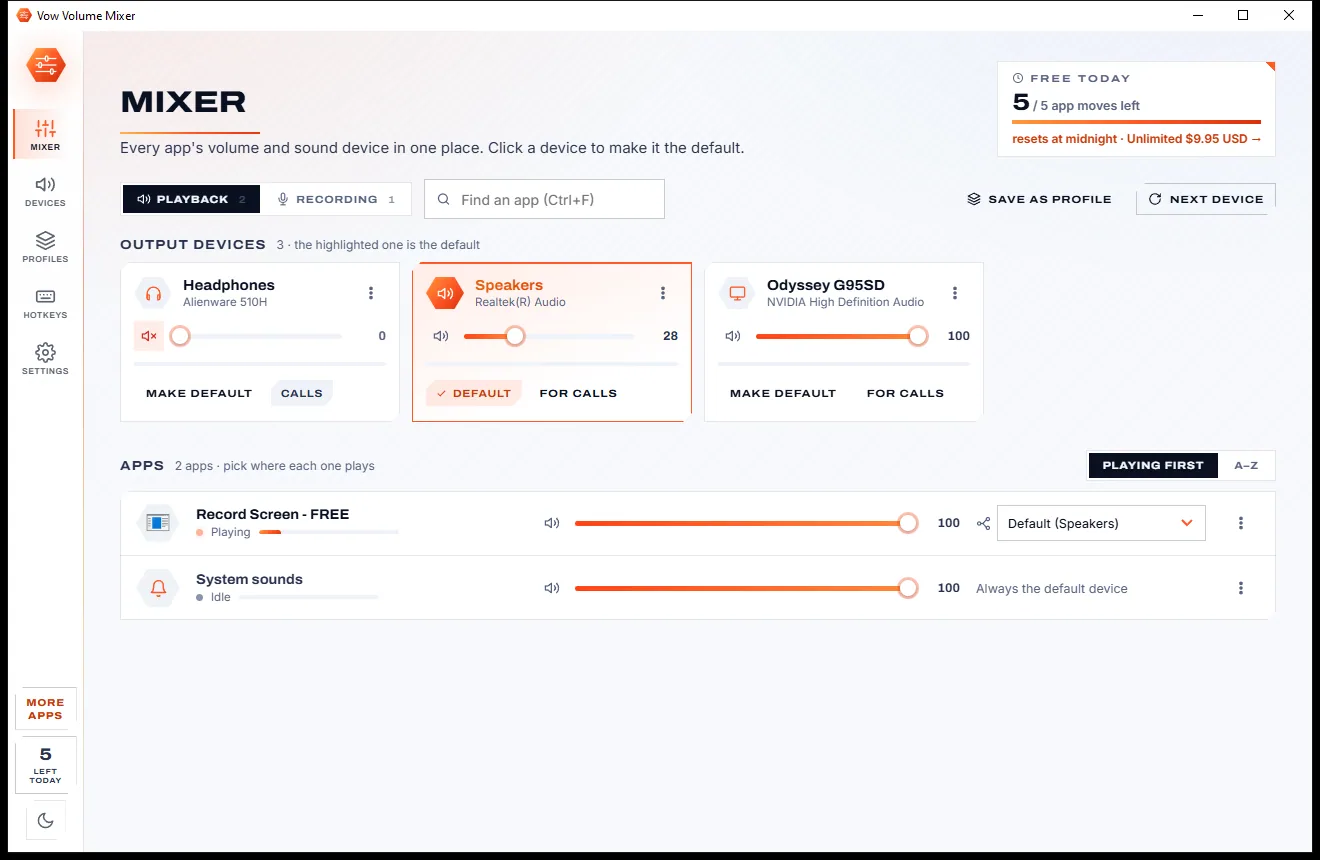
Your output devices appear as cards, with every app that has made a sound below them, each with its own volume, mute and live meter.
Click a device card to make it the default, or choose a device in an app's drop-down to send just that app there. Calls can follow too.
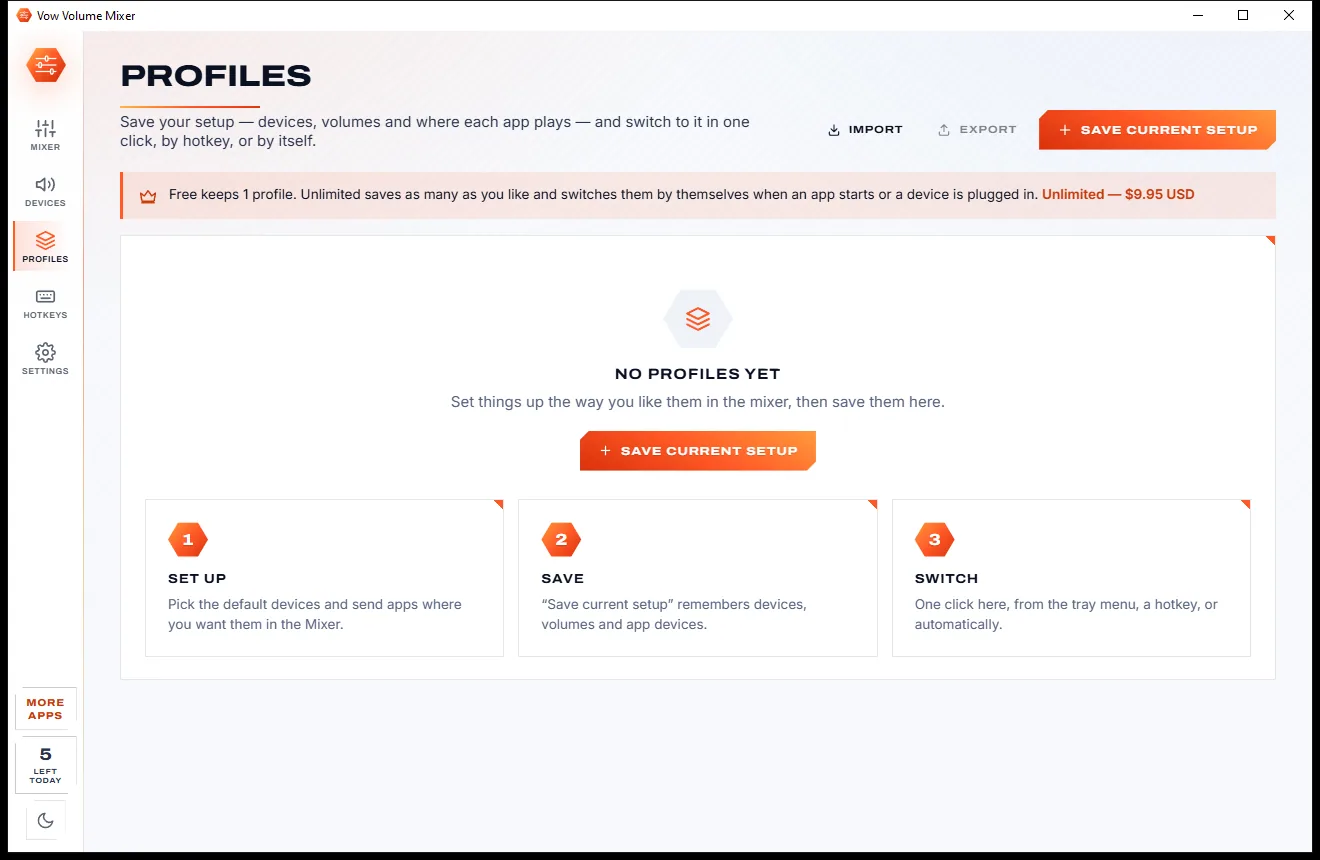
Keep the whole setup, devices, volumes and where each app plays, and switch back to it in one click, from the tray or with a hotkey.
Features
For gamers, remote workers, streamers and anyone with more than one pair of speakers.
Volume, mute, left/right balance and a live level meter for each app, plus master volume and meters for every device.
Spotify on the speakers, Teams on the headset, a game on the TV. Microphones work the same way on the Recording tab.
Click a device to make it the default. Calls in Teams, Zoom and Discord can follow it, or keep their own device.
Ctrl+Alt+F12 jumps to the next output, even in games. Unlimited adds mic mute, device and profile keys, and volume of the app in front.
Save devices, volumes and app routes as a profile, and have it switch on when an app starts or a device is plugged in.
When Windows forgets where an app should play after a restart or update, Vow puts it back.
Lock your mic level so meeting apps can't keep "auto-adjusting" it, or lock any app's volume where you want it.
Left-click to open, middle-click for the next output, right-click for every device, profile and mute.
Give devices nicknames, hide the ones you never use, play a test sound or check your mic live.
Uses the same Windows audio controls as Settings: no virtual driver, no stream hooks, no added latency and no administrator rights.
Light & dark theme
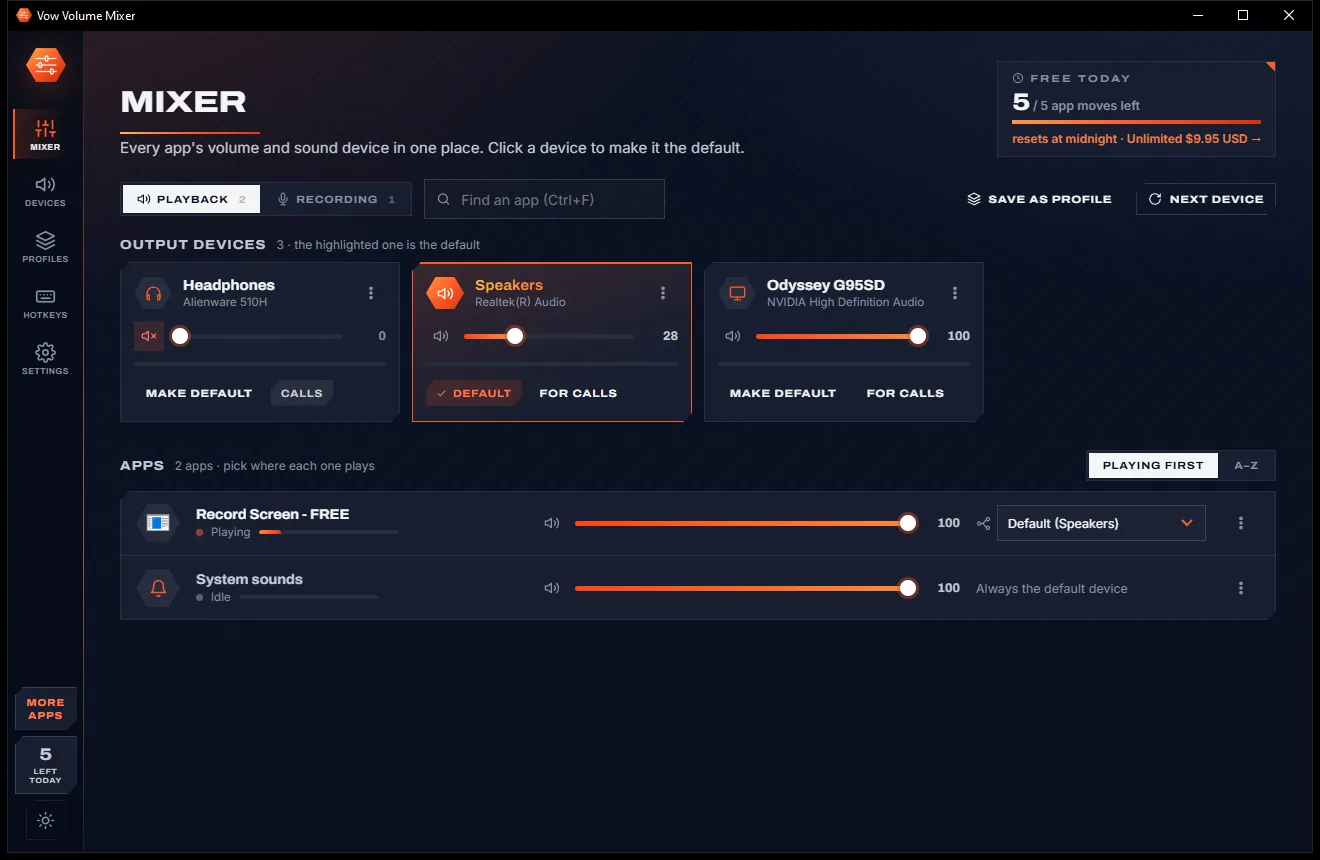
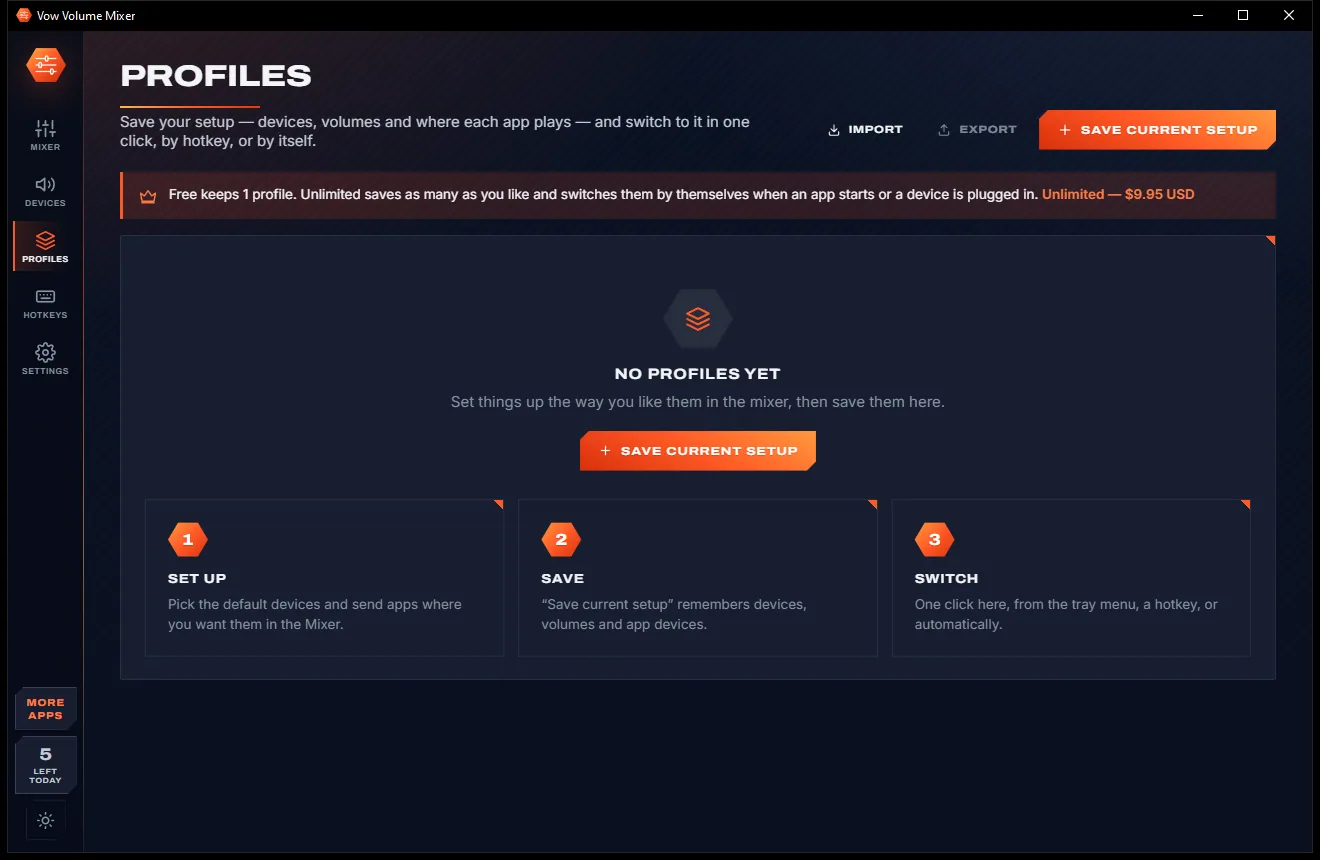
Volume Mixer comes with a crisp light theme and a calm dark theme. Switch with one click, or let it follow your Windows setting by itself. It remembers your choice.
Screenshots
Real screenshots of the real app, in both of its themes: 7 light, 7 dark. Click any picture to see it full size.
Light theme
Dark theme
Who it's for
Game on the speakers, voice chat on the headset, and a hotkey to swap without leaving the game.
Meetings on the headset with a locked mic level, music on the speakers between calls.
Keep each app on the device it belongs on and every level exactly where you set it.
Switch to the TV or receiver for a film, and back to the desk speakers in one click.
Profiles that switch by themselves when you plug in a headset or dock at your desk.
Anyone tired of opening sound settings every time they put headphones on.
Compare
What it takes to control your sound with what Windows gives you, and with Vow.
| Feature | Vow Volume Mixer | Windows mixer & typical audio tools |
|---|---|---|
| Every app's volume and device in one view | Yes, with live meters | Spread across Settings pages |
| Switch outputs from the tray or a hotkey | Yes, one click or one key | Several clicks in Settings |
| Profiles that switch by themselves | When an app starts or a device is plugged in | Not in Windows; a separate tool |
| Puts back an app's forgotten device | Yes, Keep app devices | Windows can forget after updates |
| Lock the microphone volume | Yes | Not in Windows |
| Virtual drivers or stream hooks | None | Needed by some routing tools |
| Price | Free every day, or $4.95 once | Basic and free, or paid add-ons |
| Ads and bundled extras | None | Common on download sites |
"Typical" describes what we found across the most-downloaded alternatives when we built Volume Mixer. Your mileage with any one of them may vary; ours won't.
Pricing
That is not a typo. Software this powerful usually means a monthly subscription; Volume Mixer is $4.95, once, for life: it's almost a giveaway. Use it free for as long as you like, and unlock Unlimited only if you need more.
The full per-app mixer, quick switching, 5 app moves a day.
Almost a giveaway. Less than a coffee for software this powerful: no subscription, no renewals, yours for life on 2 PCs.
Unlimited app moves, auto-switching profiles, every hotkey.
Payments by Stripe: we never see or store your card. Questions? Ask a real person.
Clean software
Most "free" Windows downloads pay for themselves with ads, bundled extras or your data. Vow Volume Mixer doesn't need to: it's paid for honestly, once, by the people who find it useful.
Download Volume Mixer freeStep-by-step guide
Put each app on the right device at the right volume in about a minute.
Step 1: get it freeDownload it from this page and run the installer. It needs no administrator rights and no account. Tick Start with Windows if you want it ready in the tray.
Your output devices appear as cards at the top. Every app that has made a sound is listed below with its own slider, mute button and meter.
Drag an app's slider or use the mouse wheel over it, and click the speaker icon to mute. Open an app's menu for balance and a volume lock.
Pick a device in the app's drop-down, for example Spotify to Speakers and Teams to Headset. Windows remembers the choice the next time the app plays.
Closing the window keeps it in the tray. Middle-click the tray icon or press Ctrl+Alt+F12 to switch to the next output, and right-click for every device and profile.
Technical details
FAQ
Yes. The full per-app mixer, one-click output and microphone switching, the tray menu, the "next output" hotkey, volume locks and one profile are free, for as long as you like. You can also send apps to their own device 5 times a day. Unlimited, a one-time $4.95 USD payment, removes that limit and adds Keep app devices, unlimited auto-switching profiles and every hotkey.
Yes. Pick a device in an app's drop-down and that app plays there while everything else stays on the default. This uses the same per-app setting as Windows' own sound settings (Windows 10 version 1803 or later). Some apps only move the next time they start playing, and the app tells you when that happens.
No. It uses only the audio controls built into Windows, the same ones the Settings app and Sound control panel use. There is no virtual audio driver and no stream hooking, so there is no added latency and nothing for anti-cheat software to object to.
Yes. Hotkeys are system-wide, so they work in games and full-screen apps while the mixer sits in the tray. "Next output device" (Ctrl+Alt+F12, which you can change) is free; Unlimited adds every other hotkey.
Yes. Open the microphone on the Devices page and lock its volume, and meeting apps can no longer "auto-adjust" it. You can lock an app's own volume the same way too.
Windows sometimes drops per-app device choices after a restart or an update. With Unlimited, Keep app devices notices and puts each app back on the device you chose.
It brings per-app volume and devices (like EarTrumpet) and tray and hotkey switching with automatic profiles (like SoundSwitch) together in one window, and adds Keep app devices, volume locks and device matching that survives a new device ID. Unlike Voicemeeter, it needs no virtual audio driver.
Yes. It is made and published by XTO Pty Ltd, an Australian company. There are no ads and no bundled software, nothing is uploaded, it needs no administrator rights, and it uninstalls cleanly from Windows Settings.
The Vow collection
Same design, same promises, a tiny one-time price. Learn one and you already know them all.
Remove vocals from any song, offline, in two clicks

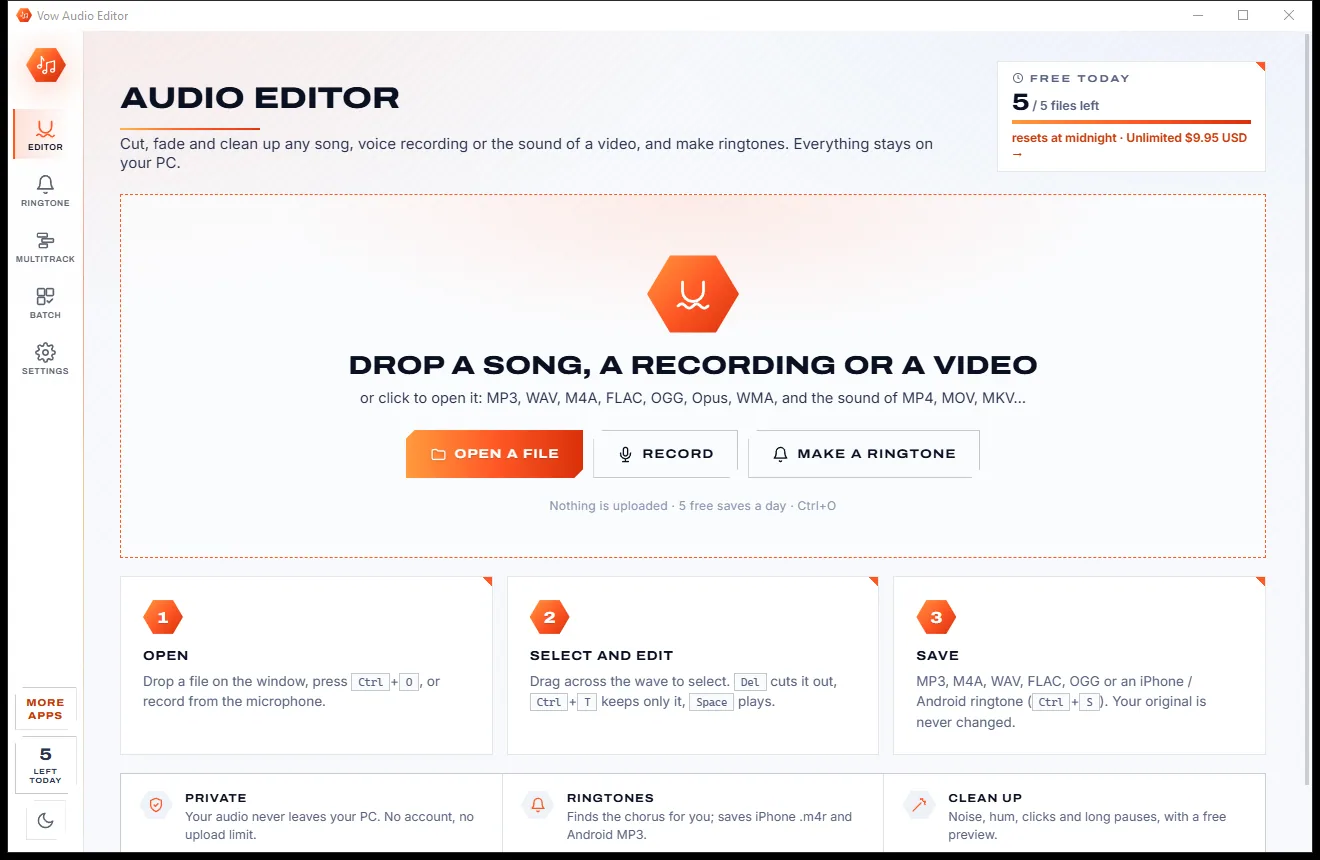
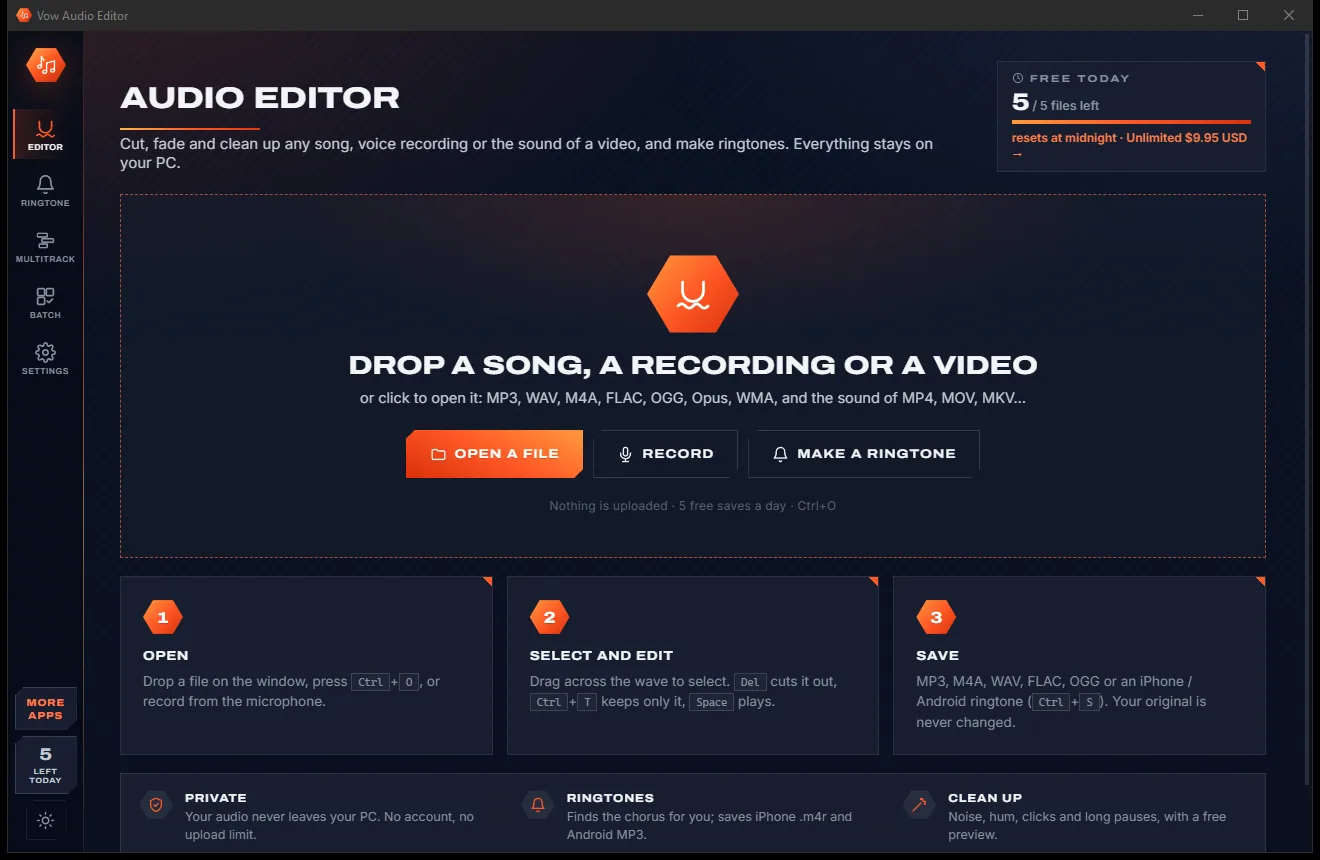
Cut, fade and clean up any audio, and make ringtones, on your own PC

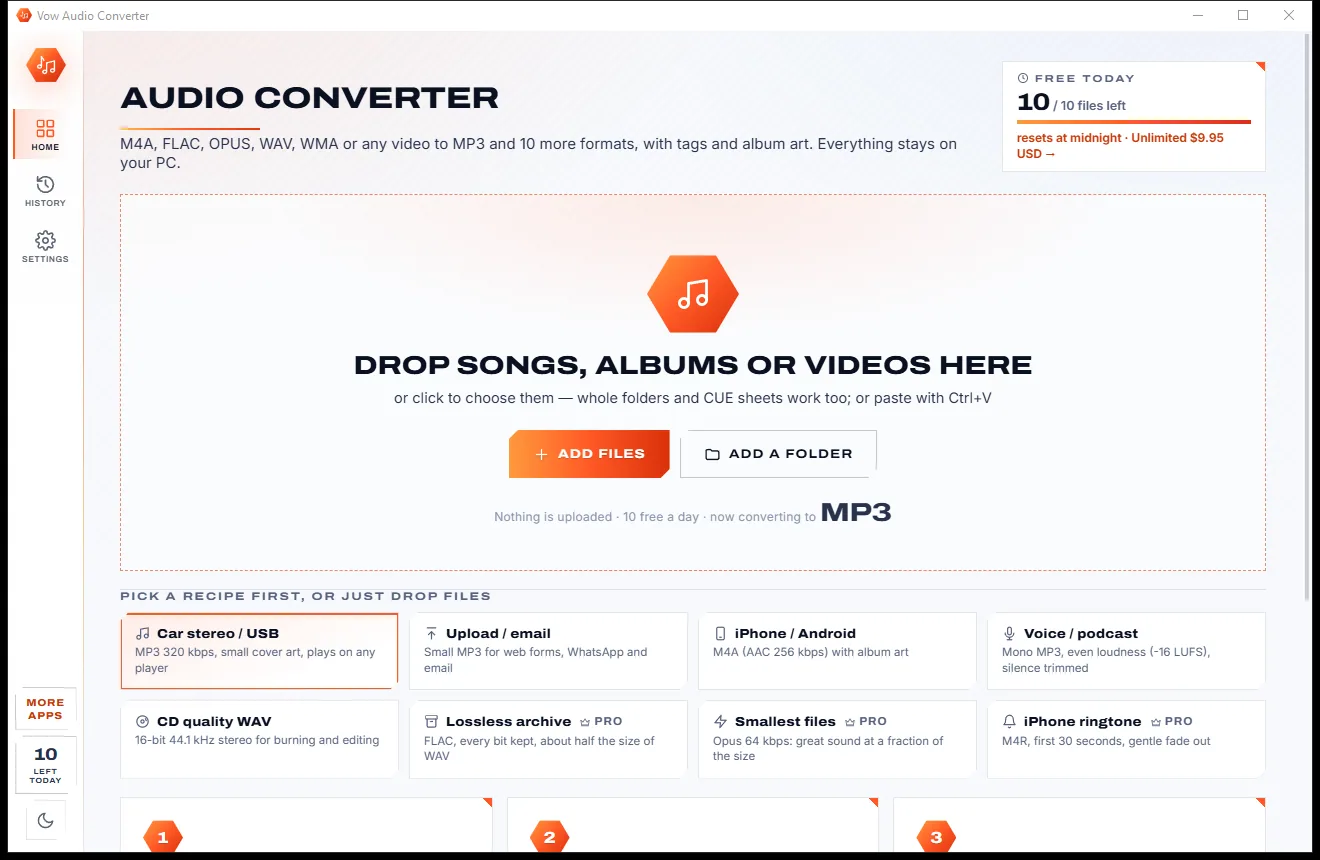
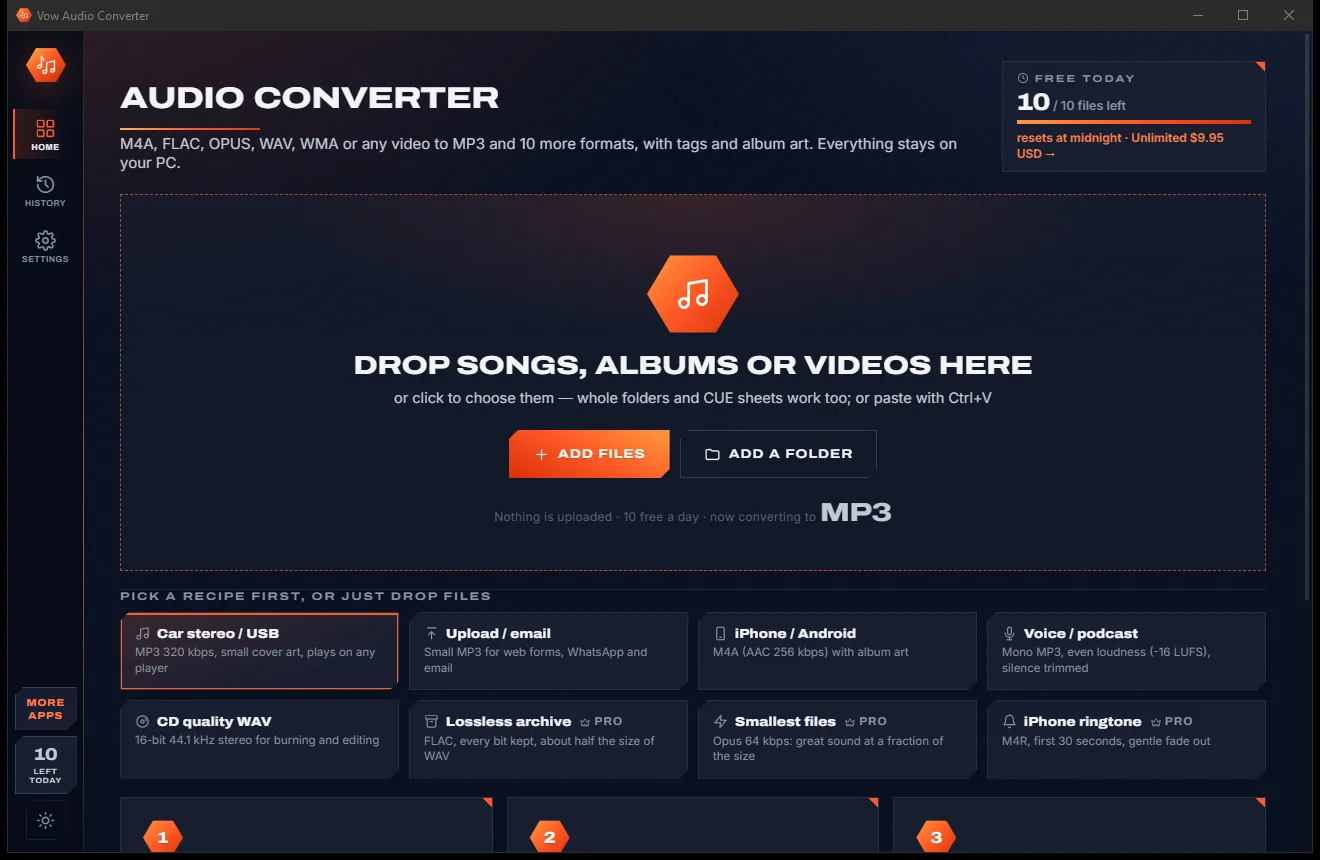
Convert any audio to MP3, FLAC and 9 more formats, tags and all
Every app's volume and sound device in one window. Free to use every day, $4.95 once if you ever want Unlimited.