
Vow Folder Locker icon
Vow Folder Locker Windows 10 & 11 · v1.0.0 · Free to use

Password-protect folders on Windows

Keep a folder private on a shared PC. Two clicks. Never locked out.

Drop a folder on the window and type a password twice. It disappears from Explorer and Windows refuses to open it, or, with Encrypt, every file is scrambled with AES-256. A recovery key means a forgotten password never means lost files.

  • No ads
  • No malware
  • No account
  • Light & dark theme
  • 1 folder locked and hidden, unlocking always free
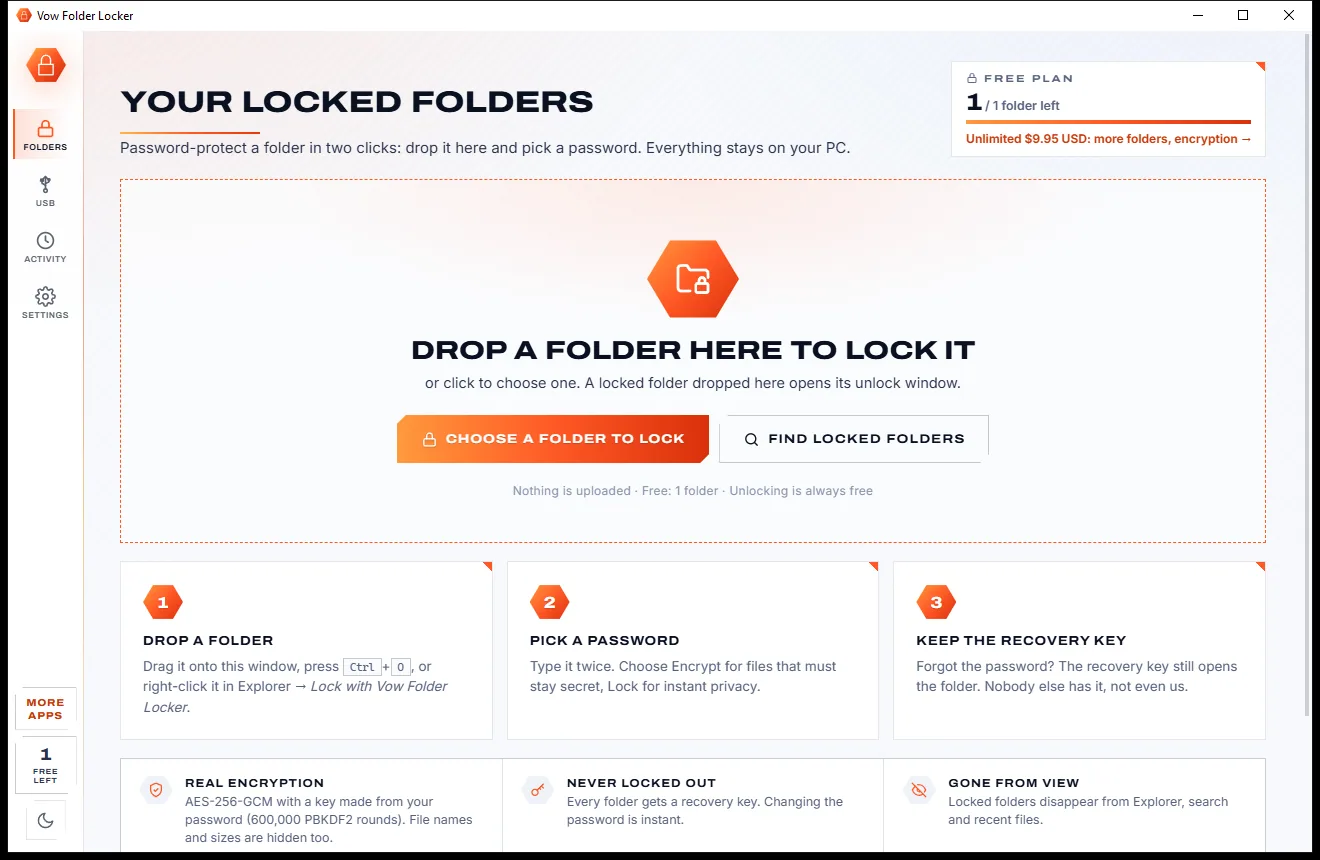
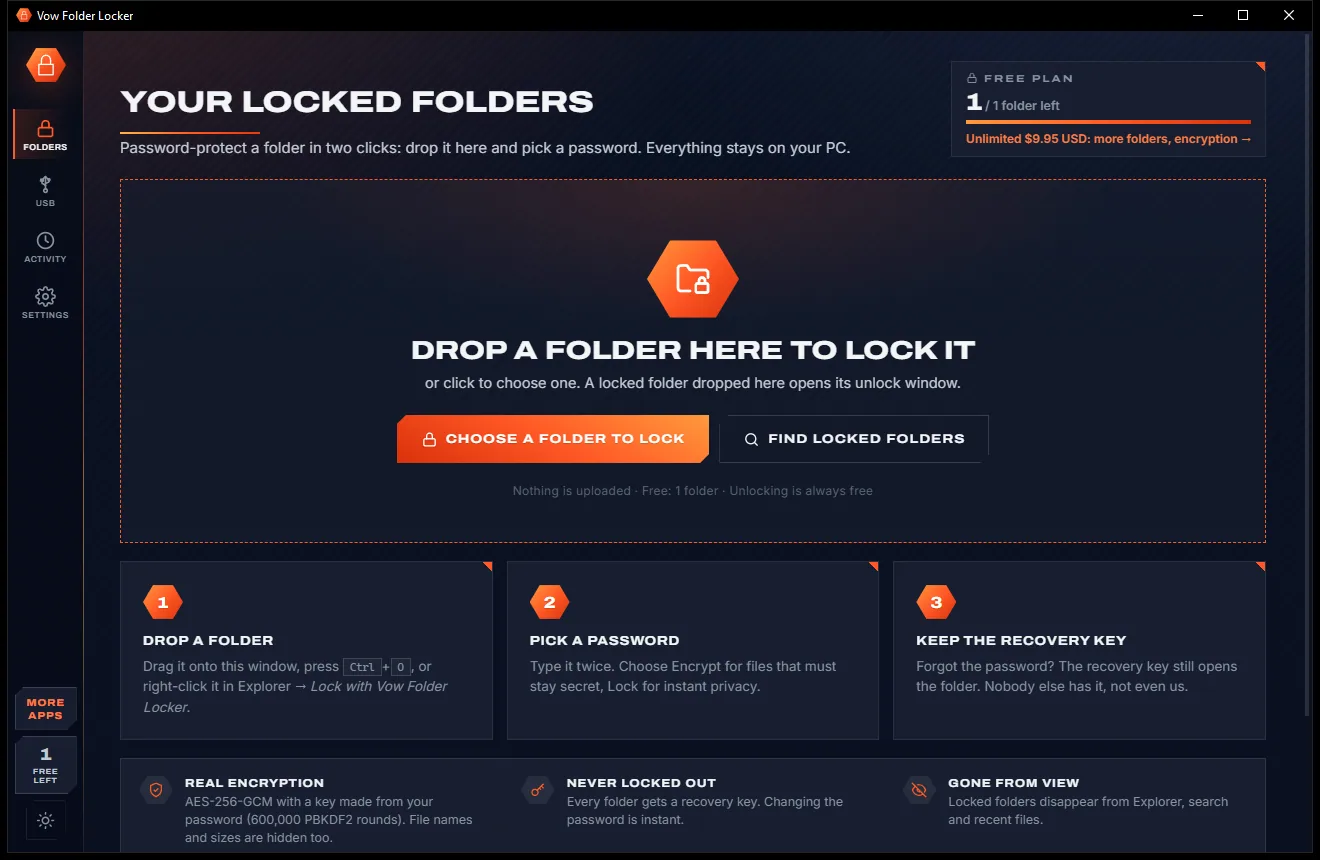
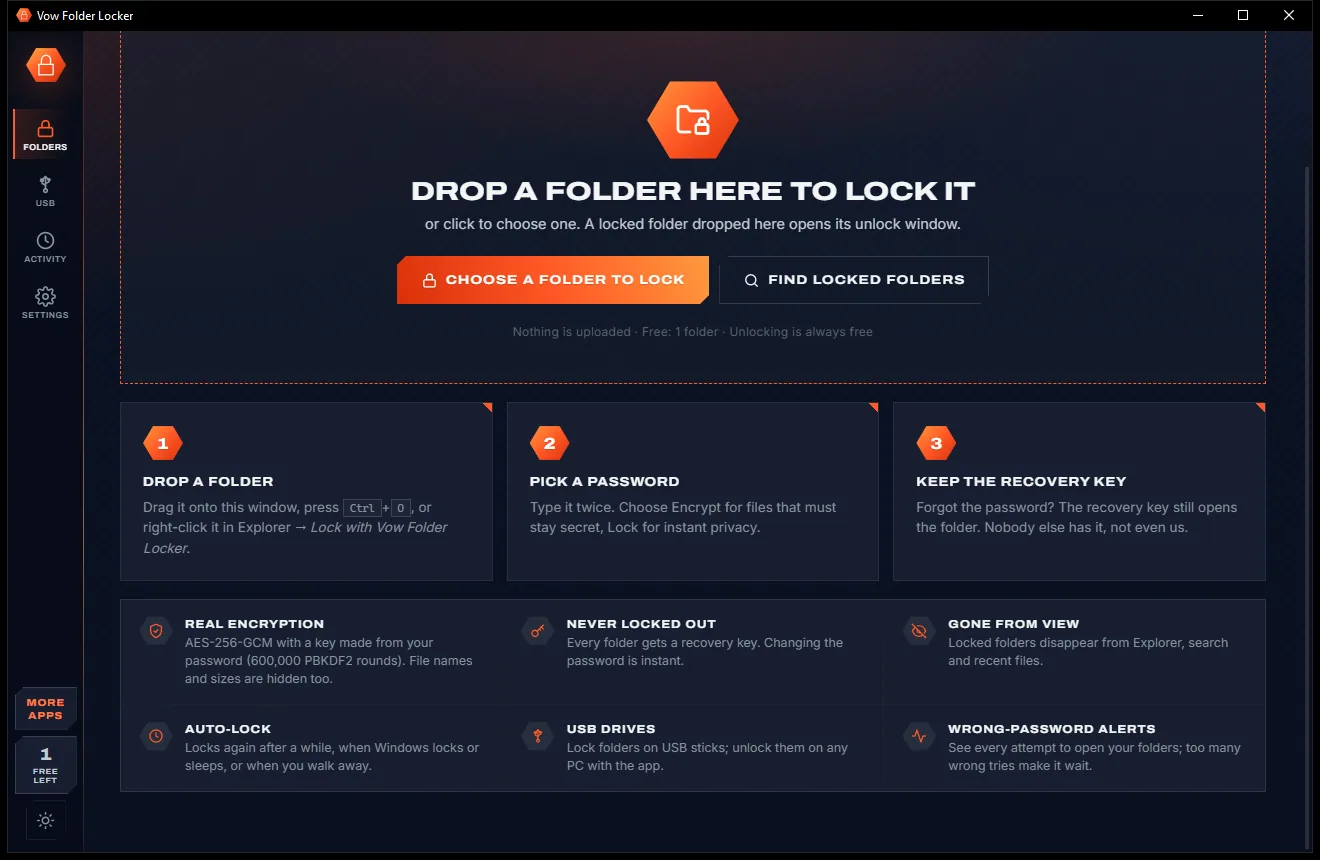
The Your Locked Folders page with a large Drop a folder here to lock it area, Choose a folder and Find locked folders buttons, light themeThe Your Locked Folders page with a large Drop a folder here to lock it area, Choose a folder and Find locked folders buttons, dark theme
Light & dark theme Zero ads, zero junk
Drop a folder here to lock it with a password
No ads. Ever.No pop-ups, no banners, no "offers".
No malware or bundlewareThe installer installs one thing: this app.
No account, no uploadIt works on your PC, and your files stay there.
Free daily limits, just $4.95 unlimitedNo subscription. No trial that runs out.

The problem

Folder lockers that hide too little, or lose too much

A "locked" folder that's only hidden. A forgotten password that means lost photos. A Windows update that breaks the lock. Shared PCs deserve better.

Forget the password, lose the files

Plenty of lockers have no way back: one forgotten password and the folder is gone for good.

"Locked" that's only hidden

Some apps just hide the folder and call it locked. Turn on hidden files and there it is.

Drivers that break on updates

Lockers built on kernel drivers can stop working, or stop unlocking, after a Windows update.

Uninstall and it's exposed

Remove some lockers and the folders are suddenly open, or deleted along with the app.

Pay to open your own files

Subscriptions and upsells, sometimes even to unlock what you already locked.

One PC, many people

Windows has no two-click way to put a password on a single folder for the people who share your PC.

Vow Folder Locker fixes all of it.

How it works

Drop. Password. Locked.

Two clicks to lock, one to unlock, and a recovery key so you are never shut out.

  1. 01

    Drop a folder

    Drag it onto the window, press Ctrl+O, paste it, or right-click it in Explorer and choose Lock with Vow Folder Locker.

    The Your Locked Folders page with a large Drop a folder here to lock it area, Choose a folder and Find locked folders buttons, light themeThe Your Locked Folders page with a large Drop a folder here to lock it area, Choose a folder and Find locked folders buttons, dark theme
    Drop a folder here to lock it with a password
  2. 02

    Pick a password and the protection

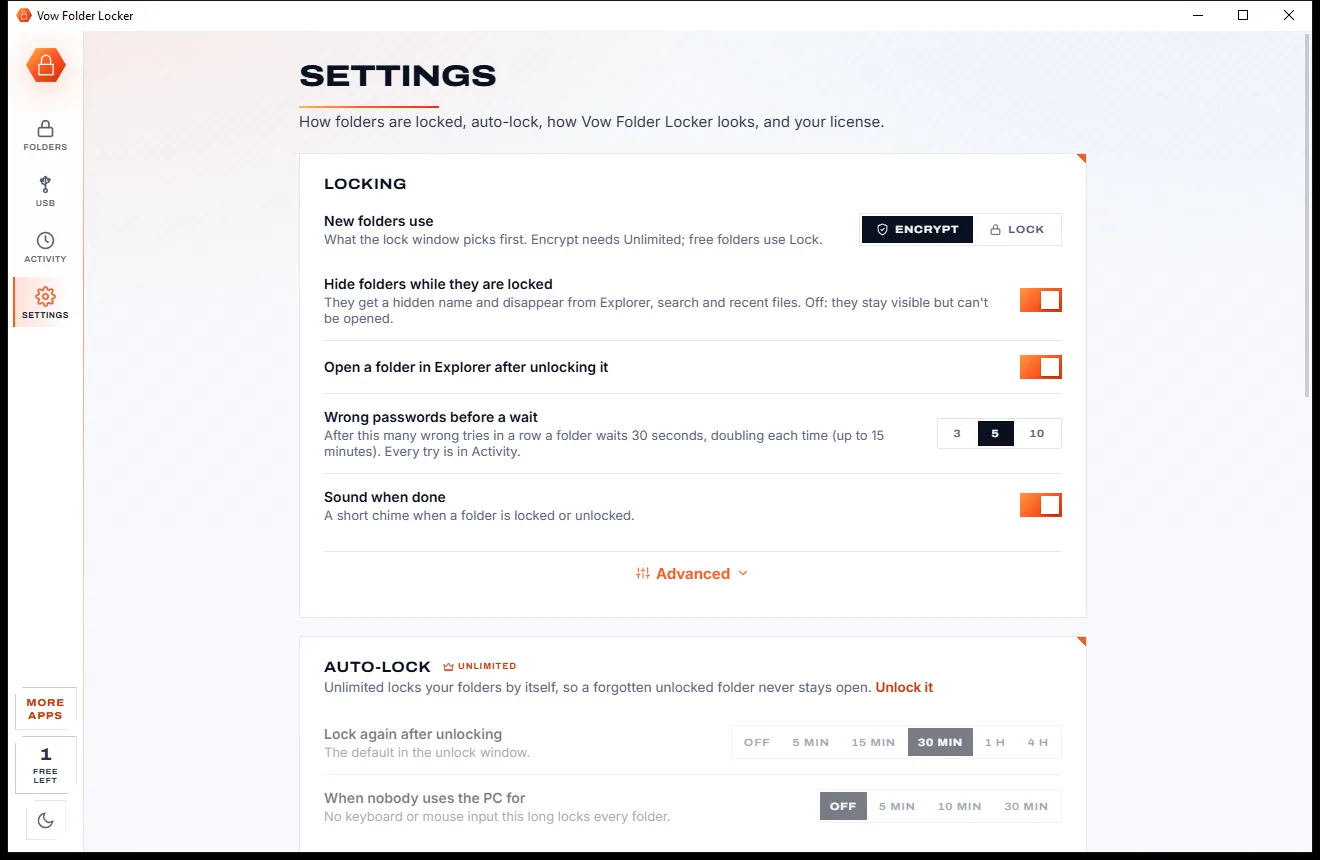
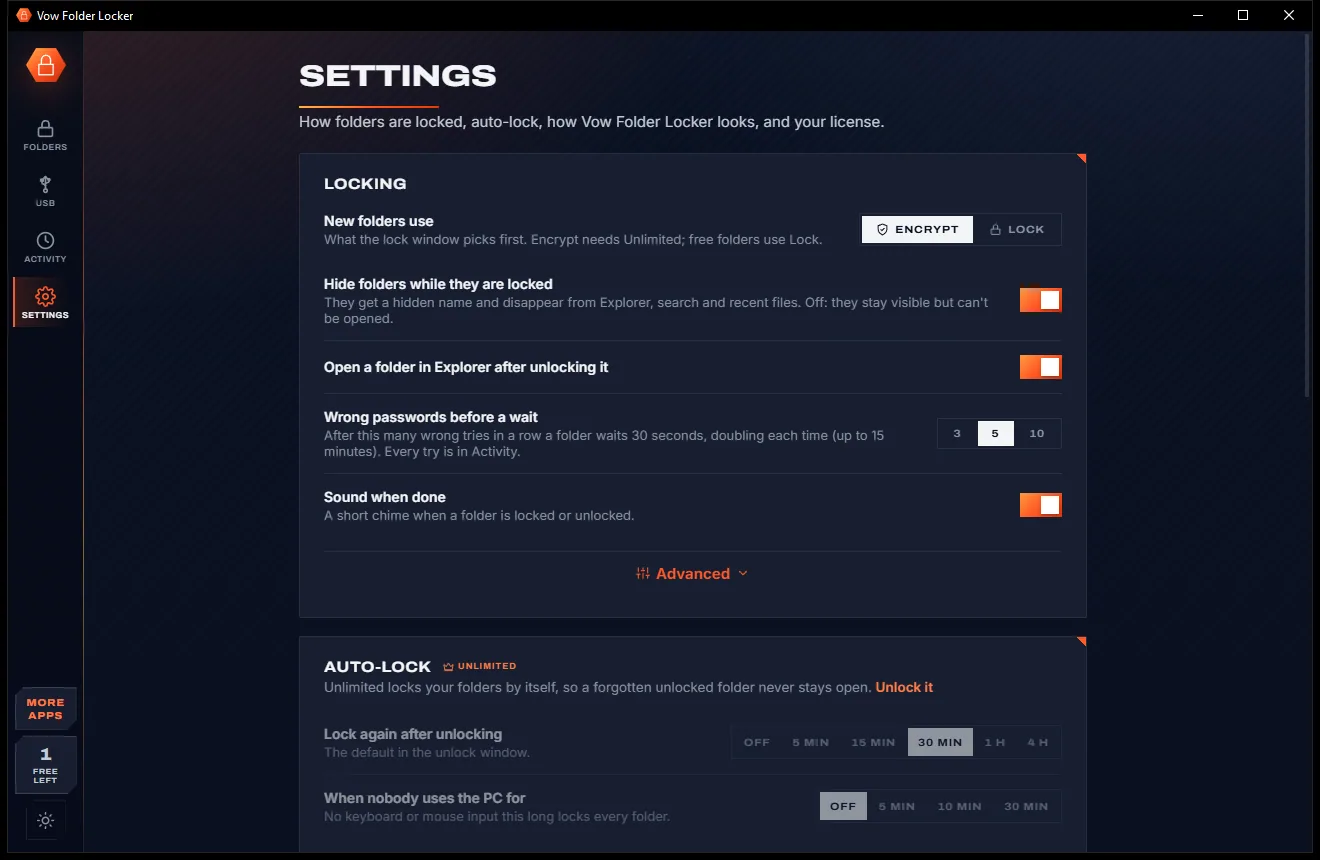
    Type it twice, with a strength meter and an optional hint. Choose Lock for instant privacy, or Encrypt for files that must stay secret.

    The Settings page with locking options such as Encrypt or Lock for new folders, hiding locked folders and wrong-password delays, light themeThe Settings page with locking options such as Encrypt or Lock for new folders, hiding locked folders and wrong-password delays, dark theme
    Choose Lock or Encrypt, hide folders and set the lockout
  3. 03

    Keep the recovery key

    It is shown once: copy it or save it as a text file. It unlocks the folder if the password is ever forgotten.

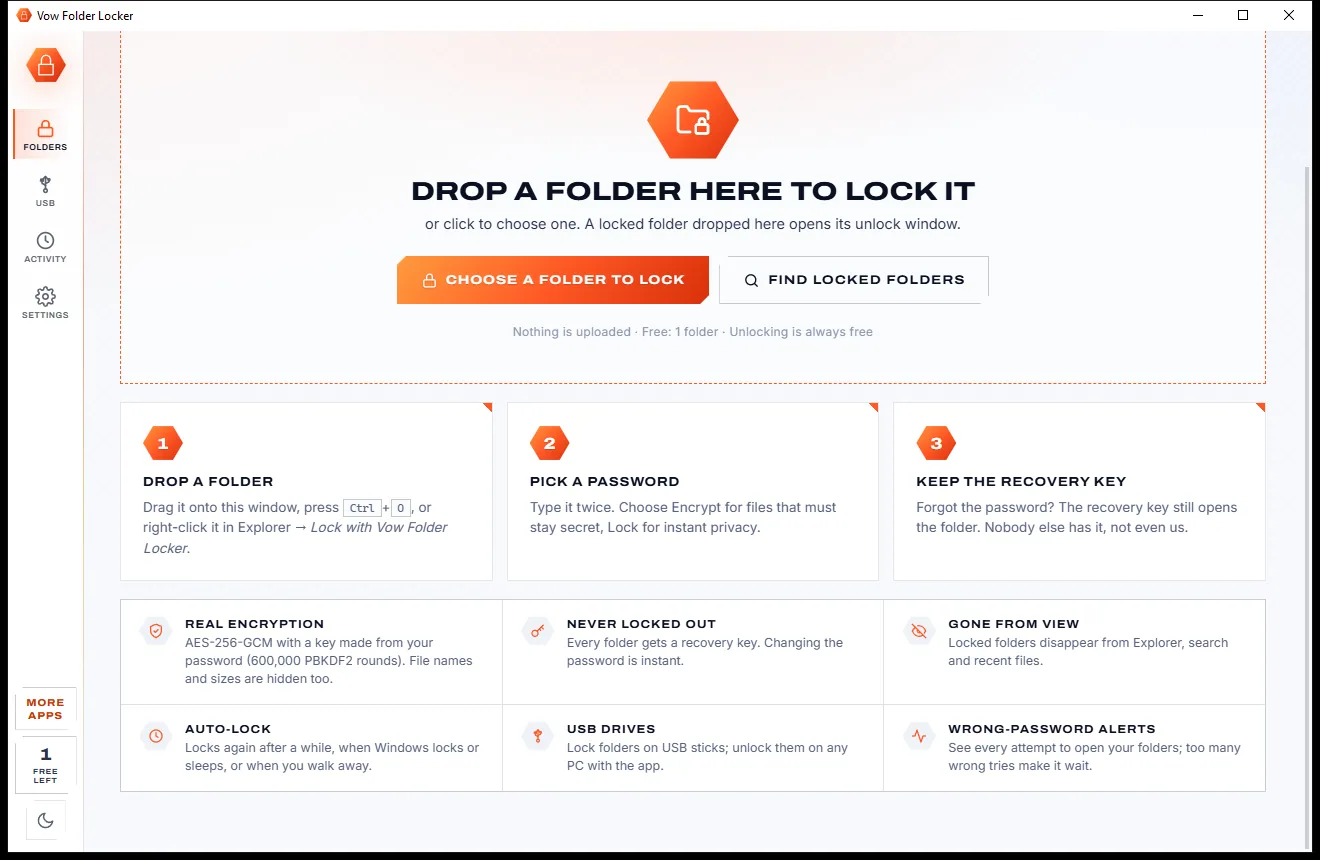
    The lower part of the Folders page with a three-step guide and cards on encryption, the recovery key, auto-lock and USB drives, light themeThe lower part of the Folders page with a three-step guide and cards on encryption, the recovery key, auto-lock and USB drives, dark theme
    ...and the rest: recovery key, encryption and auto-lock

Features

Real protection, described honestly

For families sharing one PC, colleagues sharing a desk, and anyone carrying files on a USB stick.

AES-256-GCM encryption

Encrypt scrambles every file with its own key and hides file names and sizes, unreadable even from another PC or a USB-booted system.

Lock: hidden and blocked

Instant at any size: the folder gets a hidden name and Windows refuses to open it for Explorer, apps, search and other accounts.

A recovery key for every folder

A 160-bit recovery key unlocks the folder if the password is forgotten. Make a new one any time with the password.

Auto-lock

Lock again after 5 minutes to 4 hours, when Windows locks, on sleep, when the PC is idle or when the app closes.

Ctrl+Alt+L from anywhere

Lock every folder at once from anywhere in Windows, or press Lock all (Ctrl+L) in the app.

USB drives and memory cards

Lock folders on USB sticks and memory cards (FAT and exFAT ones are encrypted). They unlock on any PC with the app.

Wrong-password lockout

After 3, 5 or 10 wrong tries a folder waits 30 seconds, doubling up to 15 minutes, and Activity logs every try.

Instant password changes

Change the password or make a new recovery key without re-encrypting a single file.

Find locked folders

Find folders locked on another PC, on a USB drive or by an earlier install, and unlock them here.

No driver, no surprises

No kernel driver to break on Windows updates, and uninstalling never touches your folders: locked ones stay locked.

Light & dark theme

Easy on the eyes, day or night.

Folder Locker comes with a crisp light theme and a calm dark theme. Switch with one click, or let it follow your Windows setting by itself. It remembers your choice.

  • LightClear and bright for daytime and busy offices
  • DarkGentle on tired eyes late at night
  • Follow WindowsChanges by itself when your PC does
The Your Locked Folders page with a large Drop a folder here to lock it area, Choose a folder and Find locked folders buttons, light theme
Light
The Your Locked Folders page with a large Drop a folder here to lock it area, Choose a folder and Find locked folders buttons, dark theme
Dark

Screenshots

See Vow Folder Locker in action

Real screenshots of the real app, in both of its themes: 6 light, 6 dark. Click any picture to see it full size.

Who it's for

Private folders for real life

Family PCs

Keep tax papers, health records or gift plans away from kids and visitors who share the computer.

Shared work desks

Lock HR files or client folders when someone else sits at your PC.

Files on a USB stick

Encrypt a folder on a stick so a lost drive doesn't mean exposed files.

Private photos

Keep personal pictures out of Explorer, Windows search and recent files.

Laptops that travel

Encrypted folders stay unreadable even if the laptop is stolen and its drive is taken out.

Anyone who forgets passwords

With a recovery key, a forgotten password is an inconvenience, not a disaster.

Compare

Vow Folder Locker vs typical folder lock apps

Where the usual folder lockers cut corners, and what you get instead.

Feature Vow Folder Locker Typical folder lock apps
Forgotten password A recovery key for every folder Often means lost files
Real encryption AES-256-GCM, names and sizes hidden Often just hiding
Honest about what "lock" means Says plainly when to use Encrypt Rarely
Kernel driver to break on updates None Common
After uninstalling Folders stay locked, unlock on reinstall Can be exposed or deleted
Unlocking your own folders Always free Sometimes behind an upsell
Price Free for 1 folder, or $4.95 once Subscriptions and upsells
Ads and bundled extras None, ever Common on free lockers

"Typical" describes what we found across the most-downloaded alternatives when we built Folder Locker. Your mileage with any one of them may vary; ours won't.

Pricing

Free every day. Just $4.95 once for the lot.

That is not a typo. Software this powerful usually means a monthly subscription; Folder Locker is $4.95, once, for life: it's almost a giveaway. Use it free for as long as you like, and unlock Unlimited only if you need more.

Free
$0forever

1 folder locked and hidden, unlocking always free.

  • Lock 1 folder: hidden and blocked
  • Lock and unlock it as often as you like
  • Unlocking always free, any folder, any PC
  • Recovery key, password change and hint
  • Wrong-password lockout and Activity log
  • Explorer right-click menu, no ads
Download free
Best valueUnlimited
$4.95USD, once. Yours for life.

Almost a giveaway. Less than a coffee for software this powerful: no subscription, no renewals, yours for life on 2 PCs.

Any number of folders, AES-256 encryption, auto-lock, USB drives.

  • Any number of protected folders
  • AES-256-GCM encryption, names hidden
  • Auto-lock: timer, Windows lock, sleep, idle, exit
  • Ctrl+Alt+L locks everything from anywhere
  • Folders on USB drives and memory cards
  • One payment, yours for life on 2 PCs
Get it, then unlock in the app

How unlocking works

  1. 1
    Use it free first Install Vow Folder Locker and use it on your own files. No card, no account, no time limit.
  2. 2
    Click "Unlimited" in the app Pay $4.95 USD once by card, securely through Stripe in your browser.
  3. 3
    It unlocks itself Within seconds, for life, on up to 2 of your PCs. Your license key is emailed to you, and every future update is included.

Payments by Stripe: we never see or store your card. Questions? Ask a real person.

Clean software

Safe to install. Nothing else comes with it.

Most "free" Windows downloads pay for themselves with ads, bundled extras or your data. Vow Folder Locker doesn't need to: it's paid for honestly, once, by the people who find it useful.

Download Folder Locker free
  • No ads, toolbars or "offers"The installer installs one thing: Vow Folder Locker. No pre-ticked boxes to watch out for.
  • No administrator rights neededIt installs just for you, in your own user folder, and leaves the rest of Windows alone.
  • Nothing running in the backgroundNo startup programs, no tray nags, no services. When you close it, it's closed.
  • Everything includedAll it needs is inside the installer, so you never have to fetch a "required component" from somewhere else.
  • Uninstalls cleanlyOne click in Windows Settings > Apps. Your own files are never touched.
  • A real company behind itMade, published and supported by XTO Pty Ltd, an Australian company, with real people answering every message.

Step-by-step guide

How to password-protect a folder on Windows

Lock a folder in under a minute, with no account and nothing uploaded.

Step 1: get it free
  1. Install Vow Folder Locker free

    Download it from this page and run the installer. It needs no administrator rights and no account, and can add Lock with Vow Folder Locker to Explorer's folder menu.

  2. Drop the folder on the window

    Drag the folder in, press Ctrl+O, or right-click it in Explorer. System folders, drive roots and your top user folders are refused, so nothing important gets locked by mistake.

  3. Type a password twice

    Watch the strength meter and add a hint if you like (anyone who tries can see it). Choose Encrypt or Lock, then press the button.

  4. Save the recovery key

    Copy it or save it as a text file and keep it away from this PC: on paper, as a photo on your phone or in a password manager. Tick the box and press Done.

  5. Unlock when you need it

    Press Unlock beside the folder and type the password, or switch to the recovery key. Lock it again with one click: locking never needs the password.

Technical details

Folder Locker at a glance

Works on
Windows 10 (1809+) and Windows 11, 64-bit
Encryption
AES-256-GCM, a separate key for every file
Password key
PBKDF2-HMAC-SHA256, 600,000 rounds
Recovery
160-bit recovery key for every folder
Lock mode
Hidden name + NTFS deny rule, instant at any size
Internet
Not needed: works fully offline
Install
Per-user, no administrator rights, no account
Languages
English
Theme
Light, dark or follow Windows: one click to switch
Version
1.0.0, released 7 November 2026
Publisher
XTO Pty Ltd (Australia)

FAQ

Questions about Folder Locker

Is Vow Folder Locker free?

Yes. You can protect one folder, hidden and blocked, and unlock and lock it again as often as you like, free. Unlocking is always free for any folder on any PC. Unlimited, a one-time $4.95 USD payment, adds any number of folders, AES-256 encryption, auto-lock and USB drives.

What is the difference between Lock and Encrypt?

Lock is instant at any size: the folder gets a hidden name and Windows refuses to open it for Explorer, apps, search and other accounts. Someone with admin skills could get around it, so for files that must stay secret use Encrypt, which scrambles every file with AES-256-GCM so it can't be read without your password, even from another PC.

What if I forget my password?

Use the recovery key every folder gets when it is protected. It is shown once, so copy it or save it as a text file and keep it somewhere safe. With the password you can also make a new recovery key at any time.

How strong is the encryption?

Every file has its own key and is encrypted with AES-256-GCM in 1 MiB chunks that carry their position and a last-chunk flag, so no reordering, dropping or truncation goes unnoticed. The folder's private key is sealed with AES-256-GCM under a key made from your password with PBKDF2-HMAC-SHA256 at 600,000 rounds. File names and sizes are hidden too.

Can I open a locked folder on another PC?

Yes. Install Vow Folder Locker there, use Find locked folders or drop the folder on the window, and unlock it with the password or the recovery key. Unlocking is free on every PC.

What happens to my folders if I uninstall?

Nothing. Uninstalling never touches folders: locked ones stay locked and unlock again after reinstalling, on any PC.

How is it different from other folder lockers?

Every folder gets a recovery key, Encrypt is real AES-256-GCM and Lock is described honestly, there is no kernel driver to break on Windows updates, folders survive an uninstall, unlocking is free forever, and Unlimited is one $4.95 payment.

Is it safe to install?

Yes. It is made and published by XTO Pty Ltd, an Australian company. There are no ads, no bundled software and no driver, it installs per user without administrator rights, and it uninstalls cleanly from Windows Settings without touching your folders.

The Vow collection

More apps you'll never have to go looking for

Same design, same promises, a tiny one-time price. Learn one and you already know them all.

Your passwords in one encrypted file on your PC: no account, no cloud

  • Free: Up to 25 items, every security feature, 10 breach checks a day
  • $9.95 once: Unlimited items, auto-type, automatic encrypted backups, unlimited breach checks
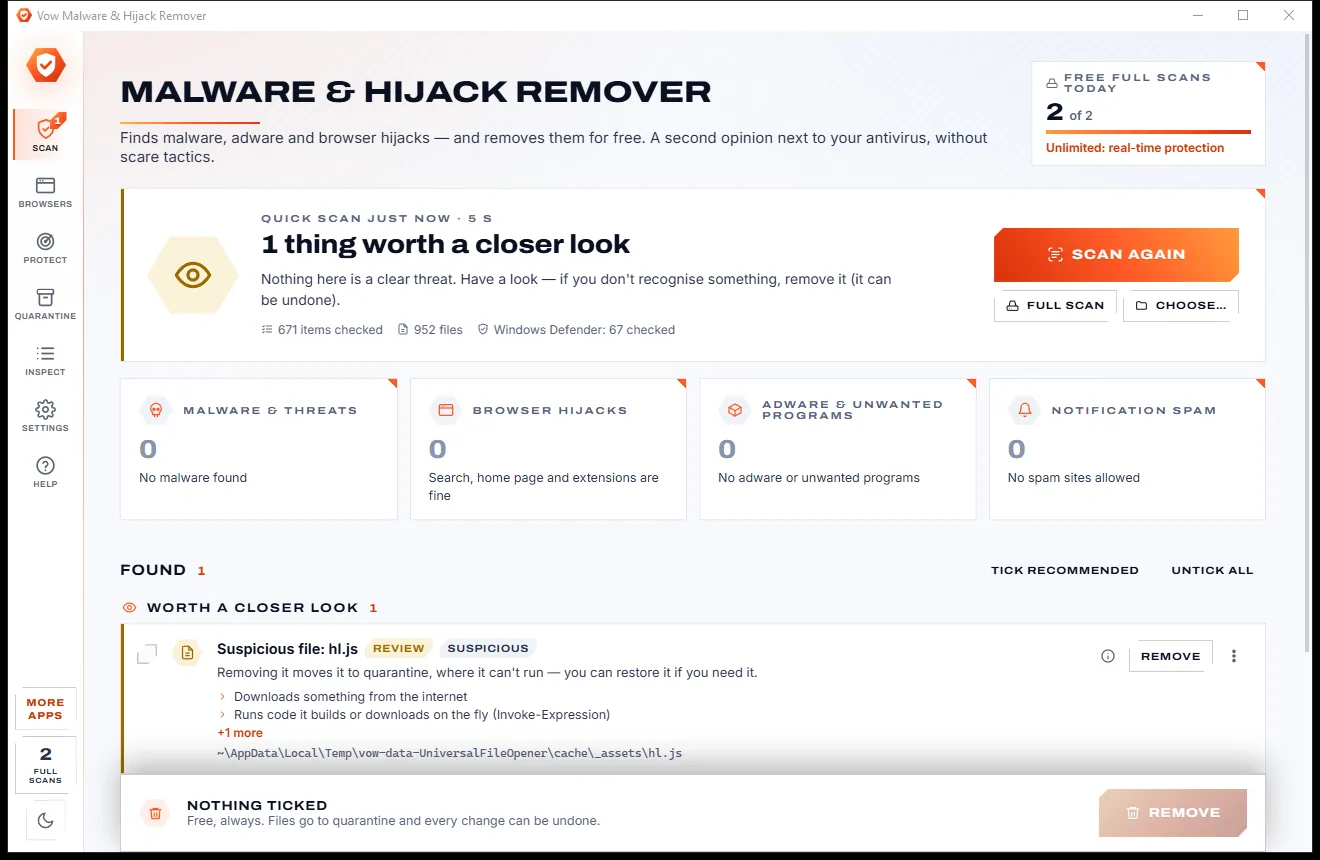
Find adware, malware and browser hijacks, and remove them free

  • Free: Unlimited quick scans and removals, 2 full scans a day
  • $9.95 once: Real-time hijack protection, scheduled scans, one-click browser reset

Shred files so no recovery tool can bring them back

  • Free: 25 items a day, all 14 erasure methods, read-back check
  • $4.95 once: Wipe free space and whole drives, erasure certificates, no limit

Done searching. Get Folder Locker.

Password-protect a folder in two clicks, with a recovery key. Free to use every day, $4.95 once if you ever want Unlimited.

  • No ads
  • No malware
  • No account
  • No subscription
Folder LockerFree · Windows 10 & 11 Download