
Productivity
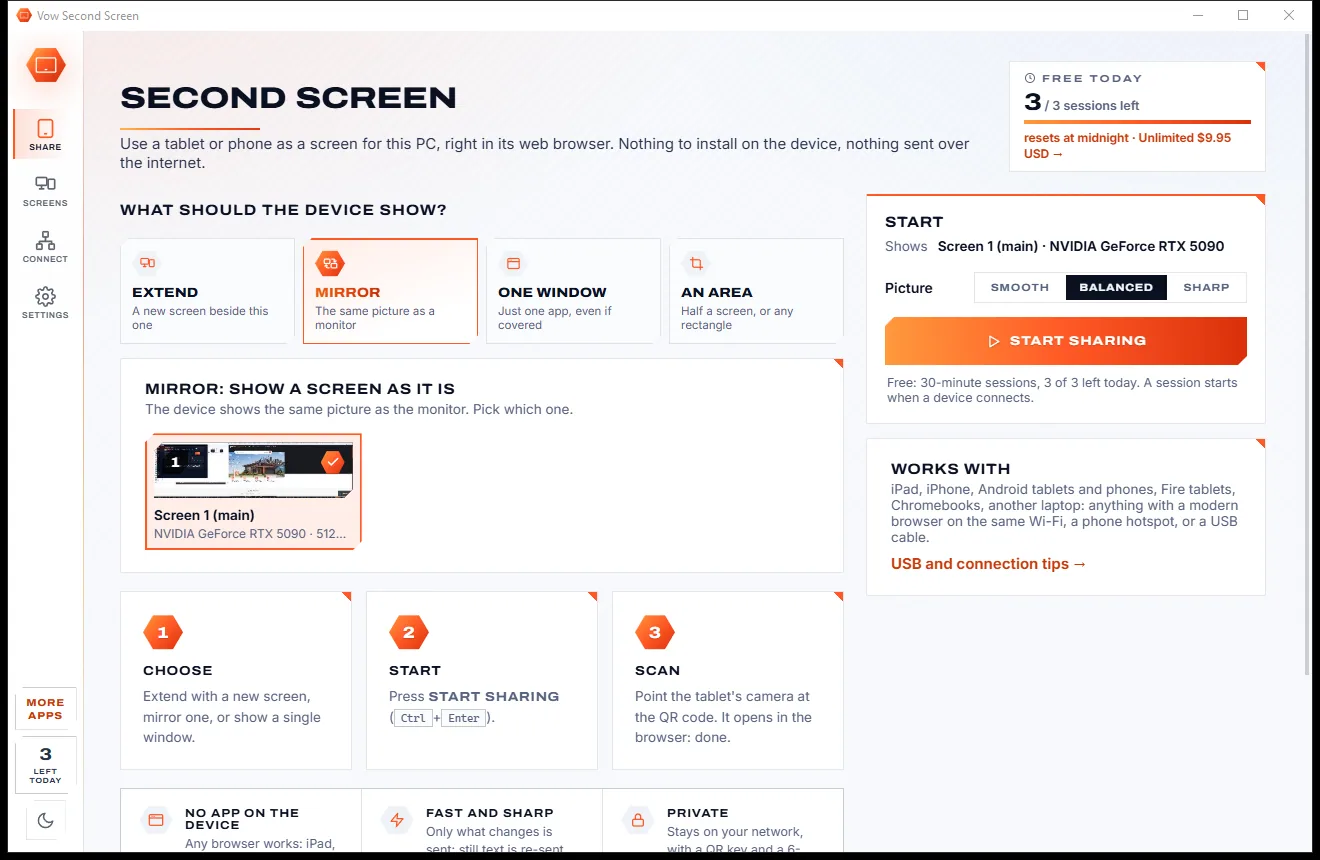
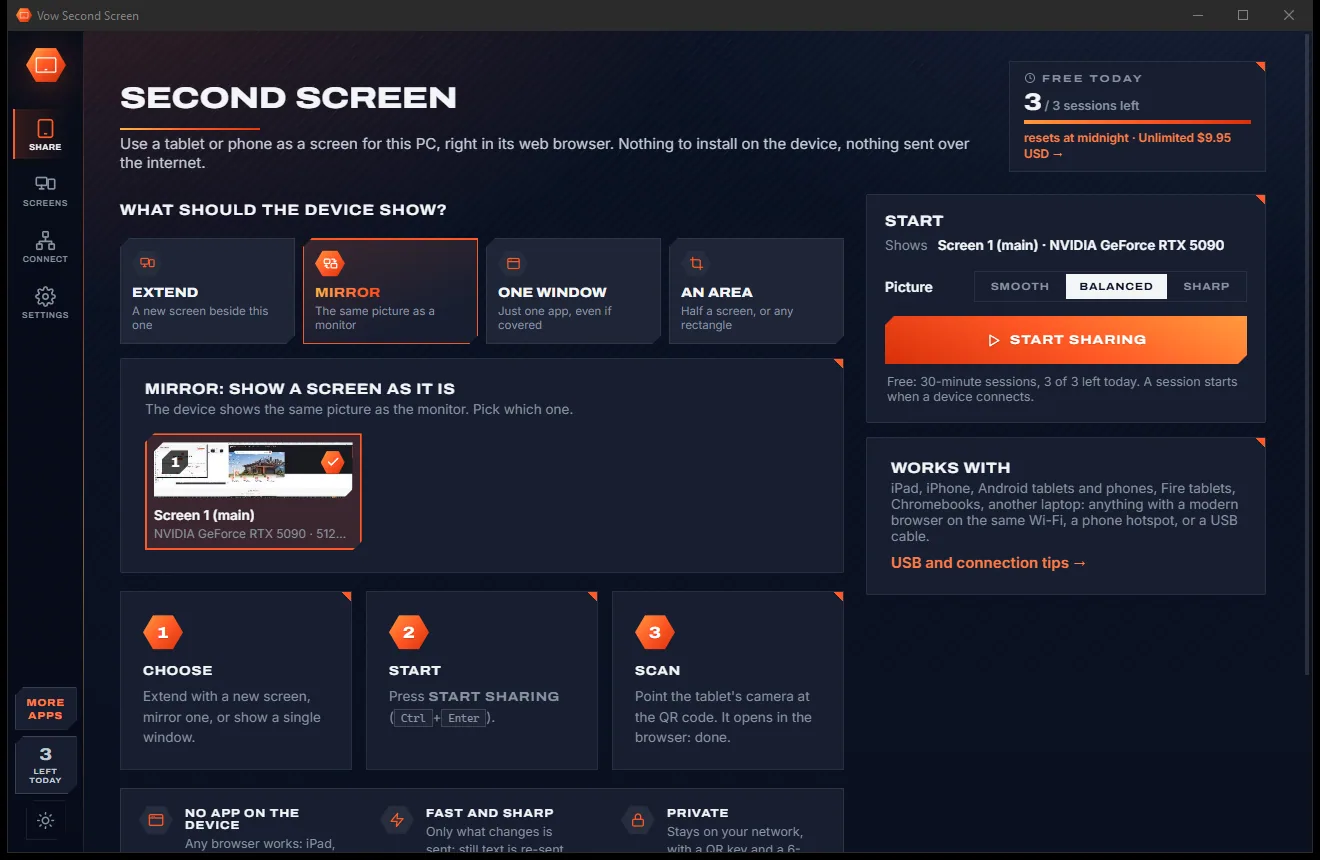
Vow Second Screen
Turn a tablet or phone into a second screen for your PC, in its browser
- Free: 3 sessions a day of 30 minutes, HD picture, view only, one device
- $4.95 once: Any length, up to 4K, touch, pen and keyboard, up to 6 devices

Scrolling screenshot & mark-up for Windows
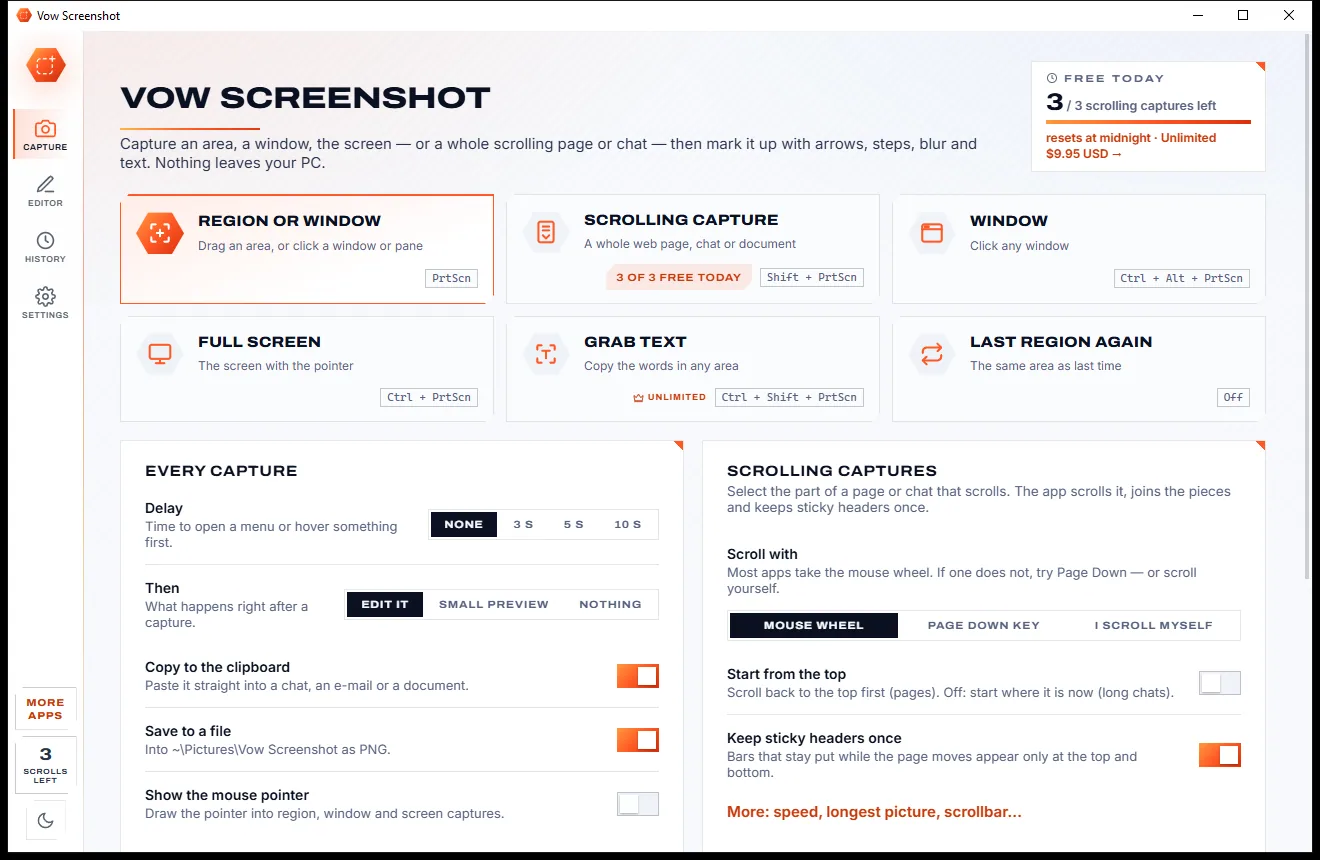
Press PrtScn and drag over anything, or Shift+PrtScn to capture a whole web page, chat or document as one long picture. Sticky headers appear once, the scrollbar is cut off, and the editor opens ready for arrows, steps and text. Nothing is uploaded.
The problem
The page you need is longer than your screen. So you take six screenshots, paste them together, and still miss a line.
The built-in tool can't capture a page longer than your monitor, so long pages turn into a pile of separate pictures.
Pasting screenshots together in an image editor, lining up the edges, and repeating the sticky header in every piece.
Page-capture add-ons work in one browser and can't capture a chat app or a document, and some ask to read every site you visit.
The most capable screenshot suites are paid every year, for something you might do a few times a week.
Spot a typo in your arrow label after saving and you start the mark-up again from scratch.
E-mail addresses, phone numbers and card numbers slip into shared screenshots because covering them is fiddly.
Vow Screenshot fixes all of it.
How it works
One key, one drag, and the picture is already copied, saved and open for mark-up.
PrtScn for an area or window, Shift+PrtScn for a scrolling capture, or click a tile on the Capture page. The keys work with the window closed.
Drag an area, or click a window or pane. For scrolling, the app scrolls the page, waits for it to settle and joins the pieces by itself.
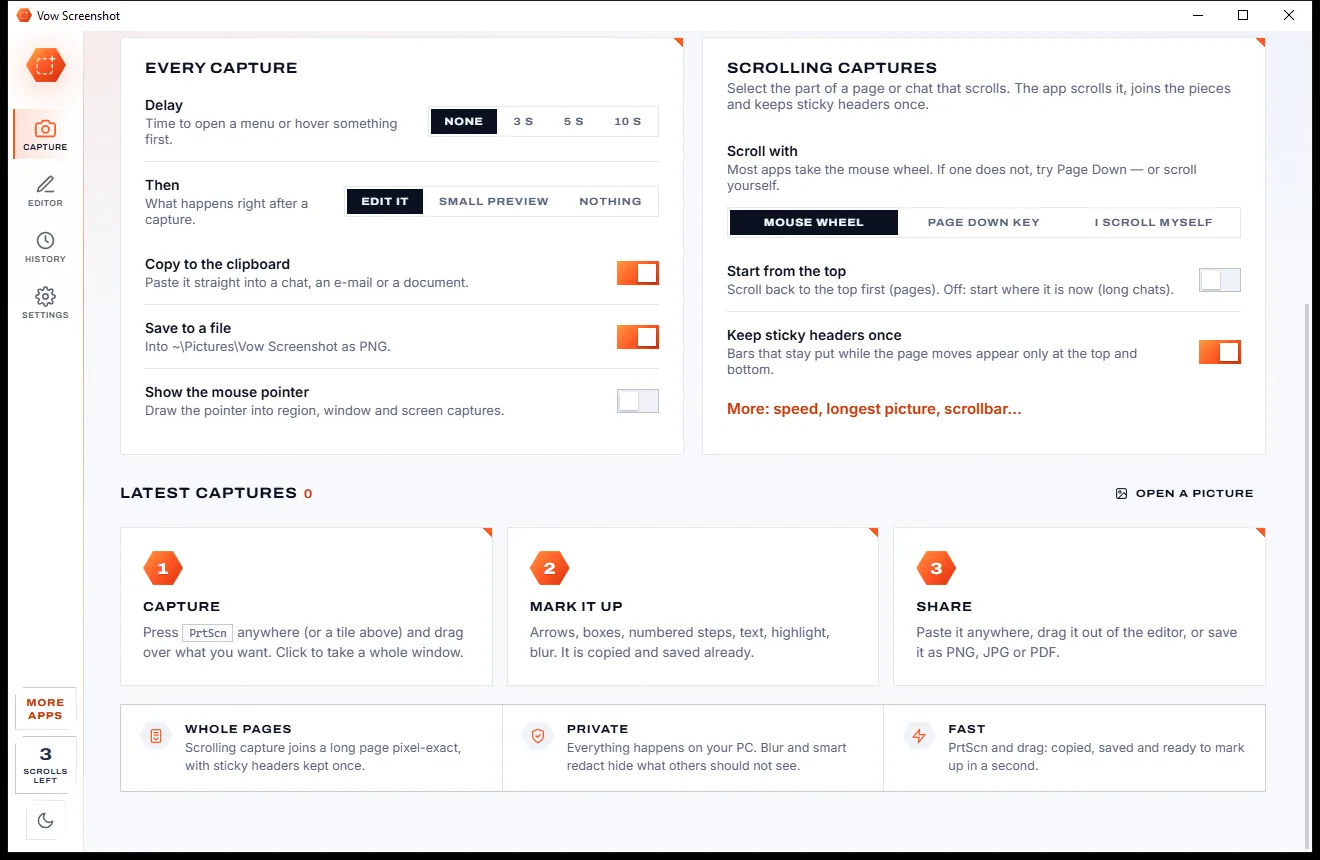
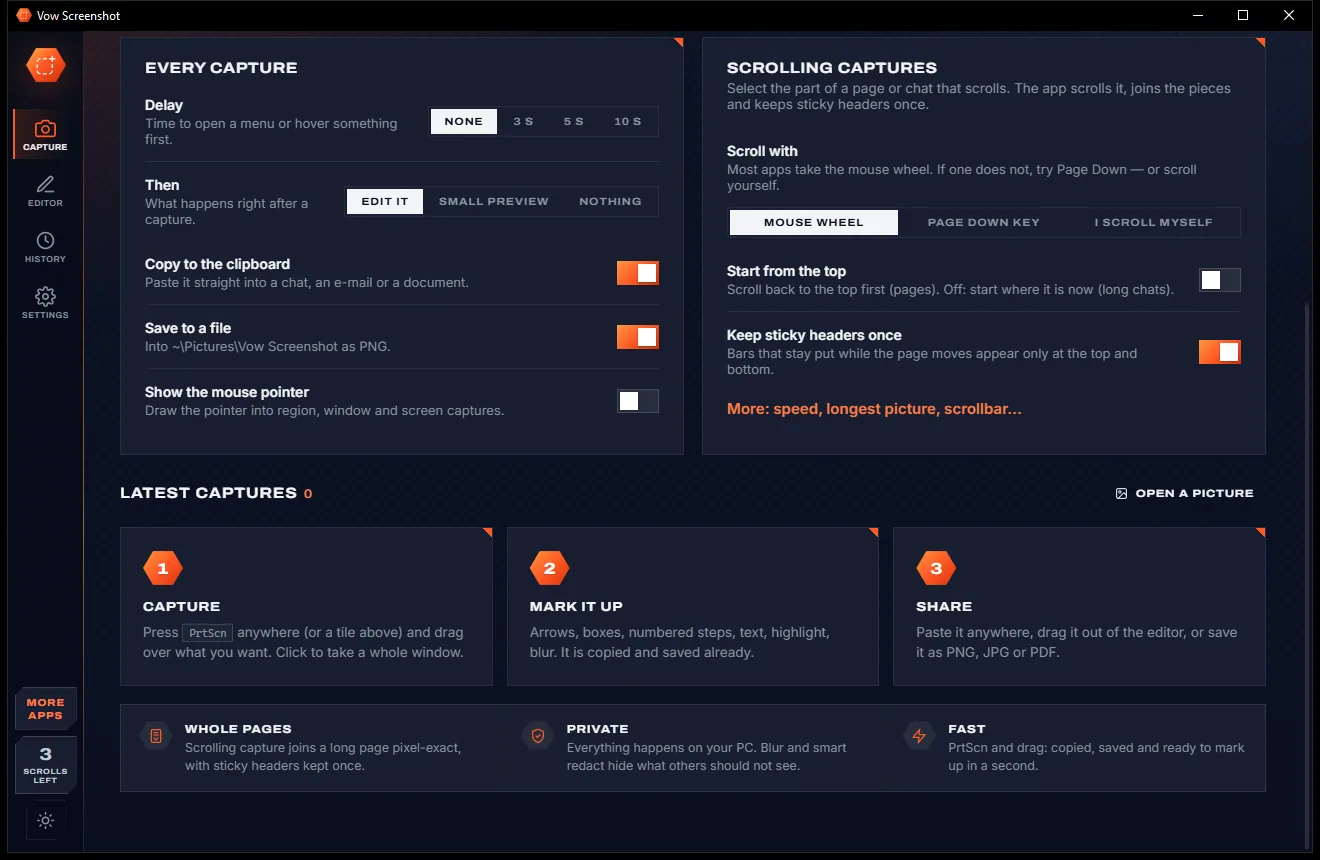
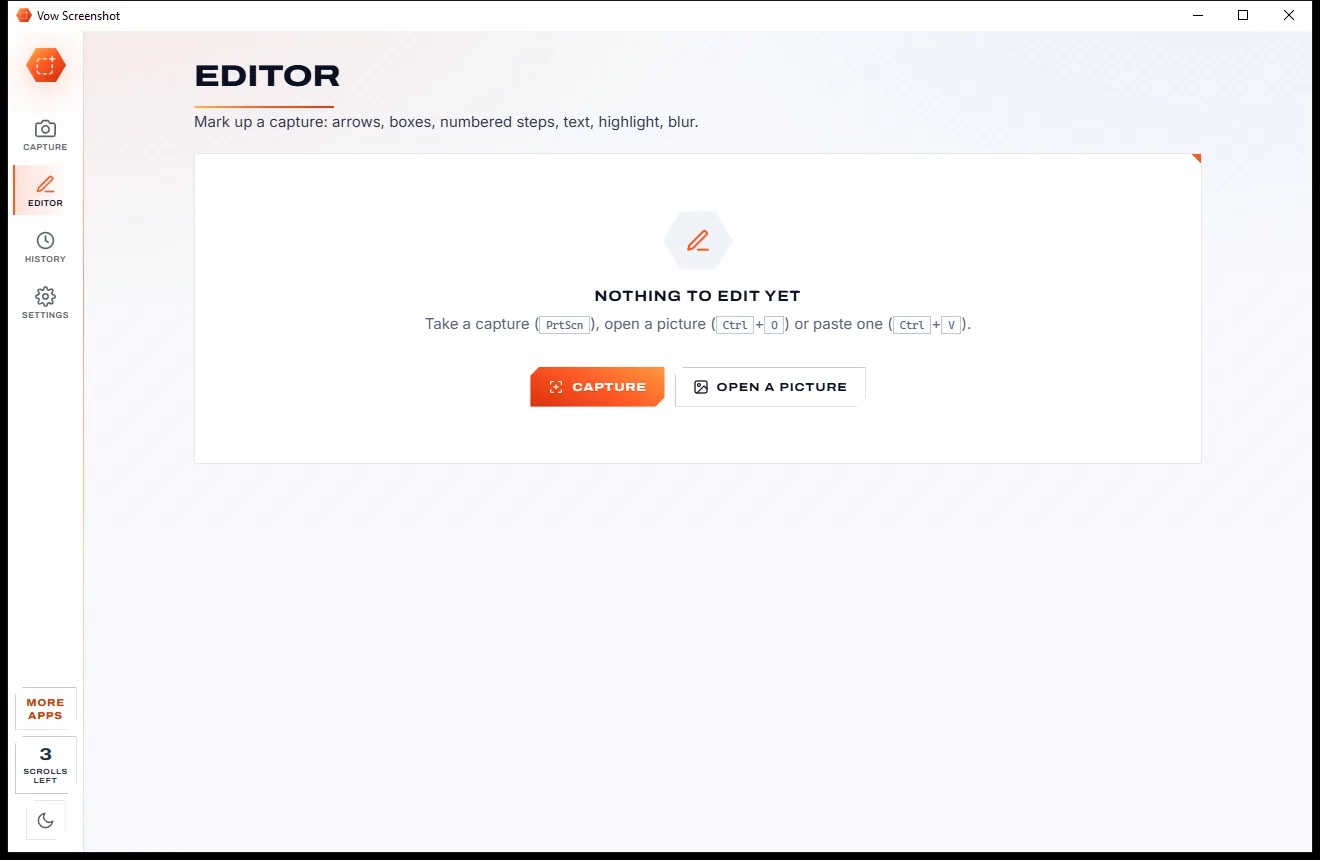
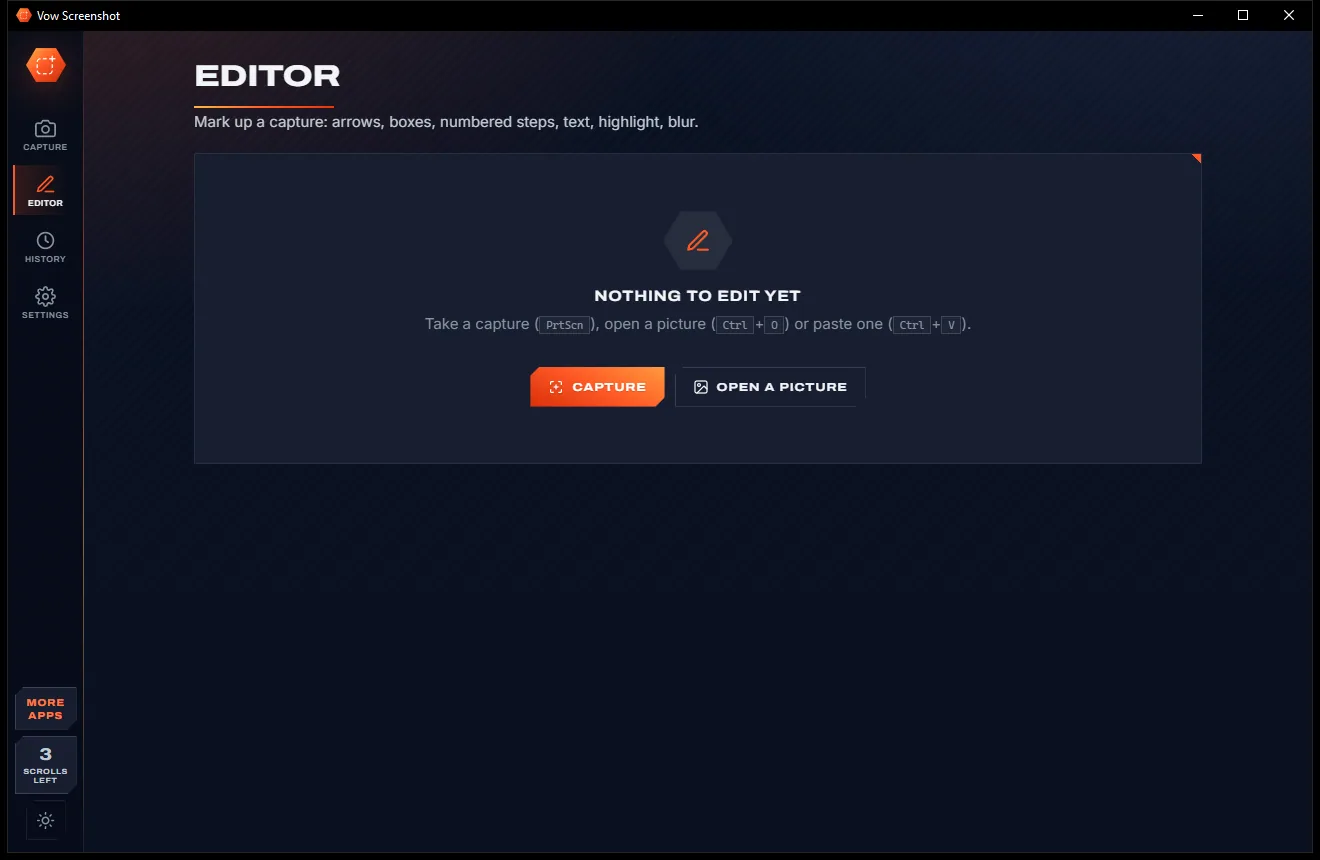
The editor opens with your capture, already copied and saved. Add arrows, steps and text, then paste it anywhere or save as PNG, JPG or PDF.
Features
For support teams, writers, testers, teachers and anyone who explains things with pictures.
Whole web pages, long chats and documents in one picture, by mouse wheel, Page Down or scrolling it yourself.
Bars that stay put while the page scrolls appear only at the top and bottom, and the scrollbar is trimmed off.
Snap to a window or pane, nudge with the arrow keys, and see the pixel colour in the magnifier. Space takes the whole screen.
Arrows, lines, boxes, ellipses, highlight, pen, text, spotlight, crop and cut out a strip, with undo and soft shadows.
Click to drop numbered markers for tutorials and bug reports, and renumber them in one click.
Every capture is kept with its marks still editable, searchable by name, app, mode or the text in it.
Save long captures as PDF, split into A4 pages, or as PNG, JPG, BMP, GIF or TIFF.
Captures are copied automatically. Drag the picture into a chat or e-mail, or pin it on top of every window.
With Unlimited, find and cover e-mails, phone and card numbers, IP addresses and links, or blur and pixelate by hand.
With Unlimited, copy the words from any area of the screen or any picture, read offline by Windows' own OCR.
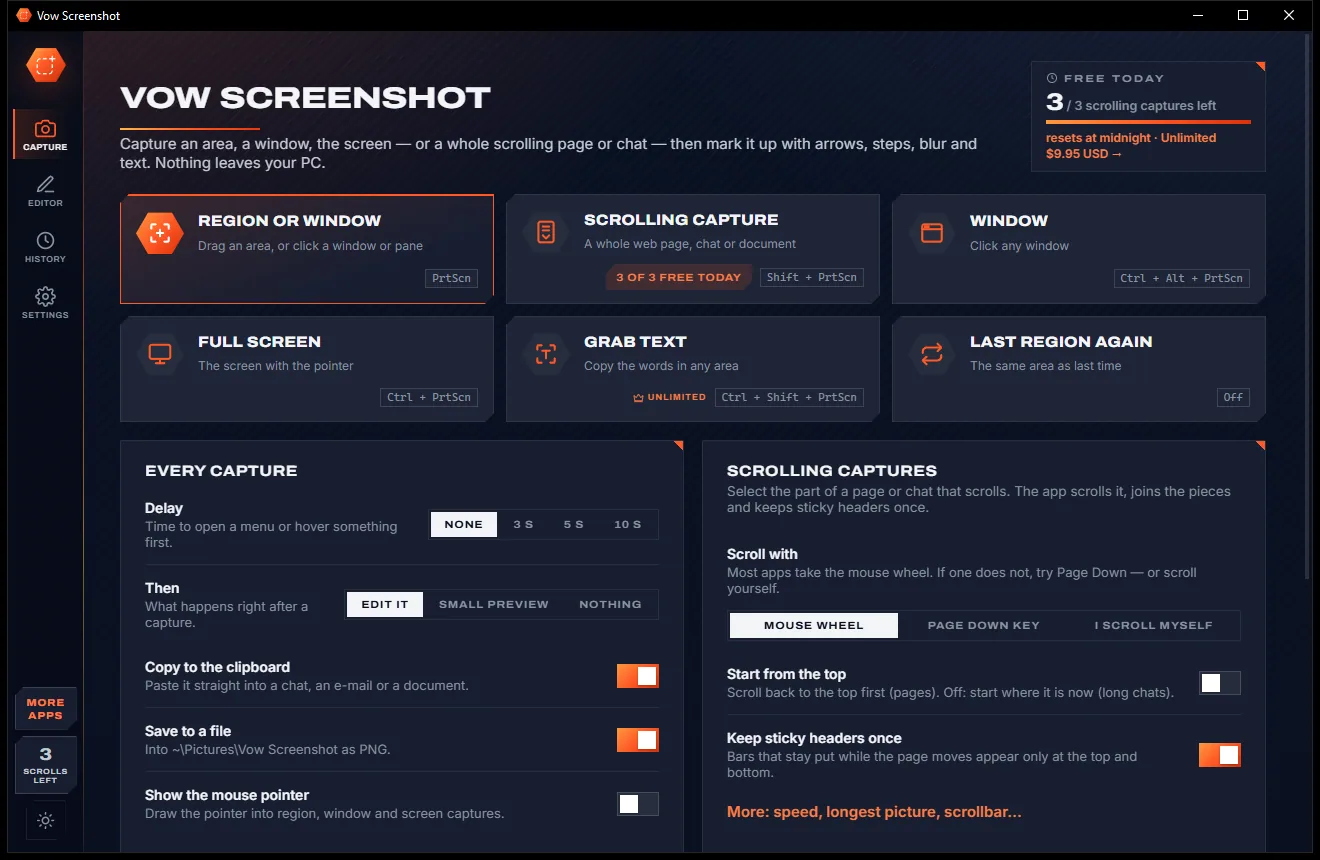
Light & dark theme
Screenshot comes with a crisp light theme and a calm dark theme. Switch with one click, or let it follow your Windows setting by itself. It remembers your choice.
Screenshots
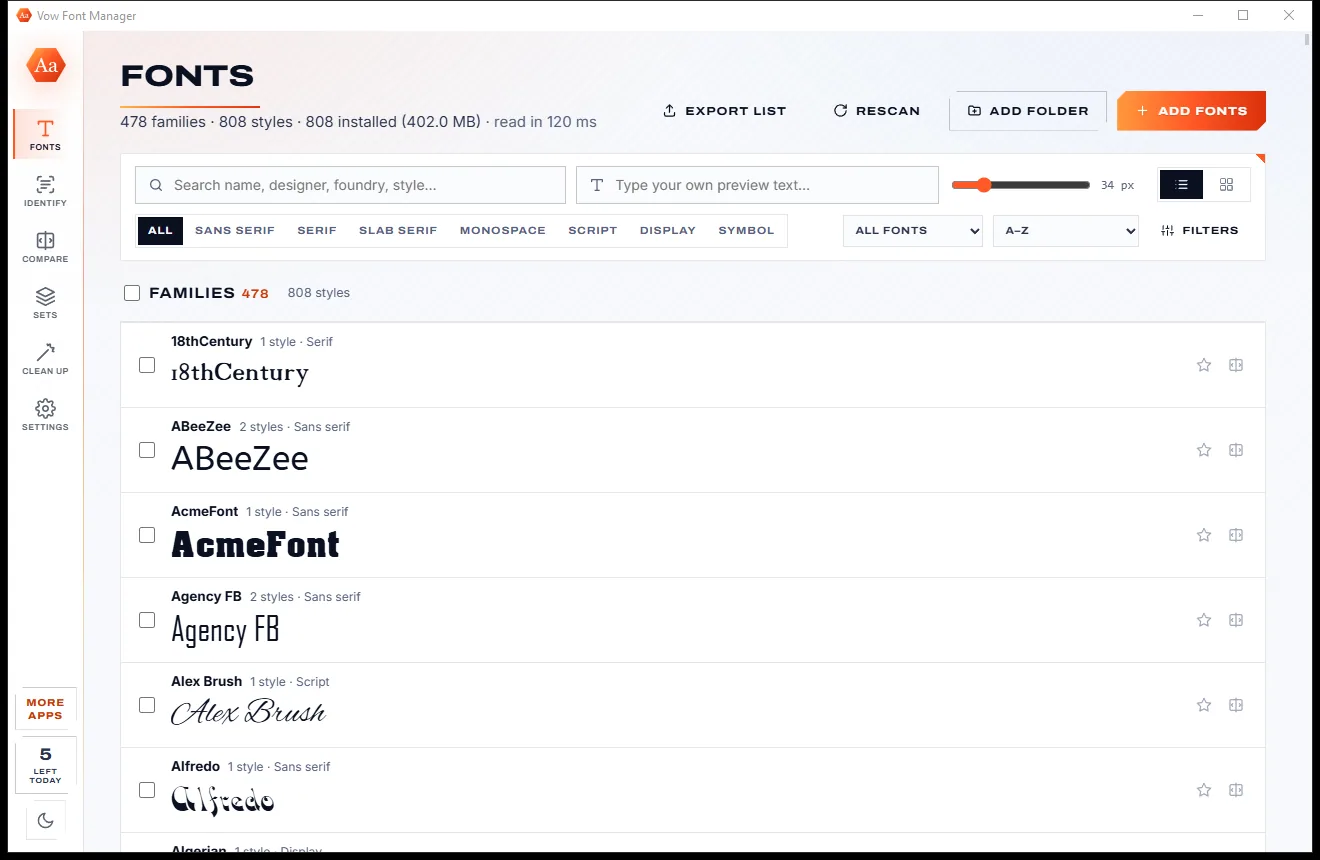
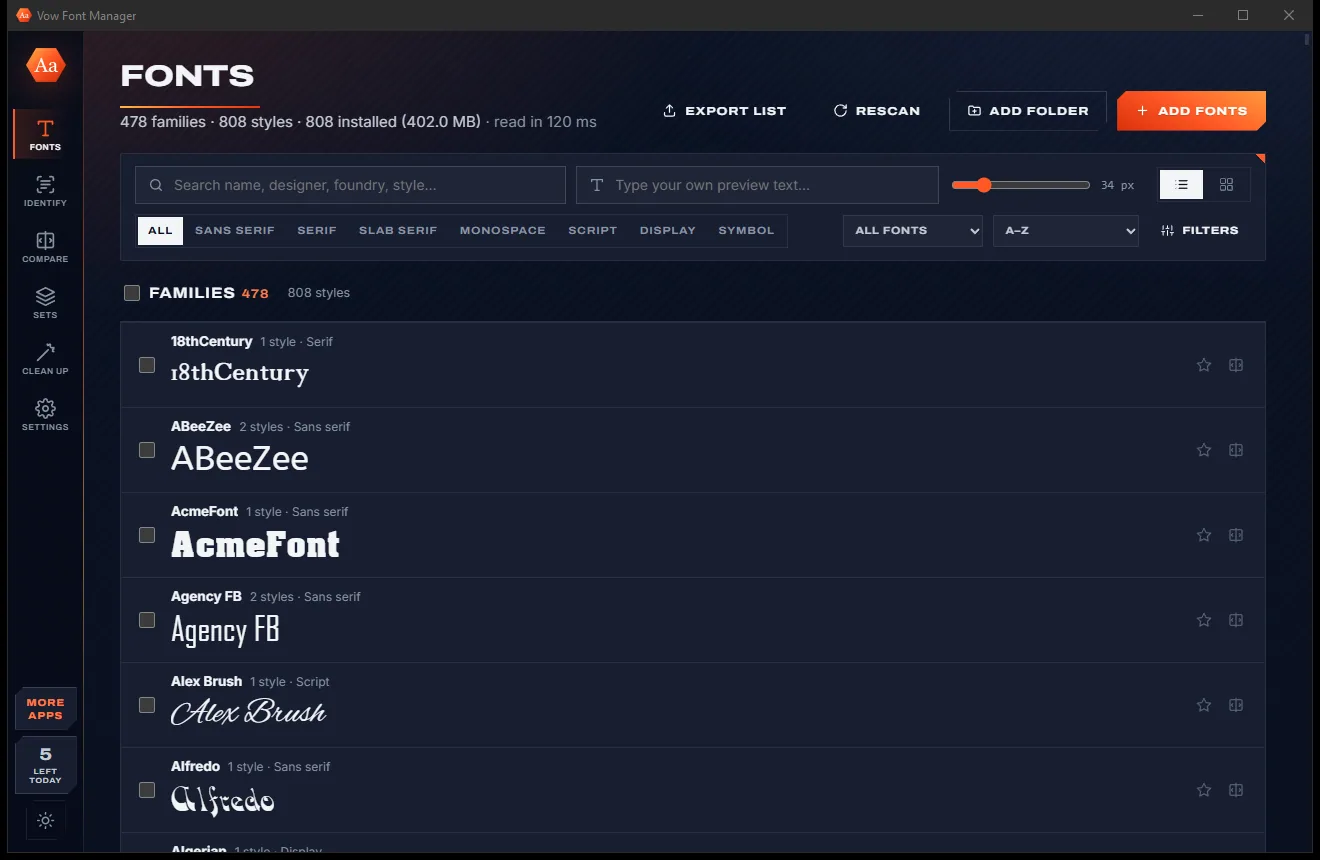
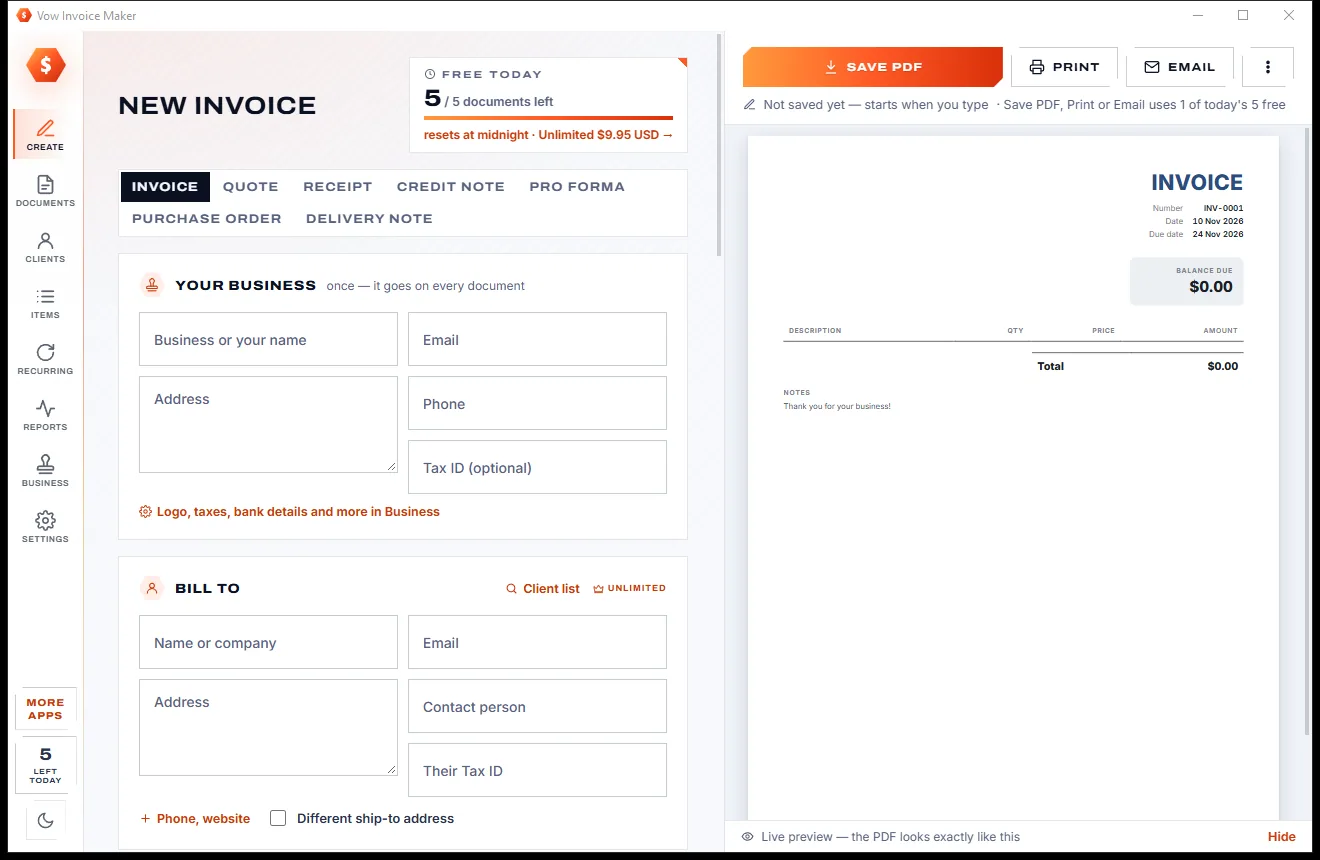
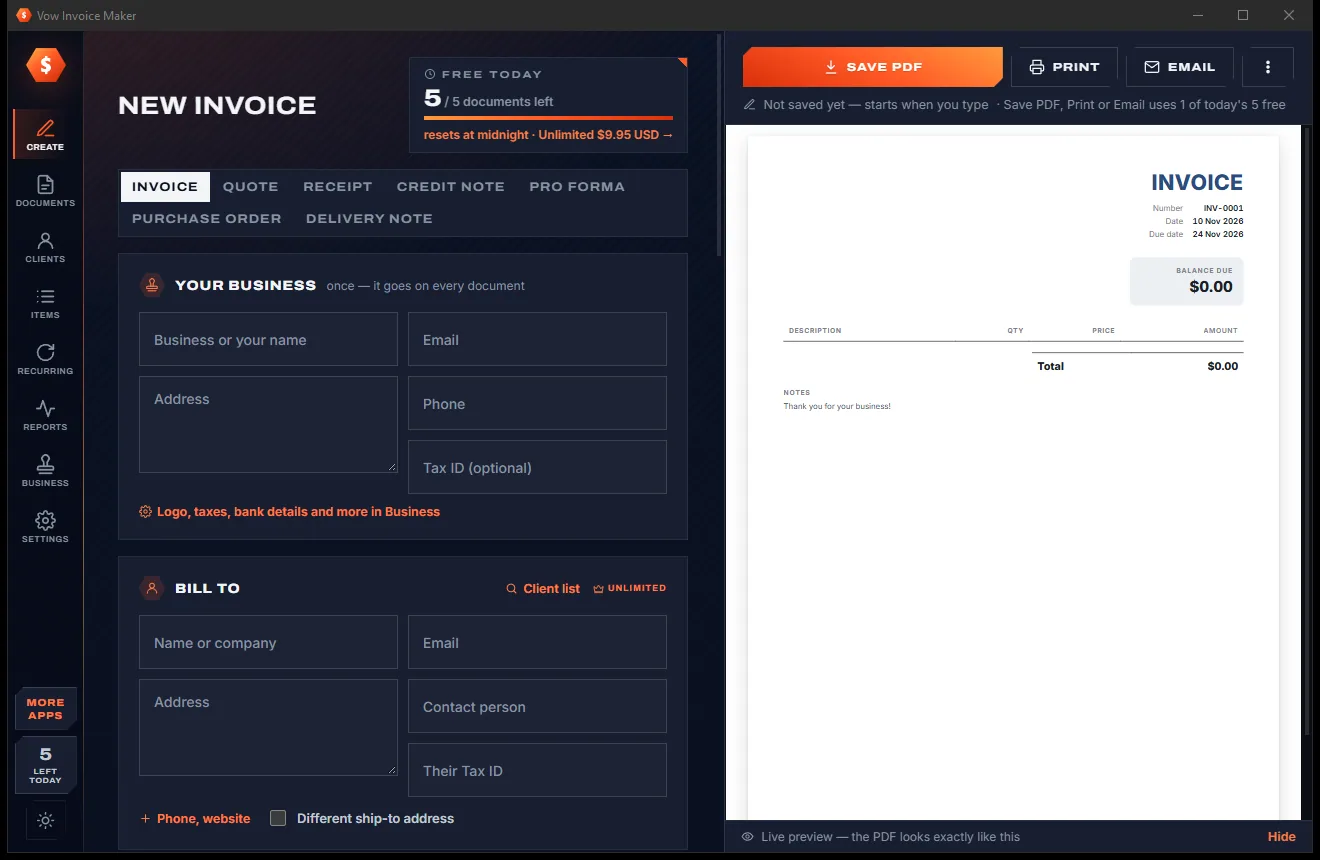
Real screenshots of the real app, in both of its themes: 6 light, 6 dark. Click any picture to see it full size.
Light theme
Dark theme
Who it's for
Show customers exactly where to click with arrows and numbered steps, in one picture.
Capture a whole page with the bug in it and mark the problem before it goes into the ticket.
Make clean, consistent screenshots for guides, documentation and how-to articles.
Keep a whole conversation as one picture or PDF instead of a dozen screenshots.
Capture full web pages for lesson notes and research, with highlights on what matters.
Capture full landing pages for reviews and portfolios, then frame them with padding and shadows.
Compare
What you get from the built-in tool, browser add-ons and paid suites, side by side.
| Feature | Vow Screenshot | Typical screenshot tools & extensions |
|---|---|---|
| Scrolling capture of pages and chats | Yes, any app, sticky headers once | Missing, or in one browser only |
| Marks you can edit later | Yes, from history | Rarely |
| Numbered steps, spotlight, cut out | Yes | Some tools, partly |
| Find and cover personal details | Smart redact, with Unlimited | Rare outside paid suites |
| Long captures as paged PDF | Split into A4 pages | Rarely |
| Your screenshots are uploaded | Never | Some tools offer cloud sharing |
| Ads and watermarks | None | Common in free extensions |
| Price | Free every day, or $4.95 once | Paid suites are subscriptions |
"Typical" describes what we found across the most-downloaded alternatives when we built Screenshot. Your mileage with any one of them may vary; ours won't.
Pricing
That is not a typo. Software this powerful usually means a monthly subscription; Screenshot is $4.95, once, for life: it's almost a giveaway. Use it free for as long as you like, and unlock Unlimited only if you need more.
Unlimited screenshots and mark-up, 3 scrolling captures a day.
Almost a giveaway. Less than a coffee for software this powerful: no subscription, no renewals, yours for life on 2 PCs.
Unlimited scrolling, blur and pixelate, smart redact, text grab, templates.
Payments by Stripe: we never see or store your card. Questions? Ask a real person.
Clean software
Most "free" Windows downloads pay for themselves with ads, bundled extras or your data. Vow Screenshot doesn't need to: it's paid for honestly, once, by the people who find it useful.
Download Screenshot freeStep-by-step guide
Capture a whole web page, a long chat or a document as one picture, in well under a minute.
Step 1: get it freeDownload it from this page and run the installer. It needs no administrator rights and no account. On Windows 11, if PrtScn opens Snipping Tool, the app shows how to hand the key over, or you can pick another key.
Open the web page, chat or document. Leave it where you want the capture to start, or turn on Start from the top on the Capture page.
Drag over the part that scrolls, or simply click it. The app scrolls it for you, waiting each time until the page holds still.
It stops by itself at the end of the page. Press Esc or Done to stop early and keep what you have so far.
The editor opens with the long picture, already copied and saved. Add arrows, steps or text, then press Ctrl+C to copy it or Ctrl+Shift+S to save it as PNG, JPG or a paged PDF.
Technical details
FAQ
Yes. Region, window and full-screen screenshots, the mark-up editor, saving, pinning and history are free without limits, plus 3 scrolling captures a day. There are no ads and no watermarks. Unlimited, a one-time $4.95 USD payment, adds unlimited scrolling captures, blur and pixelate, smart redact, text grab and templates.
Anything that scrolls vertically: web pages in any browser, long chats, documents and lists. If an app ignores the mouse wheel, switch to Page Down, or choose I scroll myself and scroll it by hand while the app joins the pieces.
Bars that stay put while the page scrolls, like site headers and chat toolbars, appear once at the top and footers once at the bottom. The scrollbar at the right edge is cut off.
No. Everything happens on your PC. Captures are saved to your Pictures folder and the history, and nothing is sent anywhere. Text grab and smart redact use Windows' own offline OCR.
Up to 40,000 pixels tall by default, and up to 100,000 pixels if you raise the limit in Settings. Long captures can be saved as a PDF split into A4 pages.
Snipping Tool has no scrolling capture. ShareX has one, but its marks can't be edited again later; here every capture keeps its marks in history. Snagit is a subscription, while this is free every day or $4.95 once, and it can save long pages as a paged PDF.
Yes. The black box tool is free and is the safest way to hide something. With Unlimited, smart redact finds e-mail addresses, phone numbers, card numbers, IP addresses and links and covers them for you, and blur and pixelate can be saved too.
Yes. It is made and published by XTO Pty Ltd, an Australian company. The installer contains no ads, no toolbars and no bundled software, needs no administrator rights, and uninstalls cleanly from Windows Settings.
The Vow collection
Same design, same promises, a tiny one-time price. Learn one and you already know them all.
Turn a tablet or phone into a second screen for your PC, in its browser

Preview, organise and identify every font on your PC, offline

Professional invoices and quotes on Windows, without a subscription
Screenshots and whole scrolling pages, marked up in seconds. Free to use every day, $4.95 once if you ever want Unlimited.